
Salesforce Data Archiving in 2026: What Actually Frees Storage and What Just Moves the Problem
Where your data storage actually went, the four archiving paths ranked by real cost, the Big Object index rule you cannot undo, and a 30-day plan to get back under the line.

Setup opens on Storage Usage and the bar reads 94%. The biggest consumer is Task, at 4.1 million records. Second is EmailMessage. Nobody put those there on purpose. They arrived one logged call and one synced email at a time, across eleven years and four admins, and now a data load is failing and the release is on hold.
Then someone in the thread says the quiet part: can we just buy more storage?
You can. Salesforce will sell you blocks of it, billed monthly, forever, to hold records nobody has opened since 2019. That is a real decision with a real recurring cost, and it is usually the wrong one. This is how to make the other decision properly.
Where the space actually went
Salesforce splits storage into two pools that behave nothing alike, and most teams only look at one.
Data storage holds records. Enterprise Edition starts at 10 GB per org and adds 20 MB per user license. File storage holds attachments, ContentVersion bodies, and anything in Files. Enterprise starts at 10 GB per org and adds 2 GB per user license. A 500-user Enterprise org therefore has roughly 20 GB of data storage and just over 1 TB of file storage. Teams run out of the first one first, almost always.
The counting rule is where the surprise lives. Most records count as 2 KB each regardless of how many fields you populated. A custom object with 180 fields costs the same 2 KB per row as one with three. There are exceptions (Campaign is 8 KB, Article and Person Account are 4 KB, CampaignMember is 1 KB, EmailMessage varies with body size), but the headline holds: field count is not the lever, record count is.
So 20 GB of data storage is roughly 10 million records. That sounds enormous right up until you meet the four objects that eat orgs alive:
- Task and Event. Every logged call, every synced meeting, every automated activity from a sales engagement tool.
- EmailMessage. Bodies count against data storage and they are not 2 KB.
- Field history. Field history tracking writes a row per tracked field per change. Twenty tracked fields on a heavily edited object is a multiplier, not an addition.
- Custom logging objects. The integration error log somebody built in 2021 with no purge job on it.
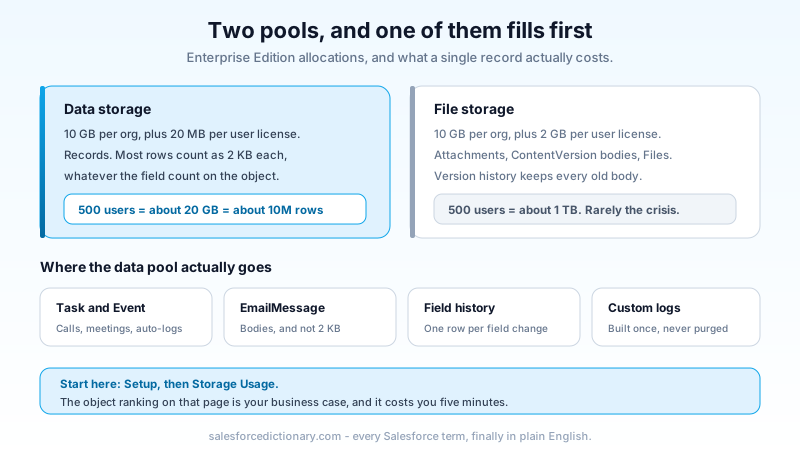
File storage deserves its own five minutes even though it rarely triggers the crisis. The usual offender is version history: every time someone re-uploads a document, ContentVersion keeps the old body, and a 40 MB proposal edited nine times is 360 MB sitting behind a single Files icon. Legacy Attachments on closed records are the second offender. Neither shows up in the object list the way records do, so check the Files-specific breakdown rather than assuming the pool is healthy because the percentage looks lower.
Before you archive anything, go to Setup, then Storage Usage, and read the bottom half of that page. It ranks your objects by record count and by percentage of the pool. Screenshot it. That screenshot is your entire business case, and it is usually more persuasive than any architecture diagram you could draw.
Deleting is a legitimate archiving strategy
The industry has trained everyone to reach for a retention product first. Ask a cheaper question first: does this data need to exist anywhere at all?
In most orgs I have looked at, somewhere between 20% and 40% of the top consumer object is genuinely disposable. Interface logs older than 90 days. Duplicate records from a load that went wrong and was rerun. Chatter feed items on records that closed years ago. Test data in production that someone swore they would clean up.
Two mechanics matter when you do this.
First, deleted records sit in the Recycle Bin for 15 days and still count against your storage the whole time. If you delete two million rows and check Storage Usage the next morning, nothing has moved and you will assume the job failed. It did not. Use hard delete through the Bulk API when you actually want the space back today.
Second, deletes on a master-detail relationship cascade to children and force roll-up summary recalculation. On a large object that recalculation is the expensive part, not the delete. Run it in off-hours batches and watch your governor limits if any of it flows through Apex.
Purging costs nothing, needs no license, and permanently removes the growth. Every other path on this list costs money, engineering time, or both. Run the free one first.
The four paths, ranked by what they actually cost
After the purge tier, you have four options. They are not interchangeable, and the choice comes down to who needs to read the data afterward and how often.
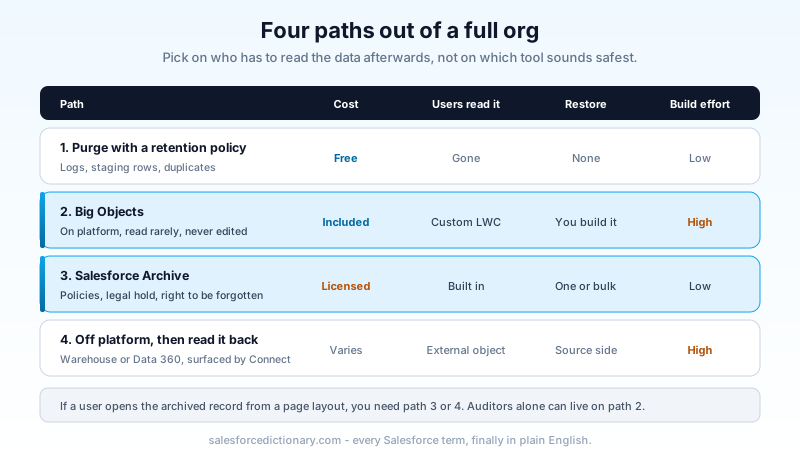
1. Purge with a retention policy. Free. Permanent. The right answer for logs, staging data, and anything with no regulatory clock on it. The work is writing the policy and scheduling the job, not building anything.
2. Big Objects. Native, included in Enterprise and above, and they scale from a million rows to a billion with flat query performance. You keep the data on platform and out of your standard storage pool. The cost is engineering: no standard UI, no triggers, no flows, no reports, and an index design you cannot change later. Best when the data must stay inside Salesforce, is read rarely, and is never edited.
3. Salesforce Archive. The paid first-party product. You define archiving policies against criteria like record age or status, it runs on a schedule, and archived records stay viewable inside the record page through a Lightning component with its own permission model. It handles the parts that hurt in a custom build: preserving master-detail children with their parents, single and bulk restore, legal hold to freeze records under litigation, and targeted purge for right-to-be-forgotten requests. It also ships Storage Analyzer, which is a better version of the Storage Usage page. Pricing is quoted per customer, so put it in the budget conversation early.
4. Off-platform, then read it back. Move history to a warehouse or lake, then surface it through external objects over Salesforce Connect, or land it in Data 360 and expose it there. This is the path that has changed most in 2026, because archived data stopped being dead weight the moment agents started grounding on it. History you moved out of the transactional pool can still feed retrieval and analytics. The tradeoff is that you now own an integration, a schema contract, and a second security model. Our zero-copy guide covers the federation side, and the Data 360 implementation guide covers the ingestion side.
A useful filter: if a user needs to open the archived record from a page layout, you want option 3 or 4. If a compliance auditor needs it twice a year and nobody else ever does, option 2 is fine and free.
Big Objects: the index you cannot change
If you pick Big Objects, this section is the one that will save you a rebuild.
A Big Object's index is its composite primary key, and it is defined before you load a single row. The rules are tight: up to five fields, every one of them required, and the total character length across text fields in the index cannot exceed 100. You cannot alter it afterward. Changing an index means creating a new Big Object, reloading everything, and dropping the old one.
That would be a manageable constraint if the index were only about performance. It is not. The index is your entire query surface.
SOQL against a Big Object can only filter on index fields, in index order, left to right, with no gaps. If your index is AccountId__c, then CreatedDate__c, then Type__c, you can filter on AccountId alone, or AccountId plus CreatedDate, or all three. You cannot filter on CreatedDate alone. You cannot skip to Type. ORDER BY has to follow the same sequence. Query outside those rules and you get a runtime error, not a slow query.
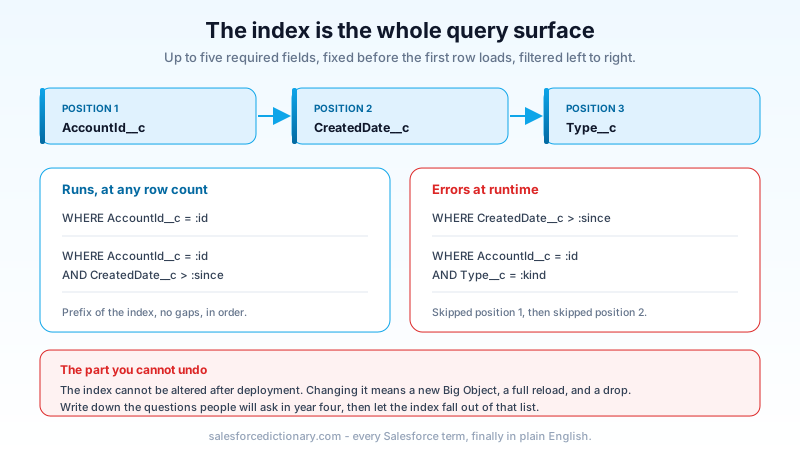
So the design question is not "what fields does this data have." It is "what questions will someone ask of this data in year four." Write those questions down as literal sentences before you write the metadata. "Show me every field change on this Account since January." "Show me all archived cases for this contact." The index falls out of that list. If two questions want incompatible index orders, you need two Big Objects, and that is a normal answer.
Three more behaviors that catch teams:
Writes are idempotent. Insert the same index key twice and you get one row, not two. That is deliberate, and it is what makes the retry story work: partial batch failures are expected on a distributed store, and the documented guidance is to retry the entire batch rather than try to identify which rows failed.
Async SOQL is gone. This one matters because a large share of the archiving content on the internet still tells you to use it. Salesforce retired Async SOQL for Big Objects in the Summer '23 release. If a blog post published last month tells you to run Async SOQL over FieldHistoryArchive, that post was written from a template and never checked. Use Batch Apex or the Bulk API instead, and chain jobs when you exceed a single batch scope.
No triggers, no flows, no standard sharing. Big Objects support object and field permissions only. If your archived data has row-level access requirements, you are enforcing them in the component that reads it, which means you are writing and testing that enforcement yourself.
Loading is its own small project. The Bulk API handles the volume, and Data Loader will write to a Big Object if you point it at one, but the pattern that survives is a Batch Apex job that reads a scope of source records, maps them onto the Big Object fields, calls Database.insertImmediate, and only then deletes the source rows. Keep the two halves in that order. If you delete first and the write fails, you are restoring from a backup on a Tuesday. Keep write batches modest, a few hundred rows rather than the maximum, because a smaller batch that retries cleanly beats a large one that fails opaquely.
Salesforce runs this pattern on itself, which is the best endorsement it has. Turn on Field Audit Trail (part of Salesforce Shield) and your field history archives into a standard Big Object called FieldHistoryArchive, with per-object retention set through HistoryRetentionPolicy. The defaults are 18 months of history in production and one month in a sandbox, with archived rows retained up to 10 years. That is the reference implementation, and it is worth reading before you build your own.
What breaks the morning after
Archiving is a data migration wearing a friendly name. Things break, and they break in a predictable order.
Reports and dashboards built on the source object silently return fewer rows. Nobody files a ticket. The VP just notices the number looks small in the Monday review.
Related lists empty out. A rep opens an Account and eight years of activity is gone from the page.
Roll-up summary fields on master-detail parents recalculate against the reduced child set, so lifetime totals change. If any of those roll-ups feed a validation rule or a commission calculation, you have just changed a business output.
Integrations that page by SystemModstamp will see a burst of deletes and, depending on how they were written, either sync the deletions downstream or fall over.
Apex tests using SeeAllData=true start failing, because they were quietly depending on production-shaped data that no longer exists.
None of these are reasons not to archive. They are reasons to run the pilot against one object in a full sandbox, with a named owner in reporting, sales ops, and integration each signing off before production. The user-visible one is the hardest to unwind politically, so solve it first: build the read-back component, or buy a product that ships one, before you move the first row.
A 30-day plan that fits around real work
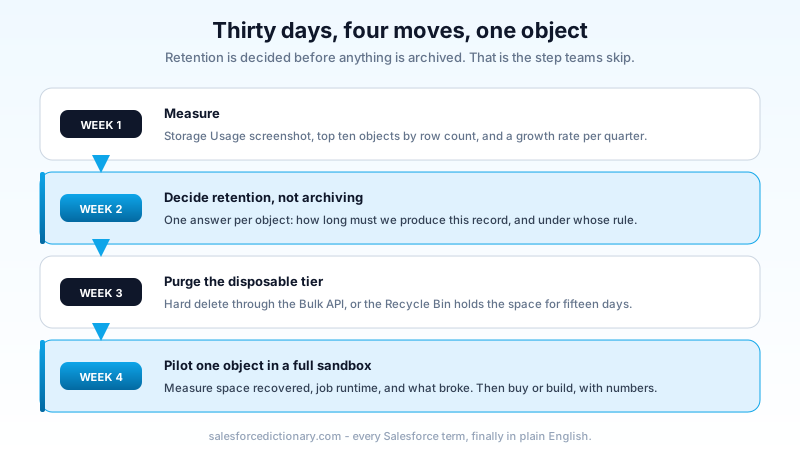
Week 1: measure. Storage Usage screenshot, top 10 objects by record count, and a growth rate. Pull the same numbers from a sandbox refreshed six months ago and subtract. Now you can say "we add 900 MB a quarter and we have five quarters of headroom," which is the sentence that gets budget.
Week 2: decide retention, not archiving. Get legal or compliance to answer one question per object: how long must we be able to produce this record, and under whose rule. Everything downstream depends on that answer, and it is the step teams skip. Archiving without a retention policy just relocates an unbounded pile.
Week 3: purge the disposable tier. Logs, staging rows, duplicates, orphaned feed items. Hard delete through the Bulk API. Re-screenshot Storage Usage. This is your quick win and it funds the rest of the conversation.
Week 4: pilot one object on the path you chose. One object. Full sandbox. Measure the space recovered, the time the job took, and what broke. Then decide whether to buy the product or build the Big Object, with numbers instead of opinions.
If you are also fighting execution limits while you do this, the governor limits cheat sheet covers the batch sizing that keeps these jobs alive.
What to do today
Open Setup, search Storage Usage, and screenshot the object list. Find your single largest object, and answer one question about it: what is the oldest record anybody has opened in the last twelve months. If you cannot answer that from the last-viewed data, that is your first ticket, and it takes an hour. Everything in this article gets easier once that number exists, because storage decisions are cheap when you know which rows are actually dead.
About the Author
Dipojjal Chakrabarti is a B2C Solution Architect with 29 Salesforce certifications and over 13 years in the Salesforce ecosystem. He writes and edits salesforcedictionary.com, published by KineticBit Inc., to help admins, developers, architects, and cert/interview candidates sharpen their fundamentals. More about Dipojjal.
Share this article
Sources
Related dictionary terms
Practise it
Five questions on Platform Developer I
Exam-style questions with an explanation after each one. No account needed, and your answers build a weak-topic map once you have one.
Keep reading
Salesforce Governor Limits Explained: The 2026 Cheat Sheet (with Examples)
The canonical 2026 cheat sheet: SOQL/DML/CPU/heap limits, sync vs async, the most-hit limits in production, and 10 patterns to keep your org out of the red.

Salesforce Data Cloud Zero Copy: The Complete 2026 Architecture Guide
Zero Copy lets Data Cloud query Snowflake, Databricks, BigQuery, and Redshift in place. No ETL, no data duplication, 28.5x cheaper per million rows than traditional ingestion. Here is how it works and when not to use it.

Salesforce Data 360: The Complete 2026 Implementation Guide
Data 360 is Salesforce's unified data platform for the agent era. This 2026 implementation guide walks data streams, identity resolution, segmentation, activations, and zero-copy federation.
Comments
No comments yet. Start the conversation.
Sign in to join the discussion. Your account works across every page.