
Salesforce Governor Limits Explained: The 2026 Cheat Sheet (with Examples)
Why limits exist, the canonical sync and async limits table, the top 10 patterns to avoid hitting them, and how to monitor what your org is really burning.

A user clicks Save on an Opportunity record at 4:55pm on a Friday and gets System.LimitException: Too many SOQL queries: 101. Production is broken. The change went through QA last week without incident, and only fires now because a sales rep imported 250 new Opportunities this morning, which pushed a previously-fine trigger into the 101-query danger zone. This is the experience that turns governor limits from "platform trivia" into "the thing that defines how you write Apex."
If you have ever seen Too many SOQL 101: 101 or Apex CPU time limit exceeded, you have met governor limits the hard way. They are not bugs to work around. They are the platform telling you your code is not shaped for multitenancy. This guide is the cheat sheet I wish I had on day one. The canonical limits, why they exist, the limits you will actually hit in production, the 10 patterns that keep you safe, and how to measure what you are using before users complain.
Why governor limits exist
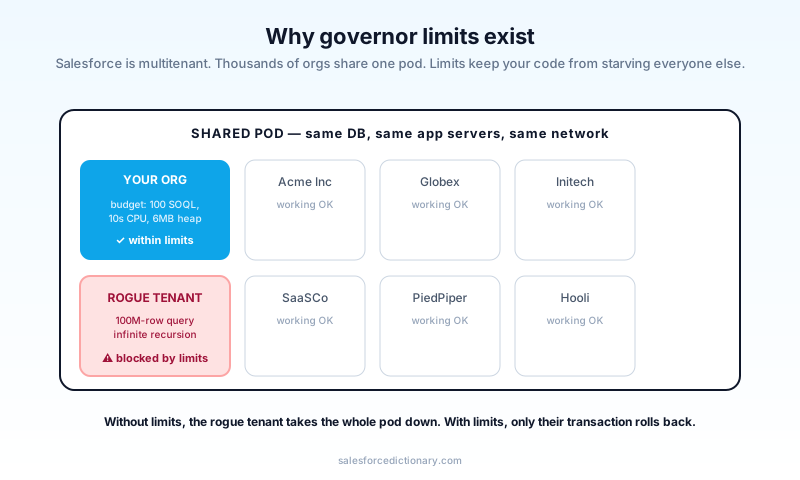
Salesforce is a multitenant platform. Thousands of orgs share the same physical pod. Same database, same app servers, same network. If your code could allocate unlimited memory or run unlimited queries, your code could starve every other tenant on the pod, and your slow trigger would become someone else's outage.
Limits enforce a fair-share model. Every transaction gets a budget. When you hit the budget, the platform rolls back and throws, protecting everyone else, including you. The rollback is the platform's way of saying "you did not mean to do this; here is your data unchanged." That is also why catching LimitException is almost never the right move. The transaction is already failed; the only sensible response is to fix the code.
The trade-off: you cannot write the code you would write in a single-tenant Java backend. You have to think in bulk. Limits are not a bug; they are the price of running on Salesforce, and the patterns in this guide are how senior developers internalize that price without thinking about it.
The canonical limits: sync vs async
This is the table to bookmark.
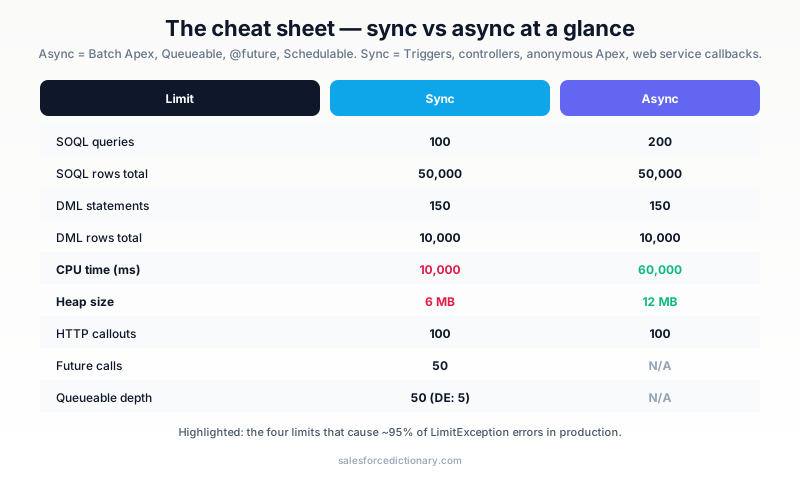
| Limit | Sync (per transaction) | Async (per transaction) | Notes |
|---|---|---|---|
| SOQL queries | 100 | 200 | Includes relationship queries |
| SOQL rows | 50,000 | 50,000 | Total rows across all queries |
| SOSL queries | 20 | 20 | Total per transaction |
| DML statements | 150 | 150 | One DML on a list equals 1 statement |
| DML rows | 10,000 | 10,000 | Total records affected |
| CPU time | 10,000 ms | 60,000 ms | Excludes DB wait time |
| Heap size | 6 MB | 12 MB | Live heap, garbage-collected |
| Callouts | 100 | 100 | HTTP callouts per transaction |
| Callout timeout | 120 sec total | 120 sec total | Aggregate, not per call |
| Future calls | 50 | n/a | Cannot @future from @future |
| Queueable depth | 50 (developer edition: 5) | n/a | Chained Queueables |
| Email invocations | 10 (single) | 10 | Recipient lists count differently |
| Push notifications | 10 | 10 | Per transaction |
Batch Apex, Queueable, and @future use the async column. Triggers, controllers, anonymous Apex, and synchronous web service calls use the sync column. The split exists because async code is allowed to take longer and use more memory: the user is not waiting on the result, so the platform can afford to give async work more resources without harming the interactive experience.
The four limits you will actually hit
In production, four limits cause roughly 95 percent of LimitException errors. The rest are vanishingly rare, and chasing them before you have eliminated these four is wasted effort.
1. Too many SOQL queries: 101
The classic. You wrote a SOQL query inside a for loop. Every iteration fires a query. With 101 records, you hit the limit.
// BAD: the bug
for (Account a : Trigger.new) {
  List<Contact> contacts = [SELECT Id FROM Contact WHERE AccountId = :a.Id];
  // ...
}

// GOOD: the fix is one query, then map lookup
Set<Id> accountIds = new Map<Id, Account>(Trigger.new).keySet();
Map<Id, List<Contact>> byAccount = new Map<Id, List<Contact>>();
for (Contact c : [SELECT Id, AccountId FROM Contact WHERE AccountId IN :accountIds]) {
  byAccount.computeIfAbsent(c.AccountId, k -> new List<Contact>()).add(c);
}
for (Account a : Trigger.new) {
  List<Contact> contacts = byAccount.get(a.Id);
  // ...
}
The general rule: never query inside a loop. Hoist the query out, build a Map<Id, ...>, look up by key inside the loop. This is the single highest-impact pattern in Apex, and the difference between a trigger that handles a Bulk API insert and one that brings production down at four in the afternoon.
2. Apex CPU time limit exceeded
The hardest to debug because it is not tied to a single line. CPU time accumulates across the whole transaction. Every Trigger, every Flow, every formula recalculation, every recursive call adds to the same counter, and the failure surfaces only when the counter crosses 10,000 ms (sync) or 60,000 ms (async).
The CPU wall comes from: deeply nested loops, complex formulas re-evaluated on every record, large collections that get filtered or sorted in code, regex on long strings, JSON parsing of huge payloads, recursive Triggers. Each of those is reasonable in isolation; the combinations are what kill you.
Fixes are surgical and depend on the cause. The single highest-impact move: profile first. Use Limits.getCpuTime() to add measurement at suspected hot spots before optimizing. Most teams discover the actual hot spot is not what they guessed, and the time spent measuring saves multiple times that in misdirected optimization.
3. DML statement limit: 151
You wrote update record; inside a loop. Each iteration counts as one DML statement. 151 records and the platform throws.
// BAD: the bug
for (Account a : accounts) {
  a.NumberOfChildren__c = childCounts.get(a.Id);
  update a;  // one DML per iteration
}

// GOOD: the fix
List<Account> toUpdate = new List<Account>();
for (Account a : accounts) {
  a.NumberOfChildren__c = childCounts.get(a.Id);
  toUpdate.add(a);
}
update toUpdate;  // one DML for the whole list
A DML on a List<SObject> of 10,000 records is one DML statement. It is the list you are using, not the count of records, that the limit counts. Internalize that and the DML limit stops being a worry until the day you cross 10,000 rows in a single transaction, which is its own conversation about batching.
4. Apex heap size too large
You loaded too much into memory. Common causes: a query that returns 500K rows, a giant JSON parse, big custom-setting maps, or a Batch Apex start() method that returns too much.
Fixes:
- Stream rather than materialize: use
Database.querywith iterators, or chunk in Batch Apex with smaller scope sizes. - Drop fields you do not need from your
SELECT. The smaller the query, the smaller the heap. Selecting twenty fields when you only use three is the cheapest heap reduction you will ever make. - Free references:
myList = nullor.clear()after you are done with intermediate state. Apex's GC reclaims unreferenced objects eagerly; help it.
The 10 patterns that keep you safe
The patterns. Memorize. Apply on every new class.
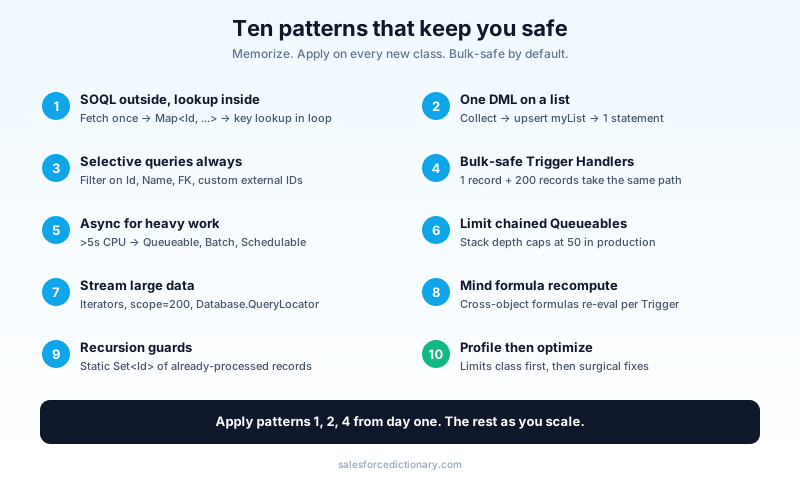
- One SOQL outside, lookup inside. If you need related data inside a loop, fetch it all once, build a
Map<Id, ...>, look up by key. - One DML on a list. Collect changes into a
List<SObject>, then DML the whole list once. - Selective queries always. Always filter on indexed fields (
Id,Name, foreign keys, custom external IDs) when possible. Non-selective queries against large objects bypass the index and scan. - Bulk-safe Trigger Handlers. Triggers must handle 1 record and 200 records the same way. Test both.
- Async for heavy work. Anything above five seconds of CPU goes async. Queueable for chains, Batch Apex for volume, Schedulable for cron.
- Limit chained Queueables. Stack depth caps at 50 in production. Do not chain forever; design for finite chains.
- Stream large data. Iterators in Batch Apex with scope size 200, or
Database.QueryLocatorfor streaming 50M-row scans. - Mind the formula recompute. Cross-object formulas re-evaluate on every Trigger. Cache aggressively; consider an Apex-computed field if the formula is expensive.
- Recursion guards. Static
Set<Id>of already-processed records prevents Trigger recursion. Reset onbefore insert/updateif needed. - Profile then optimize. Do not guess at the hot spot. Use the
Limitsclass to measure, the Apex Replay Debugger to step through suspicious code, and Event Monitoring to see production patterns at scale.
Monitoring: what is your org actually using?
Limits are not binary. You can be at 80 percent of CPU and not know it. Three places to look.
The Limits class (in code)
System.debug('SOQL: ' + Limits.getQueries() + '/' + Limits.getLimitQueries());
System.debug('DML: ' + Limits.getDmlStatements() + '/' + Limits.getLimitDmlStatements());
System.debug('CPU: ' + Limits.getCpuTime() + '/' + Limits.getLimitCpuTime());
System.debug('Heap: ' + Limits.getHeapSize() + '/' + Limits.getLimitHeapSize());
Drop these at start, midpoint, and end of suspected hot transactions. Before optimizing anything: measure. The number-one cause of wasted optimization work is a confident hunch that turns out to be wrong; ten minutes of measurement pre-empts an afternoon of premature optimization.
OrgLimits (org-level, not transactional)
List<OrgLimit> ol = OrgLimits.getAll();
for (OrgLimit l : ol) {
  System.debug(l.getName() + ': ' + l.getValue() + '/' + l.getLimit());
}
This is the org-wide picture. Daily API call counts, daily Bulk API calls, daily email limits, asynchronous job counts. Different scope from per-transaction limits, and the place to look when your team is asking "are we close to the daily API ceiling?" rather than "did this transaction fail?"
Event Monitoring (production)
If you have Salesforce Shield or Event Monitoring add-on, the ApexExecution event log captures CPU time, SOQL count, and DML count for every Apex execution in production. Aggregate it in Tableau (or your warehouse of choice) and you will see your org's real distribution, including the long tail nobody knew about. Build a single dashboard with three charts (p50, p95, p99 of Apex CPU per entry point) and you will have the most useful platform-health signal your engineering team has ever had.
Forecasting limits before they bite
A pattern that prevents most production limit incidents: keep a lightweight ledger of your highest-volume Apex entry points and their per-record cost in SOQL, DML, and CPU. The arithmetic is simple, but the discipline of doing it on every release saves you from the linear-scaling surprises that kill production.
For example, if your OpportunityTriggerHandler runs at three SOQL queries and twelve milliseconds of CPU per record on the test data, you can predict it will burn 600 SOQL queries and 2,400 ms on a 200-record Bulk API chunk. The 100-SOQL limit means you have already failed in production at that scale; the moment to see it is during PR review, not during the data migration. A small spreadsheet, updated quarterly, beats a heroic incident response every time.
Common mistakes (and the fix)
- Optimizing without measuring. Every team has a "this code is slow" hunch that turns out to be wrong. Use
Limitsfirst. - Treating async as a free lunch. Async limits are larger, not unlimited. A bad Batch Apex job can still hit 60,000 ms CPU.
- Catching
LimitException. Do not. It cannot be caught reliably and should not be. The transaction needs to roll back. - Skipping bulk tests. Trigger test classes that only insert one record never catch bulk bugs. Always test with 200 records minimum.
- Tight CPU even in Flow. Flow can hit CPU limits too. It is not a free pass. The same patterns apply.
- Forgetting Agentforce Actions inherit limits. When an agent calls an Apex Action, the same governor limits apply. Bulk-safe
@InvocableMethoddesign matters even more. - Ignoring the slow query warning. The platform logs a slow-query warning in the debug log long before the query times out. Treat the warning as the actual error; the timeout is just the warning escalated.
Frequently asked questions
Are limits going up over time? Some. CPU and heap have crept up gradually. Most have not moved in years. Do not plan around limits doubling.
Why is my Flow hitting governor limits? Flow shares the same per-transaction limits as Apex. They are enforced at the platform layer. A Flow that fires inside an Apex Trigger transaction shares the budget with the Trigger.
Can I monitor limits without Shield?
Partial. The Limits class works in dev and sandbox without Shield. For production, your options are debug logs (limited retention) or the Apex Log Analyzer apps on AppExchange.
What is the highest-impact limit to optimize? SOQL count first (most common offender), CPU second (most painful), heap third. DML is usually fine if you are using lists.
Do limits apply differently to managed packages? Each managed package's namespace has its own SOQL and DML limit budgets, which is slight relief if you are a customer with multiple packaged products. But CPU and heap are still org-wide per transaction.
What is the difference between SOQL rows and SOQL queries?
SOQL queries is the count of [SELECT ...] statements you issue. SOQL rows is the total number of rows returned across all those statements. You can hit either limit independently. One query that returns 50,001 rows fails on rows; 101 queries that each return one row fails on queries.
What to read next
- Governor Limits: the dictionary entry, kept in sync with each release.
- Apex, Batch Apex: the foundations.
- Flow vs Apex 2026: how the same limits manifest differently in each tool.
If you only act on one section, add Limits.getCpuTime() debug calls to your three slowest transactions today. The numbers will surprise you, and "I will fix it later" turns into "I will fix it now."
About the Author
Dipojjal Chakrabarti is a B2C Solution Architect with 29 Salesforce certifications and over 13 years in the Salesforce ecosystem. He writes and edits salesforcedictionary.com, published by KineticBit Inc., to help admins, developers, architects, and cert/interview candidates sharpen their fundamentals. More about Dipojjal.
Share this article
Sources
Related dictionary terms
 Our appAdWake up sharp. Not just awake.The alarm that rings through Silent and DND — free on iOS & Android.Get WakeSharp →
Keep reading

Salesforce Flow vs Apex in 2026: A Decision Matrix for Admins, Developers & Consultants
Flow vs Apex is not a religious war anymore. Here is the 2026 decision matrix. Capability gaps, governor limits, the 70/30 rule, and 12 worked scenarios with the right answer for each.

What Is Agentforce 360? The Complete 2026 Guide for Salesforce Admins, Developers & Architects
Agentforce 360 is Salesforce's 2025 rebrand of its agentic-AI platform - built on the Atlas Reasoning Engine, Einstein Trust Layer, and Data 360. Here's the complete admin + dev + architect guide.


Comments
No comments yet. Start the conversation.
Sign in to join the discussion. Your account works across every page.