
Screen Flows Can Finally Act on 2,000 Records at Once: Mass Quick Actions in Winter '27
The ids collection variable, the 2,000-record ceiling, the transaction math that decides whether it finishes, and the four-screen build pattern that survives production.

Your support ops lead filters the case list down to 412 records, selects them all, and asks whether you can reassign them to the new tier-two queue before standup. You already know the answer you have been giving for six years. Export, edit in a spreadsheet, reimport, hope nothing else changed in between.
Winter '27 retires that answer. A screen flow can now run as a mass quick action from a list view or a related list, receiving every selected [record ID](/terms/record-id) in one go. Up to 2,000 of them.
That is the headline, and it is genuinely good. What the release note leaves out is the part that decides whether your bulk action finishes or dies at record 700, which is the transaction it all runs inside.
What actually shipped
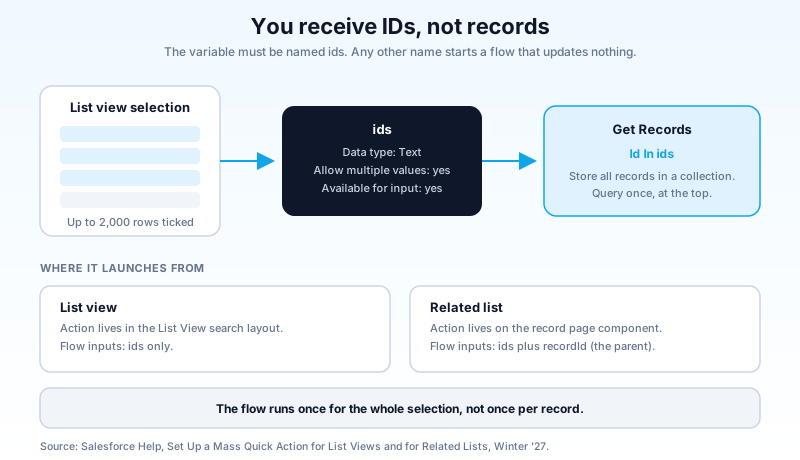
Build a screen flow. Give it a text collection variable with the API name ids, marked available for input. Create a quick action of type Flow that points at it, then add that action to the object's list view button layout. Users select records in the list view, click your action, and the flow starts once with every selected record ID sitting in ids.
From a related list, you get the same collection plus recordId carrying the parent record's ID, so a flow launched from the Contacts related list on an Account knows both the contacts selected and the account they hang off.
Two details matter more than they look.
The first is that you receive IDs, not records. ids is a collection of text values. Your flow's first real element is almost always a Get Records with the filter Id In ids, which is what turns 412 strings into 412 hydrated records you can reason about.
The second is that the flow runs once. Not once per record. This is the opposite of every record-triggered flow instinct you have built up, and it is why the feature is useful. One flow interview, one set of screens, one set of decisions, applied to a collection.
What you were doing before this
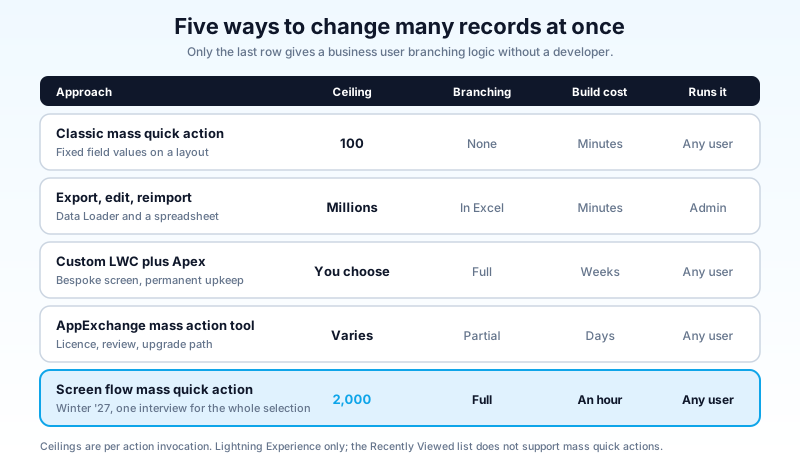
The gap this closes was wide and everybody in the ecosystem had a favourite way around it.
The classic mass quick action has existed for years and caps at 100 records. It also only does what a quick action layout can do, which is set fields to fixed values. No branching, no lookup, no confirmation step, no computed values. Pick more than 100 records and Salesforce quietly tells you it will update the first 100.
Data Loader or the export-edit-import loop. Reliable, auditable, and completely wrong as a business-user tool. You are handing a support manager a CSV and asking them not to break the ID column. I have watched an org lose two hours of case history to a spreadsheet that autoformatted an 18-character ID.
A custom LWC with an Apex controller. This works and it scales, and it costs you a developer, a test class, and a permanent maintenance obligation on a screen that does one thing. Most orgs that built one built it in 2021 and have not touched it since, which is its own kind of risk.
AppExchange mass action tools. Fine. Also a licence line item, a security review to read, and one more vendor in your upgrade path.
None of those was unreasonable. All of them were a tax paid because Flow Builder could reach a user's screen or a bulk collection, never both at once.
Building it: the parts that are not obvious
The setup is short enough to write in one paragraph, which is exactly why people get it wrong. Here is the whole thing with the traps marked.
Create the variable exactly. API name ids, data type Text, "Allow multiple values (collection)" checked, "Available for input" checked. The name is not a suggestion. The runtime looks for ids and nothing else, and a variable called recordIds or selectedIds produces a flow that starts cleanly, finds an empty collection, and updates nothing. That failure is silent and it will cost you an afternoon.
Hydrate before you branch. Get Records with Id In ids, storing all records in a collection. Do this once at the top. Every subsequent decision reads from that collection, never from a second query.
Create the action on the object, not the page. Setup, object, Buttons Links and Actions, New Action, Action Type Flow, pick your flow. Then Search Layouts for Lightning Experience, edit the List View layout, and move the action into the selected list.
Related lists need the record page too. The action goes on the related list component in the Lightning record page, and your flow gets recordId for free. Do not add a recordId input variable manually if you are not going to use it, because a stray unused input is one more thing an admin two years from now has to prove is safe to delete.
Lightning Experience only. Mass quick actions have never worked in Salesforce Classic and still do not. The Recently Viewed list also does not support them, which surprises people who test in Recently Viewed because it is the list that is already open.
The transaction math nobody puts in the release note
Here is the part that separates a demo from a production tool.
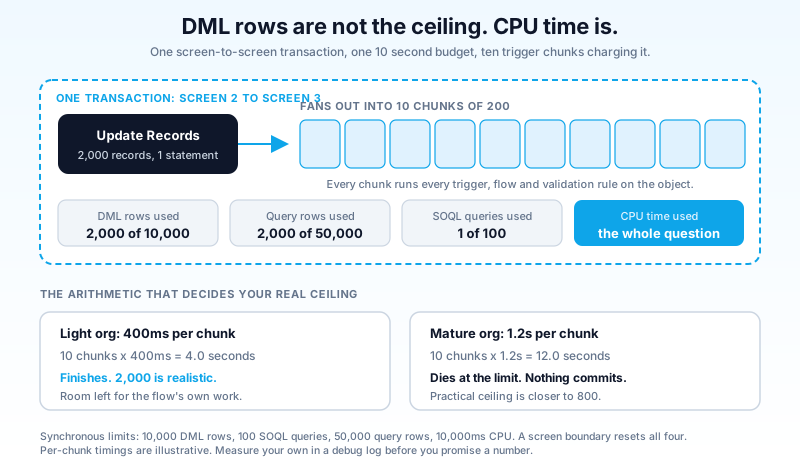
Everything a screen flow does between two screens runs in a single transaction. When the flow pauses at a screen and the user clicks Next, the resumed flow starts a fresh transaction with fresh governor limits. Screens are transaction boundaries, and that is the single most useful architectural fact about screen flows.
So a mass quick action on 2,000 records is not one big bulk job. It is a sequence of transactions whose shape you control by where you put the screens.
Inside any one of those transactions you get the standard synchronous budget: 10,000 DML rows, 100 SOQL queries, 50,000 query rows, and 10 seconds of CPU time. Two thousand records is comfortably under the DML row ceiling. The DML row count is almost never what kills you.
CPU time is what kills you.
An Update Records on a collection of 2,000 issues one DML statement. That statement then fires every Apex trigger, record-triggered flow, validation rule, workflow-era leftover, and managed-package handler on the object, in chunks of 200. Ten chunks. Each chunk runs your org's full automation stack, and every millisecond of it charges the same 10-second budget as the flow that started it.
Do the arithmetic on your own org rather than mine. If your Case object burns 400ms per 200-record chunk in downstream automation, ten chunks is four seconds and you are fine. If it burns 1.2 seconds per chunk, which is unremarkable for an org with a mature trigger framework plus three or four record-triggered flows, you are at twelve seconds and the transaction dies. The user sees a flow error. Nothing commits.
That is the real ceiling. Two thousand is the number the UI enforces. Your org's automation weight is the number that decides what actually works, and it is usually a lot lower.
Six ways this breaks in production
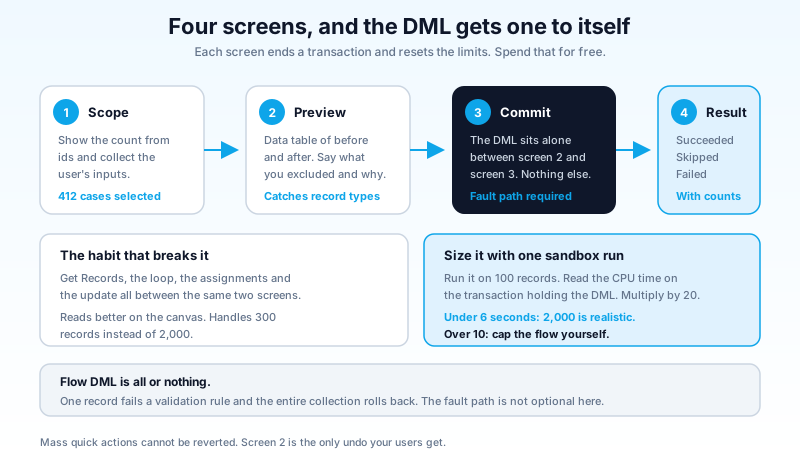
All-or-nothing DML. Flow's Update Records element commits the whole collection or none of it. One record fails a validation rule and all 412 roll back, with a fault message naming a single record ID that means nothing to the person who clicked the button. If you build only one thing from this article, build the fault path. Our guide to flow fault paths covers the pattern in full.
Mixed record types. The classic mass quick action refuses to run across record types. A screen flow will happily try, because you wrote the logic and nobody checked it for you. Filter or branch on RecordTypeId explicitly.
Record locking. Update 400 cases that all roll up to the same account and you are contending for the same parent lock. Winter '27 helps here: a flow that hits a row-lock error now waits ten seconds and retries automatically instead of failing outright. Helpful, not a licence to ignore the pattern. Ten seconds of waiting is also ten seconds you are not spending on CPU.
Permissions and field-level security. Screen flows run in the running user's context by default. A support agent can select records they can view but not edit, and the flow will fail on the ones they cannot write. Winter '27 adds a runtime setting that strictly enforces the running user's permissions and FLS, which is the right default and worth turning on deliberately rather than discovering.
No undo. Mass quick actions cannot be reverted. Neither can your flow. Before the commit, show the user what is about to change and how many records it affects.
Dynamic batch sizing does not apply. Winter '27 gave scheduled flows the ability to halve their batch size automatically when they hit CPU, SOQL, or heap limits. Read that sentence carefully: scheduled flows. Your screen flow gets no such protection and will not adapt. You size it yourself.
The four-screen pattern that survives
Every mass action I have shipped that still works six months later has the same shape. Four screens, in this order, for the reason attached.
Screen 1: Scope. Show the count from ids and the criteria the user is about to apply. "You selected 412 cases. This will reassign all of them to Tier 2 Support." Collect whatever input the action needs. This screen exists because the list view's selection state is easy to get wrong and the count is the cheapest sanity check there is.
Screen 2: Preview. After Get Records, show a data table of what will change, ideally with the current value beside the new one. If some records are excluded by your own filters, say how many and why. This is the screen that catches the mixed-record-type problem before the database does.
Screen 3: Commit. The DML sits between screen 2 and screen 3, alone in its own transaction. Nothing else lives in that transaction. No queries you could have done earlier, no loops you could have flattened, no callouts. Give the update the full 10-second budget to itself, because the downstream automation is going to want most of it.
Screen 4: Result. Report what happened, with counts. Succeeded, skipped, failed. If your fault path fired, this is where the user learns something actionable rather than a raw exception string.
The discipline is in screen 3. Admins instinctively put the Get Records, the loop, the assignment work, and the update all between the same two screens because it reads better on the canvas. That single habit is the difference between a flow that handles 2,000 records and one that handles 300.
Sizing it honestly
You do not need a formula. You need one sandbox test.
Build the flow, load a full-preview sandbox with production-shaped data, and run it against 100 records. Open the debug log and read the CPU time on the transaction containing the DML. Multiply by twenty. If that number lands under about six seconds, 2,000 is realistic. If it lands over ten, your practical ceiling is whatever the arithmetic says, and you should cap the flow yourself with a decision element that stops and explains rather than letting a user find the wall.
Capping at a number you chose and can defend beats letting the platform pick one for you at the worst possible moment.
When to walk away from it
This feature is a user-triggered tool for a bounded set of records. It is the wrong answer in three cases.
Volume above a few thousand. The list view caps at 2,000 selected records and the synchronous transaction caps lower than that in most real orgs. Ten thousand records is Batch Apex, a scheduled flow with the new dynamic batch sizing, or Bulk API. Not this.
Anything that must survive a closed browser tab. A screen flow is a foreground process attached to a session. If the work needs to complete whether or not the user stays, it belongs somewhere asynchronous.
Anything that runs on a schedule. If the answer to "when does this happen" is a time rather than a person, you want automation, not a button. The Flow vs Apex decision matrix walks the boundary in more detail.
What is left after those three exclusions is a large and genuinely underserved space: the reassignments, bulk status changes, batch approvals, mass ownership transfers, and cleanup passes that business users do every week and have been doing badly in spreadsheets. That is the work this feature was built for, and it does it well.
One more thing about the rollout
Winter '27 reached production orgs on the September 4, October 2, and October 9 windows. Check which one your org sits in before you promise anyone a delivery date, because "it works in my sandbox" and "it works in production" are separated by up to five weeks this cycle. The Winter '27 release guide has the dates and the release updates that enforce alongside them.
Do this in your sandbox this week
Pick the single most common bulk request your team gets, the one that currently arrives as a Slack message with a CSV attached. Build the four-screen flow for it, run it against 100 records in a sandbox, and read the CPU time in the debug log. That one number tells you your real ceiling, and the flow you just built is probably an hour of work away from replacing a process that has been costing someone half a day a week.
About the Author
Dipojjal Chakrabarti is a B2C Solution Architect with 29 Salesforce certifications and over 13 years in the Salesforce ecosystem. He writes and edits salesforcedictionary.com, published by KineticBit Inc., to help admins, developers, architects, and cert/interview candidates sharpen their fundamentals. More about Dipojjal.
Share this article
Sources
Related dictionary terms
Practise it
Five questions on Administrator
Exam-style questions with an explanation after each one. No account needed, and your answers build a weak-topic map once you have one.
Keep reading
Salesforce Flow Fault Paths and Error Handling: The Complete 2026 Guide
Most flows fail silently when something goes wrong. Here is how to wire fault paths, write rollback logic, and surface errors your users can actually act on.

Salesforce Flow vs Apex in 2026: A Decision Matrix for Admins, Developers & Consultants
Flow vs Apex is not a religious war anymore. Here is the 2026 decision matrix. Capability gaps, governor limits, the 70/30 rule, and 12 worked scenarios with the right answer for each.

Salesforce Winter '27 Release: Dates, Sandbox Preview, and the Updates That Will Break Things
Winter '27 hits sandboxes around August 29, 2026, and it retires the OAuth Username-Password flow for good. The dates, the preview mechanics, and a one-week prep plan.
Comments
No comments yet. Start the conversation.
Sign in to join the discussion. Your account works across every page.