
Salesforce Phishing-Resistant MFA: The Complete Setup Guide for 2026
FIDO2 keys, passkeys, and built-in authenticators explained, plus the admin audit process before the July 1 enforcement deadline

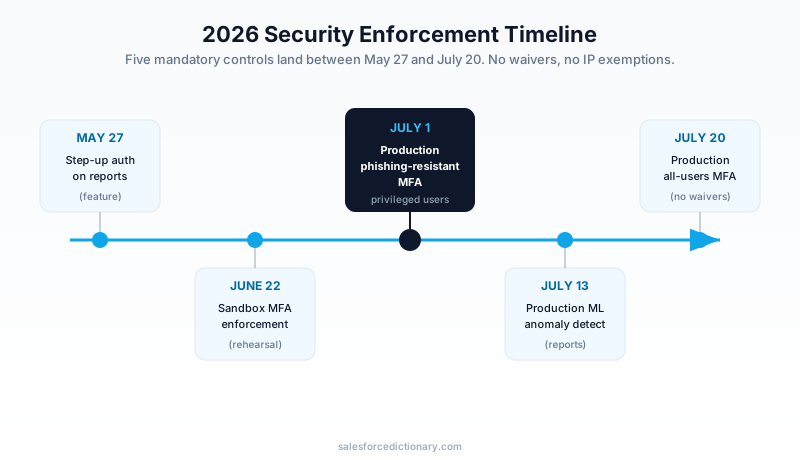
You run the Salesforce privilege audit this week and come back with 47 users who hold the System Administrator profile or Modify All Data, and exactly three of them have a security key registered. July 1 is 20 days out. After that date, the other 44 cannot log in. There is no waiver, no IP-range exemption, and no temporary bypass an admin can flip to buy time. The setting locks once enforcement starts.
This is the single hardest control in the 2026 Salesforce security wave to satisfy on a deadline, because it is the only one that requires you to put physical hardware or a registered biometric in front of real people. You cannot script your way out of it. This guide covers who is in scope, what actually qualifies, what to buy, how SSO changes the picture, how to audit your org, and the exact enrollment steps. Then a checklist for the next 20 days.
Why phishing-resistant, and why now
The old MFA model assumed the attacker was on the other side of a screen, fishing for a code. Time-based one-time passwords (TOTP) and push notifications both close the easy attacks. They do not close the hard ones.
Adversary-in-the-middle (AiTM) phishing is the hard one. The attacker stands up a proxy that sits between the user and the real Salesforce login page. The user types their password and approves the push or types the TOTP code, and the proxy relays everything in real time, then captures the resulting session cookie. The second factor was completed correctly. The attacker still walks away with a live session. SIM swaps defeat SMS the same way. None of these require the victim to be careless beyond clicking one convincing link.
Phishing-resistant MFA closes this by binding the credential to the actual origin. A FIDO2 security key or a passkey will only release its assertion to the real Salesforce domain, verified cryptographically by the browser. A proxy on a lookalike domain gets nothing. There is no code to relay, no push to approve, nothing for a human to be tricked into handing over.
Salesforce is forcing the move now because the attack economics changed. Community writeups tracking the 2026 wave describe automated phishing and deepfake-assisted social engineering compressing attacks that once took weeks into minutes (Arkus). When the people who can export your entire data model are protected only by a code an attacker can relay, that is the gap worth closing first.
Who is in scope
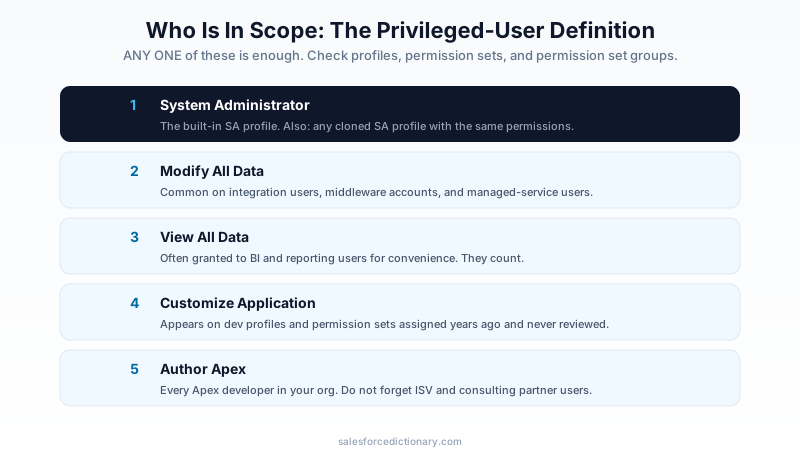
A privileged user, for this enforcement, is anyone who holds any one of five things (Salesforce Help):
- The System Administrator profile.
- The Modify All Data permission.
- The View All Data permission.
- The Customize Application permission.
- The Author Apex permission.
The word "any" is doing heavy lifting. This is an OR, not an AND. A user does not need all five. One is enough.
Here is where the count surprises people. Run the audit and you will almost always find more privileged users than your admin roster. The usual suspects:
- Developers and release engineers. Author Apex and Customize Application show up on most dev profiles and on permission sets you assigned years ago and forgot.
- Integration and service accounts. A managed-service or middleware account often carries Modify All Data so it never trips a sharing rule. Those accounts log in too, and they fall in scope.
- ISV and consulting partner users. External admins helping with a project frequently inherit elevated profiles that were never downgraded after go-live.
- Read-everything analysts. View All Data lands on reporting and BI users who were granted it for convenience. They count.
The permission can come from a profile, a permission set, or a permission set group. Your audit has to look at all three paths, not just the profile column. If you are fuzzy on how those interact, the profile vs permission set breakdown is the prerequisite reading.
What qualifies, and what does not
The qualifying list is short and the disqualifying list is the one that bites.
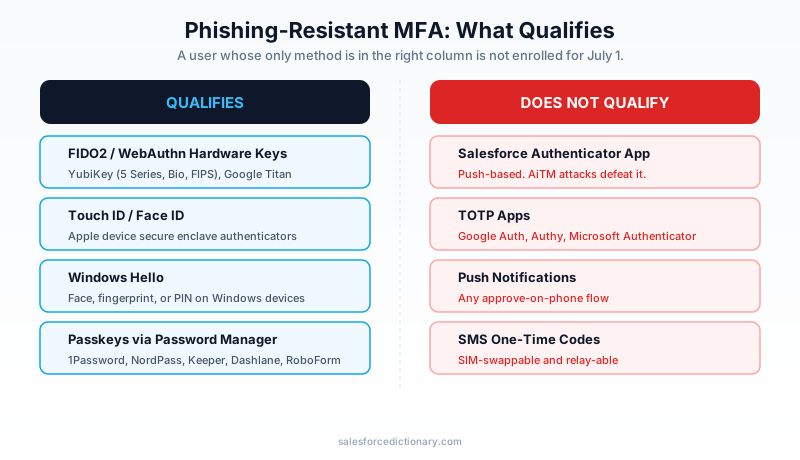
Qualifies:
- Physical hardware keys built on FIDO2 / WebAuthn. YubiKey covers the field here: the Security Key Series, YubiKey Bio, YubiKey 5, and YubiKey 5 FIPS for regulated orgs. Google Titan Security Key qualifies too. USB-A, USB-C, Lightning, and NFC form factors all work (Yubico).
- Built-in platform authenticators. Touch ID and Face ID on Apple hardware, Windows Hello on Windows. These use the device's secure enclave as the authenticator, so there is no separate purchase if the user already has the hardware.
- Passkeys from password managers that implement WebAuthn. 1Password, NordPass, Keeper Security, Dashlane, and RoboForm all sync passkeys that satisfy the requirement.
Does NOT qualify:
- The Salesforce Authenticator app. More on this below, because it is the trap.
- TOTP apps. Google Authenticator, Authy, Microsoft Authenticator. The rotating six-digit code does not survive an AiTM proxy, so it is out.
- Push notifications of any kind. Approve-on-phone is exactly the flow AiTM defeats.
- SMS one-time codes. SIM-swappable, and never strong to begin with.
If a privileged user's only registered method is on the right-hand column, they are not enrolled for the purposes of July 1, even though Salesforce will happily show them as "MFA enabled" today.
The Salesforce Authenticator problem
This is the gotcha that will generate the most help-desk tickets, so call it out loud in your user comms.
Salesforce ships its own MFA app, Salesforce Authenticator, and it is excellent at the job it was built for. It supports location-based auto-approval, it is free, and over the last four years admins pushed it as the default verification method across their entire user base. For ordinary users after the July 20 all-users mandate, it is still fine.
For privileged users, it does not qualify. It is a push-based authenticator, and push is precisely the category phishing-resistant MFA excludes. So the very tool your admins standardized on, the one most likely to already be installed on every privileged user's phone, is the one that does not count. A user will open Salesforce on July 1, reach for the app that has worked for four years, and get blocked.
You have to communicate this explicitly. "You already have MFA" is not the same as "you have a qualifying method." Treat any user whose sole factor is Salesforce Authenticator, TOTP, or SMS as unenrolled, and re-enroll them on a key or a built-in authenticator before the deadline.
Choosing hardware keys
For users without a Touch ID or Windows Hello device, you are buying physical keys. A few decisions to make once and apply across the fleet.
Model. The YubiKey 5 series is the default workhorse: FIDO2, broad protocol support, and the form factors you need. YubiKey Bio adds a fingerprint sensor on the key itself, useful for shared workstations where you do not want a PIN floating around. YubiKey 5 FIPS is for orgs under FIPS 140 compliance, and it costs more. Google Titan is a fine alternative if your org is already in the Google ecosystem.
Connector. Match the key to the laptops people actually use. USB-C for modern MacBooks and most current Windows laptops, USB-A for older fleets, NFC for tap-to-auth on phones, Lightning for older iPhones. Buying a single USB-A model and discovering half your fleet is USB-C only is a week you do not have right now.
Quantity. Register two methods per privileged user. This is not gold-plating. A user who loses their only key, or leaves it at home the morning of a board meeting, is locked out of an account that, by definition, can do the most damage. A backup key or a registered built-in authenticator is the difference between a five-minute inconvenience and an emergency.
Cost and lead time. Budget $25 to $50 per physical key (Salesforce Ben). Forty privileged users at two keys each, call it $2,000 to $4,000. The number that actually hurts is lead time: YubiKey procurement can run past two weeks, and it gets worse as the rest of the Salesforce ecosystem runs the same math in the same 20-day window. Order today, not after the audit is "finalized."
Passkeys as an alternative
If buying and shipping hardware in 20 days sounds rough, passkeys are the pressure valve.
A passkey is a FIDO2 credential that lives in software instead of on a dedicated key. If your privileged users already run 1Password, Keeper, Dashlane, NordPass, or RoboForm, they can register a passkey for Salesforce with no hardware purchase and no procurement delay. The passkey syncs across the user's devices through the password manager, so a lost laptop is not a lockout.
The caveats are real. A synced passkey is exactly as secure as the password-manager account protecting it, so that account had better have strong MFA of its own. Device-bound passkeys (the kind stored directly in a platform authenticator rather than synced through a manager) do not roam, which is the point for high-assurance setups but means you need a documented recovery path before you rely on one. For most orgs, the pragmatic play is mixed: passkeys for users who already have a capable password manager, physical keys for everyone else and as the backup factor.
SSO orgs: the AMR/ACR signal check
If your users log in through an identity provider, Salesforce is not running the MFA challenge itself. It trusts your IdP to assert how the user authenticated, and it reads that assertion through two signals: AMR (Authentication Method Reference) and ACR (Authentication Context Class Reference).
Here is the failure mode. Your IdP can require a phishing-resistant method on its side and still not tell Salesforce it did, if AMR/ACR are not configured to carry that fact. When the signal does not arrive, Salesforce does not assume the best. It falls back to its own MFA enrollment and prompts the user directly, which is both a surprise to the user and, if they only have a non-qualifying factor on the Salesforce side, a lockout.
Every IdP handles this differently. Okta, Azure AD (Entra ID), Ping, and OneLogin each need separate verification that the right values flow on the assertion for privileged users. Do not assume that because login works today, the signal is correct, because today there is nothing checking it.
Test this in a sandbox now. Not "the week of June 1," which has already passed. Confirm that a privileged test user authenticating through your IdP with a phishing-resistant method produces a clean login with no Salesforce-side fallback prompt. If you see the fallback, your AMR/ACR mapping is the thing to fix. The single sign-on fundamentals matter here, because an SSO misconfiguration on July 1 hits every federated privileged user at once.
Auditing your org
Two tools, run in order.
First, identify who is in scope. A permission and profile audit has to catch all five categories across profiles, permission sets, and permission set groups. The cleanest way is to query the metadata directly rather than clicking through the UI. The shape of it: pull every user assigned a profile or permission set that grants ModifyAllData, ViewAllData, AuthorApex, or CustomizeApplication, plus everyone on the System Administrator profile, then deduplicate. Run that against active users only, because inactive accounts are noise here. Export the list. That is your enrollment cohort.
Second, check enrollment status. The Multi-Factor Authentication Dashboard from Salesforce Labs reports who has registered which methods. Cross-reference it against your scope list. The users who appear on the scope list but show only a non-qualifying method (Salesforce Authenticator, TOTP, SMS) are your real backlog. That number, not the raw MFA-enabled count, is what you are racing the clock on.
Do this audit before you place the hardware order, so you buy the right quantity, and re-run the enrollment check twice a week as registrations land.
The enrollment process
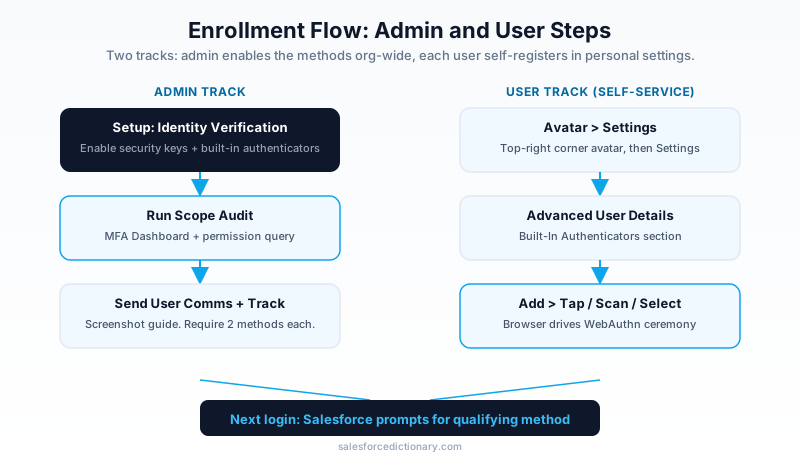
Admin side. Enable security keys and built-in authenticators as identity verification methods in Setup. Salesforce documents the exact path for turning on U2F / WebAuthn security keys at the org level (Salesforce Help). Once enabled, the registration option appears in each user's personal settings.
User side. The self-enrollment path is short and worth putting in a one-page comms with screenshots:
- Click the avatar in the top-right corner.
- Open Settings.
- Go to Advanced User Details.
- Find Built-In Authenticators (and the security key registration option alongside it).
- Click Add, then follow the browser prompt to tap the key, scan the fingerprint or face, or select the passkey.
That is it. The browser drives the WebAuthn ceremony, so the user experience is a single tap or scan. Have each privileged user register their primary method and their backup in the same sitting, so you are not chasing the second factor later.
Next login. On the following login, Salesforce prompts for the registered method. The user taps the key or scans, and they are in. Once enrolled, the day-to-day experience is faster than fishing a code out of an app.
Edge cases that will eat your week
- Fully remote users with no hardware. Ship keys ahead of the deadline, or steer them to a built-in authenticator if their laptop has Touch ID or Windows Hello, or a passkey if they run a supported password manager. Do not leave a remote admin to discover on July 1 that the key is still in transit.
- Contractors and short-term partners. If they hold an elevated permission, they are in scope. Either provision them a key or, the better long-term answer, strip the elevated permission they did not actually need.
- Shared accounts. These should not exist, and you know they do. A shared "integration admin" login that three people use cannot register one human's biometric. Either convert it to a properly scoped service identity, or assign it a physical key with a documented custody chain. Fix this before the deadline forces a rushed call.
- Day-one new hires. Bake key registration into onboarding now. A new admin starting July 5 with no qualifying method is locked out of the tools they were hired to use on day one.
What happens on July 1
Sandbox enforcement starts June 22, which is your live-fire rehearsal. Use it. Production enforcement starts July 1.
After July 1, a privileged user with no qualifying method cannot log in. There is no grace period. There is no temporary bypass, because the setting locks at enforcement and an admin cannot disable it even to rescue a stranded colleague. The escape hatches admins are used to (a quick toggle in Setup, an IP-range exemption, a waiver permission) are all gone for this control.
That is the whole reason the audit and the hardware order cannot wait. The failure mode is not a warning banner. It is your most powerful users locked out of the org, with no admin able to let them back in until they have a key in hand.
The 20-day checklist
Work it in order:
- Run the scope audit today. Query every active user holding the System Administrator profile, Modify All Data, View All Data, Customize Application, or Author Apex, across profiles, permission sets, and permission set groups. Deduplicate. This is your cohort.
- Order hardware now. Count the users without a built-in authenticator or password-manager passkey, multiply by two for backups, and place the YubiKey order today. Lead times are the binding constraint.
- Cross-check enrollment. Run the Multi-Factor Authentication Dashboard and flag every in-scope user whose only method is Salesforce Authenticator, TOTP, or SMS. That list is your real backlog.
- Test SSO in a sandbox this week. Confirm AMR/ACR signals flow for a federated privileged user on Okta, Azure AD, Ping, or OneLogin. Fix the mapping if Salesforce falls back to its own prompt.
- Enable the methods in Setup. Turn on security keys and built-in authenticators at the org level.
- Write the user comms. Lead with the Salesforce Authenticator trap. Include the avatar-to-Built-In-Authenticators path with screenshots, and require two registered methods.
- Rehearse in the sandbox on June 22. When sandbox enforcement lands, log in as a privileged test user and confirm the qualifying method works and the non-qualifying one is blocked.
- Resolve shared and contractor accounts before the deadline forces a rushed call.
Start with step one this afternoon. The scope audit is the input to every other line, and the hardware order it feeds is the one thing on this list a deadline cannot compress.
About the Author
Dipojjal Chakrabarti is a B2C Solution Architect with 29 Salesforce certifications and over 13 years in the Salesforce ecosystem. He writes and edits salesforcedictionary.com, published by KineticBit Inc., to help admins, developers, architects, and cert/interview candidates sharpen their fundamentals. More about Dipojjal.
Share this article
Sources
- Prepare for Phishing-Resistant MFA Enforcement (Salesforce Help)
- How to Prepare for Salesforce's Mandatory MFA Changes in 2026 (Salesforce Ben)
- Salesforce and YubiKeys (Yubico)
- Salesforce Is Done Asking: Five Security Changes Coming in June 2026 (Arkus, Inc.)
- Salesforce Phishing-Resistant MFA: Step-by-Step Guide (Canvas Cloud)
- Enable Security Keys for Identity Verification in Salesforce Orgs (Salesforce Help)
Related dictionary terms
Practise it
Five questions on Administrator
Exam-style questions with an explanation after each one. No account needed, and your answers build a weak-topic map once you have one.
Keep reading

Profile vs Permission Set vs Permission Set Group: The Complete Salesforce Access Guide
Profiles, Permission Sets, and Permission Set Groups all grant 'access' but in different layers. Here is the canonical 2026 guide with a mnemonic that finally makes it stick.

Salesforce Sharing & Visibility: The Complete 2026 Guide (OWD, Roles, Sharing Rules, Apex Sharing)
The complete 2026 guide to Salesforce sharing - OWD, role hierarchy, sharing rules, manual + Apex managed sharing, teams, territories, public groups, performance considerations, and pitfalls.

Salesforce Shield: The Complete 2026 Guide
Salesforce Shield bundles Platform Encryption, Event Monitoring, and Field Audit Trail. Here is what each pillar does, what it breaks, what it costs, and when paying the 30 percent uplift is the right call.
Comments
No comments yet. Start the conversation.
Sign in to join the discussion. Your account works across every page.