
How to Set Up VS Code and Claude Code for Salesforce Development in 2026
From a brand-new laptop to a Claude Code session that reads your sandbox metadata, writes Apex, and pushes it back without leaving the editor.
You have a Salesforce sandbox open in one browser tab, a fresh laptop on your desk, and a feature request that needs a new Apex trigger by end of week. The Developer Console works but it is a 2007 experience pretending to be 2026. You have heard that Claude Code is changing how Apex and LWC actually get written. You also have no idea where to start because right now you do not even have VS Code installed.
This post gets you from there to a working environment where Claude Code reads your sandbox metadata, writes the trigger, and pushes it to the org without leaving the editor. Mac and Windows covered.
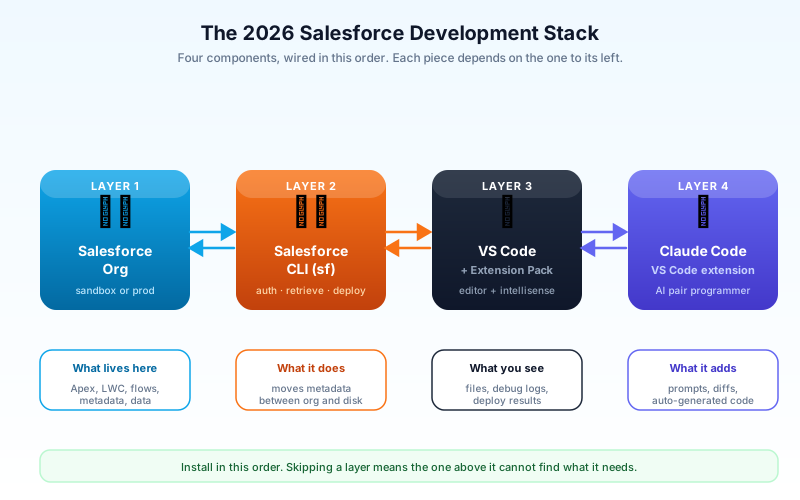
What you will have at the end
Four pieces, wired together:
- VS Code as your editor. It replaces the Developer Console and the Setup metadata picker for almost everything you write.
- Salesforce CLI (the
sfcommand) as the bridge between your local files and your org. Every login, every retrieve, every deploy goes through it. - Salesforce Extension Pack inside VS Code. It gives you Apex code completion, LWC IntelliSense, deploy on save, and the org browser.
- Claude Code as your AI pair. It reads the same files you do, runs the same
sfcommands you do, and writes Apex, LWC, and metadata that fits the conventions already in your project.
That order matters. VS Code without the CLI is a fancy text editor. The CLI without the extensions is a terminal-only workflow. The extensions without Claude Code is a 2024 workflow. All four together is the 2026 setup that ships work in a fraction of the time.
Step 1: Install VS Code
VS Code is free, runs on every modern OS, and is the editor Salesforce officially supports for development. The Developer Console still exists for one-off changes in production, but you should treat it the way you treat the Setup menu's quick edit: emergency only.
Mac. Open code.visualstudio.com, click Download for macOS (Universal or Apple Silicon if your laptop is M-series), open the downloaded .zip, and drag the Visual Studio Code app into Applications. Launch it once so macOS clears the Gatekeeper warning.
Windows. Same download page, pick the System Installer for Windows 64-bit. Run the .exe. On the second-to-last screen, check both "Add to PATH" and "Register Code as an editor for supported file types". Skipping the PATH option is the most common reason code . does not work from your terminal a week later.
After install, open VS Code, hit Cmd+Shift+P (Mac) or Ctrl+Shift+P (Windows), type "Shell Command: Install 'code' command in PATH", and hit Enter. From here on, code . opens any folder in the editor.
Step 2: Install the Salesforce CLI
The Salesforce CLI is the program that talks to your org. The VS Code extensions are a UI layer on top of it. If the CLI is broken, the extensions are broken. Install the CLI first; the extensions second.
Mac. The cleanest path is Homebrew. If you do not have Homebrew, install it from brew.sh first. Then run brew install salesforcecli/tap/sf. If you avoid Homebrew, download the .pkg from the Salesforce CLI installation page and double-click it.
Windows. Download the .exe from the same page and run it. The installer adds sf to your PATH automatically. Open a new PowerShell window so the PATH change picks up.
Verify the install. In a fresh terminal, run:
sf --version
You want a version starting with @salesforce/cli/2. and a Node version of 20 or higher. If you see sfdx-cli instead, you are looking at the old CLI. Salesforce shipped sf to replace it; the new CLI is what every current tutorial assumes. Uninstall sfdx if it is still on the machine so you do not run two CLIs against the same org.
While you are here, install one plugin that pays for itself the first day:
sf plugins install @salesforce/plugin-apex
This adds the Apex log streaming and anonymous Apex commands you will use the first time Claude writes a trigger and you want to see what actually ran.
Step 3: Install the Salesforce Extension Pack
VS Code has an Extensions panel on the left sidebar that looks like four squares with one popping out. Click it. In the search box, type "Salesforce Extension Pack" and install the one published by Salesforce.
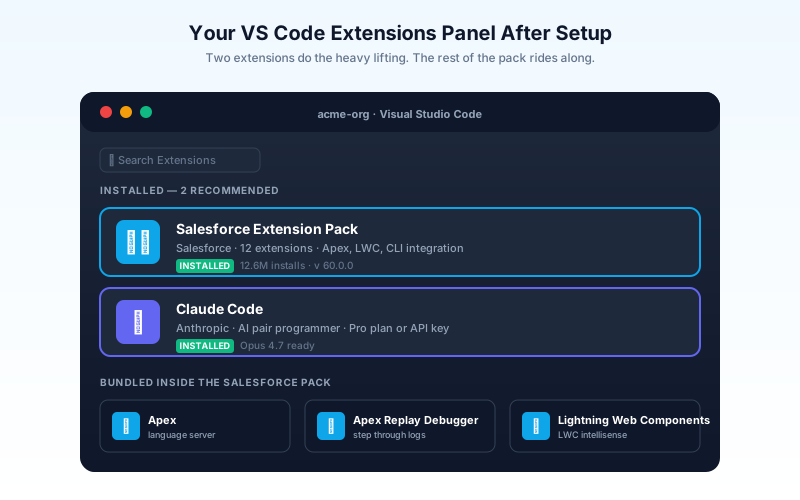
The pack bundles roughly a dozen extensions. The ones you will notice daily:
- Salesforce CLI Integration. Adds the Command Palette entries you will call by name:
SFDX: Authorize an Org,SFDX: Retrieve Source from Org,SFDX: Deploy This Source to Org. Every one of them shells out tosfunder the hood. - Apex. Code completion, go-to-definition, refactoring, and a real language server for Apex. It is the single feature that justifies the switch from the Developer Console.
- Apex Replay Debugger. Lets you step through a debug log line by line, with breakpoints and variable inspection. Worth its weight the first time a flow you cannot rebuild calls into Apex and throws.
- Lightning Web Components. Auto-completion for
@api,@track, lifecycle hooks, and Lightning Data Service. Renders your component metadata as a tree. - Visualforce. Keep it installed even if you "do not write Visualforce". You will inherit it.
Restart VS Code once after the pack installs so all language servers boot cleanly. You will know it worked when any .cls file shows syntax highlighting and a tiny Apex icon in the top-right corner.
Step 4: Authorize your Salesforce org
You now have an editor, a CLI, and the extensions. None of them know about your org yet. Time to log in.
Open VS Code's integrated terminal with Ctrl+` or use any terminal. Run:
sf org login web --alias mySandbox --instance-url https://test.salesforce.com
That opens your default browser, walks you through standard Salesforce login, and stores the session under the alias mySandbox. Use --instance-url https://test.salesforce.com for any sandbox. Drop the flag entirely for production. Use https://your-domain.my.salesforce.com for a My Domain login on either type.
Confirm the connection:
sf org list
You should see your alias, the username, and an active connection. Set the default org so every following command targets it without a flag:
sf config set target-org mySandbox
The two real mistakes at this step. First, people use the wrong instance URL and the login throws a confusing "invalid grant" error; double-check sandbox versus production. Second, people log in to a sandbox and then deploy code to production by accident because the default org was set to production from a previous session. Aliases are how you avoid this. Name every org something you cannot confuse with another, and check sf org list before any deploy you cannot undo.
Step 5: Pull your org's metadata into a project
Claude Code becomes useful when it can see what already exists in your org. Right now your project folder is empty. Time to fix that.
Pick a folder for your work and create a Salesforce DX project inside it:
cd ~/code
sf project generate --name acme-org
cd acme-org
sf project retrieve start --metadata ApexClass --metadata ApexTrigger --metadata LightningComponentBundle --metadata CustomObject --metadata Profile
The first command scaffolds a DX project with the standard force-app/main/default/ layout and a sfdx-project.json config. The second one pulls the metadata you care about from the org alias you set as default. Adjust the --metadata flags to whatever you actually need: add Flow, PermissionSet, CustomMetadata, StaticResource, and so on as your project demands.
Open the folder in VS Code:
code .
You should now see force-app/main/default/classes/, force-app/main/default/triggers/, and the rest of the DX project structure populated with real files from your org. This is the moment your laptop stops being a blank slate and starts being a working mirror of your sandbox.
One detail that saves a future argument: add a .forceignore file at the project root. It tells the CLI to skip noisy metadata that you never want to deploy back, like Profile files you only retrieved for reference, packaged metadata you do not own, and StandardValueSet entries that vary per org. The Salesforce DX docs ship a sensible starter you can copy.
Step 6: Install the Claude Code VS Code extension
In the same VS Code Extensions panel, search for "Claude Code" published by Anthropic. Install it. A new Claude icon shows up in your sidebar.
Click the icon. The first time, it asks how you want to authenticate. You have two real options.
Claude Pro or Max plan. The default for solo developers. You sign in with the same Anthropic account that pays for your Claude.ai subscription. Pro covers most days of Apex work; Max covers heavy use without throttling. No separate billing setup, and your usage is bundled into the subscription you already pay for.
Anthropic API key. The default for teams that expense usage centrally. Create an API key in the Anthropic Console, paste it into the Claude Code sign-in flow, and your usage gets billed against the workspace that owns the key. Teams use this so that a single workspace tracks Claude spend across many developers, and so individual employees do not need a personal subscription.
A solo Salesforce architect on a Pro plan can do almost everything in this guide without hitting limits. A team of ten developers on heavy Apex projects hits the math faster, and a team API key with a Team or Enterprise plan is the saner choice there.
Whichever you pick, Claude Code now sees your project files. The new side panel is where you will type prompts. The integrated terminal is where Claude can run sf commands you approve. The diff view is where you review generated code before it is written to disk.
Step 7: Give Claude Code your project context with a CLAUDE.md
Claude Code gets dramatically better when you tell it the rules of your org. The way you do that is a CLAUDE.md file at the root of your project. It is plain markdown, and Claude reads it at the start of every session.
A starter CLAUDE.md for a Salesforce project:
# Project context for Claude Code

## What this project is
Salesforce DX project for the Acme org. Metadata lives under force-app/main/default.
The org alias is `mySandbox` and is set as the default target.

## Conventions
- Apex classes use PascalCase. Triggers are named <Object>Trigger and call a handler class named <Object>TriggerHandler.
- One trigger per object. All logic lives in the handler class.
- LWC components live under force-app/main/default/lwc/, kebab-case folder names.
- Test classes match the class under test with a Test suffix. Aim for >=85% coverage.
- No SOQL or DML inside loops. No hardcoded IDs. No System.debug in committed code.

## Tooling
- Deploy with: sf project deploy start --source-dir force-app
- Run tests with: sf apex run test --class-names <ClassName> --code-coverage --result-format human
- Pull fresh metadata with: sf project retrieve start --metadata ApexClass --metadata ApexTrigger

## Permissions
You can read any file under force-app. You can run sf commands, but ask before any deploy or destructive change.
This file is the difference between Claude writing generic Apex and Claude writing Apex that lands cleanly against your real org. Update it as your conventions evolve. Commit it to source control so the whole team gets the same context. Treat it as living project documentation, because that is exactly what it is.
Your first real Claude Code task: write and deploy an Apex trigger
You now have everything wired. Time to prove it works end to end.
In the Claude Code side panel, type:
Write an
AccountTriggerthat, on after-update, copies the newAccount.Industryvalue to all related contacts as a custom fieldContact.Account_Industry__c. Put the logic in a handler class namedAccountTriggerHandler. Add a test class with at least one positive and one bulk scenario. Follow the conventions in CLAUDE.md.
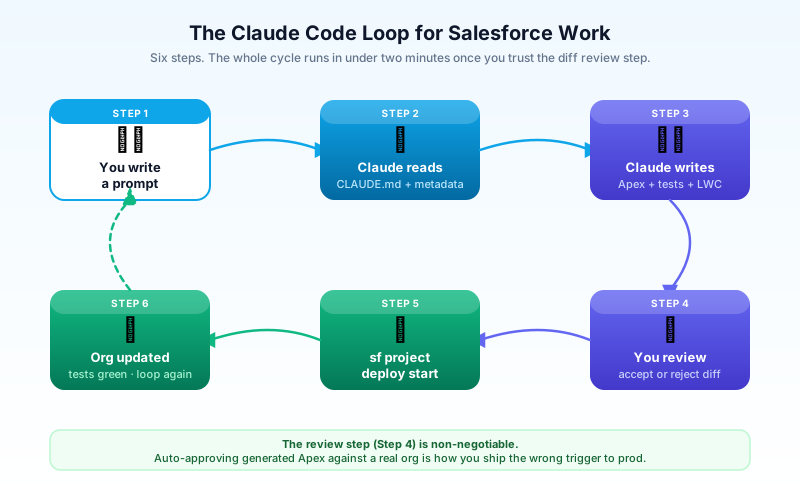
Claude will read your CLAUDE.md, read the existing force-app/main/default/triggers/ folder to see what is already there, and then propose three new files: the trigger, the handler, and the test class. Each one shows up as a diff you can accept or reject. Read every line. The diff view is your safety net; the model is fast but you are the architect.
Once you accept the diffs, the files are on disk. From the integrated terminal, deploy them:
sf project deploy start --source-dir force-app/main/default/triggers --source-dir force-app/main/default/classes
sf apex run test --class-names AccountTriggerHandlerTest --code-coverage --result-format human
If the deploy succeeds and the test passes, you have shipped Apex into your sandbox from a prompt you typed into VS Code. If something fails, paste the error back into the Claude Code panel and ask it to fix the issue. It will read the logs, propose a patch, and the loop closes in another minute or two.
The five setup mistakes that will burn an afternoon
A short list of the avoidable ones.
- Wrong login URL. A sandbox login against
login.salesforce.comfails with a vague error. Always pass--instance-url https://test.salesforce.comfor sandboxes. - Old
sfdxCLI still installed alongsidesf. They share the same auth files but parse them slightly differently. Uninstallsfdxoncesfworks. - No
.forceignore. Without it, you will retrieve six thousand managed-package files you do not own and then accidentally try to deploy them back. The first deploy that does this and breaks production is a story you do not want. - Letting Claude Code run deploys without review. The diff view exists for a reason. Read it. Especially for any change that touches Profiles, Permission Sets, or sharing rules.
- Mixing a personal Anthropic API key into a team project. A committed
.envwith a personal key bills every other developer to your account. Use a team API key from the Anthropic Console, or stick with personal Pro plans and never commit keys.
What to do next
Tomorrow morning, pick a small real ticket from your backlog, prompt Claude Code in your new setup, and ship it through this loop. Not a sample. A real one. Five cycles of prompt, diff, deploy, test will teach you more than any tutorial. Then read the Apex trigger framework best practices guide and the Flow vs Apex decision guide so the code Claude writes for you matches what a senior reviewer expects.
About the Author
Dipojjal Chakrabarti is a B2C Solution Architect with 29 Salesforce certifications and over 13 years in the Salesforce ecosystem. He writes and edits salesforcedictionary.com, published by KineticBit Inc., to help admins, developers, architects, and cert/interview candidates sharpen their fundamentals. More about Dipojjal.
Share this article
Sources
Related dictionary terms
Practise it
Five questions on Administrator
Exam-style questions with an explanation after each one. No account needed, and your answers build a weak-topic map once you have one.
Keep reading

Agentforce Operations: The Complete 2026 Guide for Salesforce Admins, Developers & Architects
Agentforce Operations (GA April 2026) brings AI agents to back-office work - invoice auditing, supplier onboarding, compliance checks, and more. Built on Regrello and the Einstein Trust Layer.

Salesforce Flow vs Apex in 2026: A Decision Matrix for Admins, Developers & Consultants
Flow vs Apex is not a religious war anymore. Here is the 2026 decision matrix. Capability gaps, governor limits, the 70/30 rule, and 12 worked scenarios with the right answer for each.

Salesforce Einstein Trust Layer: The Complete 2026 Guide to Secure AI
Your security team asks where the customer data goes when Agentforce processes it. Here is the full answer: how the Einstein Trust Layer's prompt journey, data masking, zero-data retention, and toxicity detection actually work.

Salesforce DevOps Tools Compared: DevOps Center vs Gearset vs Copado vs AutoRabit (2026)
DevOps Center, Gearset, Copado, and AutoRabit all ship Salesforce metadata. They're not interchangeable. Feature matrix, pricing, decision tree, and the migration paths between them.

The Apex Trigger Framework: Best Practices for Bulk-Safe, Scalable Triggers (2026)
The complete 2026 trigger framework guide. Logic-less triggers, bulk safety, recursion control, framework comparison (Kevin O'Hara vs interface vs virtual), and CRUD/FLS enforcement.
Comments
No comments yet. Start the conversation.
Sign in to join the discussion. Your account works across every page.