
Tag Cloud
A Tag Cloud is the display pattern its name describes: a block of tag words, with the heavily used ones drawn larger.
Definition
A Tag Cloud is the display pattern its name describes: a block of tag words, with the heavily used ones drawn larger. In Salesforce the phrase points at Salesforce Classic tagging, which is the only place tags live.
The Cloud in that name is an interface pattern, not a cloud computing product and not a Salesforce edition. What Salesforce Help documents is the Tags page: an alphabetical list you can re-sort By Number of Uses or By Most Recently Used. No font size weighting appears anywhere in those pages.
So treat the term as shorthand for Classic tagging, not a feature you switch on. This is the older option: tags never crossed into Lightning Experience. They still work in Classic, added from a record detail page. Lightning orgs cover the same need with Topics for shared labels and personal labels for private ones.
In plain English
“Picture writing sticky note labels on your files, then keeping one master sheet of every label you have used. Flip the sheet and the most-used labels sit at the top. Tap one and everything wearing it comes back. A sheet you sort, not a poster of big and small words.”
Worked example
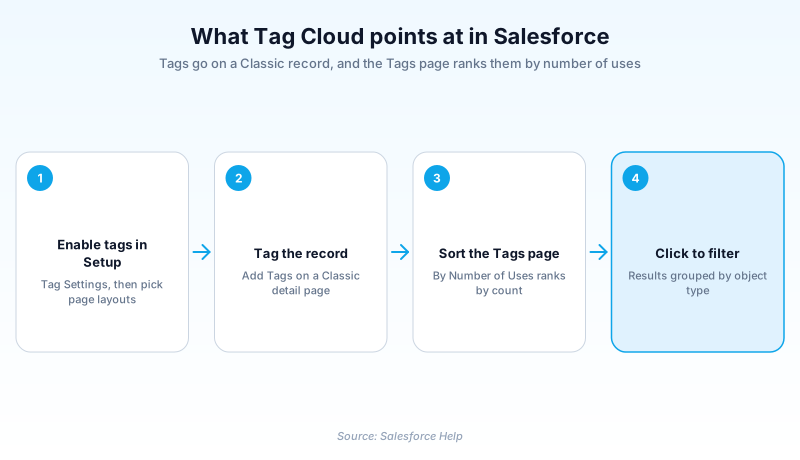
A recruiting coordinator at a 400-seat staffing firm still runs Salesforce Classic. Over two years she has tagged Contact records with personal tags like Bilingual, Night Shift, and Forklift Certified. Her Tags page opens alphabetically, which tells her nothing about which labels carry weight. She re-sorts By Number of Uses and Bilingual lands at the top. She clicks it, and Salesforce groups the matches by object: 812 Contacts, 23 Leads, 4 Accounts. Clicking Night Shift as well narrows the list to the 96 contacts carrying both labels.
Behind the name, and what Salesforce actually ships
Two sets of tags, and how they reach a record
Two separate sets of labels sit behind all of this. Personal tags stay private to whoever created them, and nobody else sees them on the record. Public tags are shared org wide, so one person's naming habits quietly become everyone's. A tag accepts letters, numbers, spaces, dashes, and underscores, and it needs at least one letter or number in it. You attach them from the Add Tags or Edit Tags link, top right of a record detail page. That edit accepts ten brand new tags at most, which is a per-edit ceiling and not a per-record one.
The Tags page does the real work
Clicking any tag drops you on the Tags page, which is the substance behind the term. Tags list alphabetically by default, with Next Page and Previous Page controls. Two sorts change that. By Number of Uses ranks by how many records carry each tag, and By Most Recently Used ranks by recency. The first is the ranking the name promises, as figures you can quote. A search box filters the list, wants at least two characters, and accepts wildcards. Pick a tag and Salesforce groups the matching records by object type. Pick a second and the list contracts, because only records carrying every selected tag survive.
Where it shows up, and where it never will
Two Setup switches decide whether anyone sees tags at all. From Setup, enter Tag Settings in the Quick Find box, then choose personal tags, public tags, or both. The same screen picks which objects and page layouts get a tag section. Public tags carry a caveat the Setup page skips: Salesforce Support has to activate them before that checkbox does anything. For the sidebar entry point, open Home Page Layouts and tick the Tags checkbox. One gap bites hardest on a shared org. Enabling Topics for an object switches public tags off there, while leaving personal tags alone.
Why it reads as legacy now
Classic tag management never made it into Lightning Experience, and that caps the whole feature. Tags exist on Classic detail pages and the Classic Tags page, nowhere else. Scale supplies the other pressure. An org holds up to 5,000,000 tag applications across all users combined. Personal Tag Cleanup in Setup reclaims room by wiping the personal tags of deactivated users, and nothing restores them afterwards. Planning a Lightning move? Send your heaviest public tags to Topics and cover private organizing with personal labels or a saved list view.
How organizations use Tag Cloud
Recruiters tag contacts with skills and shift preferences, then click a tag to pull every matching record before bidding a contract.
The admin sorts the Tags page by number of uses, promotes the top twelve public tags into Topics, and lets the one-off personal tags expire.
Trust & references
Cross-checked against the following references.
- Tag Records (opens in new tab)Salesforce
- Find Records Using Salesforce Classic Tags (opens in new tab)Salesforce
- Adding Tags to the Sidebar (opens in new tab)Salesforce
- Delete Personal Tags for Deactivated Users (opens in new tab)Salesforce
- Organize and Find Records Easily with Personal Labels (opens in new tab)Salesforce
Straight from the source - Salesforce's reference material on Tag Cloud.
Hands-on resources to go deeper on Tag Cloud.
About the Author
Dipojjal Chakrabarti is a B2C Solution Architect with 29 Salesforce certifications and over 13 years in the Salesforce ecosystem. He writes and edits salesforcedictionary.com, published by KineticBit Inc., to help admins, developers, architects, and cert/interview candidates sharpen their fundamentals. More about Dipojjal.
Test your knowledge
+5 pts / dayQ1. On the Salesforce Classic Tags page, which sort ranks tags by how many records carry them?
Q2. An admin enables Topics for the Account object. What happens to tags on accounts?
Q3. On the Tags page you select two tags. What do the results show?
Discussion
Loading discussion…