
Age
Age is a standard report column in Salesforce that shows how much time has elapsed on a record.
Definition
Age is a standard report column in Salesforce that shows how much time has elapsed on a record. On an open case it counts from creation to now. On a closed case it stops at the closing time, so the number freezes instead of climbing forever.
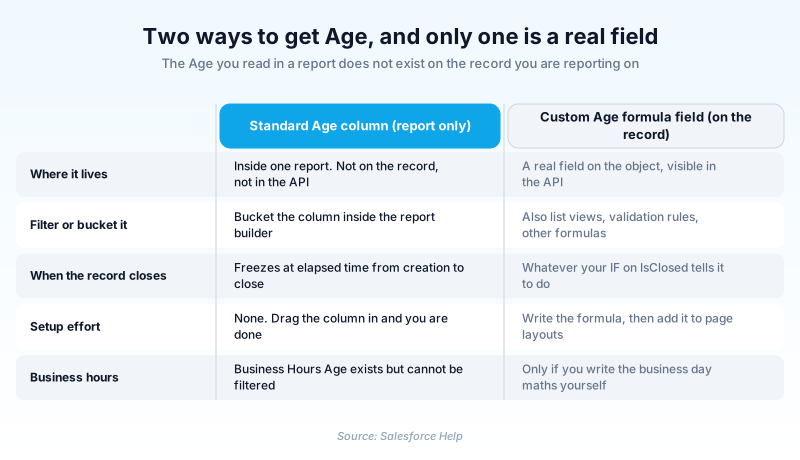
Age is calculated by the report at run time, and that is the part that trips people up. It is not a field on the Case or Opportunity object. You cannot put it on a page layout, filter a list view by it, or query it in SOQL.
Opportunity reports run a different clock: days between the open date and the close date. On an open deal that close date is still a projection, so the number is a planned span, not elapsed time. Lead and Task reports carry no standard Age column at all.
In plain English
“Think of the clock above each name in a waiting room. It ticks up while someone waits and stops the second they are called in. Age is that clock, and it only appears on the printed list, never on the person's own file.”
Worked example
A 400-seat software company runs its weekly service review off a Cases report. Case 00042318 was created on 12 June at 09:00 and is still open, so its Age reads 49 days. A second case opened that morning closed on 15 June, and its Age sits frozen at 3 days. The team buckets Age into four bands: 0 to 2, 3 to 7, 8 to 30, and over 30. Grouping by that bucket puts 11 cases past 30 days, and nine of them share two owners. None of it shows on a case list view, because Age never leaves the report.
What the Age column is actually measuring
Age is a report field, not a record field
Open the Case object reference and you will not find an Age field. Salesforce documents it under Fields Available for Case Reports, which is exactly where it lives. When the number has to exist outside a report, Salesforce publishes a knowledge article telling you to build the formula field yourself: NOW() minus CreatedDate gives days, times 24 gives hours.
One column, two different questions
The freeze at close leaves one column answering two questions at once. Open rows report how long work has been waiting. Closed rows report how long finished work took. Average them together and you get a figure that describes neither, which is how a service review ends up arguing about a number nobody can act on. Filter on Closed, or group by it, before quoting either.
Business Hours Age is half a feature
Salesforce ships a Business Hours Age field that counts only the business hours you have defined, so nights, weekends and any holidays on that calendar drop out. It divides total business hours by 24, so 126 business hours reads 5.25 days. Then the limits land. Support has to activate it for you, and it is unavailable when default business hours are 24/7. It is also missing from custom report types on Case, and you cannot filter or bucket by it.
Opportunity Age and Stage Duration are different columns
On opportunity reports Age counts days between the open date and the close date, and the standard Stuck Opportunities report sorts open deals by it. Stage Duration is the separate column counting days in the stage shown on that row. Ninety days of Age with ninety days of Stage Duration is a deal that has not moved since it opened. Ninety and five is a deal that just advanced.
Bucket Age into SLA bands on a case report
Raw Age is a number of days, which reads badly on a dashboard. Bucketing gives you bands.
- Add the Age column
Open your Cases report in the Lightning report builder and drag Age from the field panel into Columns.
- Bucket the column
Use the Age column menu and pick Bucket This Column, or choose Add Bucket Column in the Columns section.
- Set the range breakpoints
Enter each upper bound, lowest first. Two, seven and thirty produce four bands.
- Group by the bucket
Drag the bucket into Group Rows. Unlike Business Hours Age, a bucket column sorts, filters and groups like any other column.
Fastest route. Lives in one report and needs no object change.
Slower to build, and it costs a custom field, but you build it once.
- Business Hours Age cannot be bucketed or filtered, so SLA bands have to come from plain Age.
- A bucket column lives in one report. Three dashboards needing the same bands is a formula field's job.
Prefer this walkthrough as its own page? How to Age in Salesforce, step by step
How organizations use Age
Buckets case Age into SLA bands so the queue past 30 days is visible on one dashboard tile.
Runs the Stuck Opportunities report, which sorts open deals by Age, to pick which grants to chase.
Trust & references
Cross-checked against the following references.
- Fields Available for Case Reports (opens in new tab)Salesforce
- Tips for Working with Opportunity Reports (opens in new tab)Salesforce
- Calculate Case Age in Salesforce Case Object Reports with a Custom Formula Field (opens in new tab)Salesforce
- Enable Case Duration or Age in Business Hours for Accurate SLA Tracking (opens in new tab)Salesforce
- Business Hours Age field values explained (opens in new tab)Salesforce
- Standard Opportunity Reports (opens in new tab)Salesforce
Straight from the source - Salesforce's reference material on Age.
Hands-on resources to go deeper on Age.
About the Author
Dipojjal Chakrabarti is a B2C Solution Architect with 29 Salesforce certifications and over 13 years in the Salesforce ecosystem. He writes and edits salesforcedictionary.com, published by KineticBit Inc., to help admins, developers, architects, and cert/interview candidates sharpen their fundamentals. More about Dipojjal.
Test your knowledge
+5 pts / dayQ1. Where does the standard Age column live?
Q2. A case was created on 1 March and closed on 5 March. You run a report on 30 June. What does its Age column show?
Q3. Which statement about the Business Hours Age field is true?
Discussion
Loading discussion…