
Agentforce Mobile SDK: The Complete 2026 Guide to Embedding AI Agents in Your iOS, Android, and React Native Apps
Service Agent vs Employee Agent modes, the React Native bridge to native iOS and Android, the three calls that do the real work, and the install steps that actually run.

Your product manager wants a "chat with us" bubble in the company's iOS app by Friday's demo. Not a link that opens Safari. Not a webview that looks like it escaped from 2019. An actual native conversation, inside the app, that knows who the logged-in user is and can look up their order without asking twice.
You go looking for the fastest honest path, and you land on the Agentforce Mobile SDK. It went generally available in Summer '26 across iOS, Android, and React Native, with feature parity across all three. This guide covers what it actually is, the one decision you have to make before writing a line of code, the three calls that do almost all of the work, and where it stops being the right tool.
What the Agentforce Mobile SDK Actually Is
The Agentforce Mobile SDK is a native library that drops a working conversation screen into your mobile app and wires it to an agent you already built in Agentforce. You are not building a chat UI from scratch. You are not proxying requests through your own backend. You configure three or four values, call one method, and a native chat screen appears, backed by the same topics and instructions you set up in Agent Builder.
Three platforms, one behavior. Native iOS needs iOS 17 or later and ships as a SwiftUI-based library. Native Android needs API level 29 or later and is built on Jetpack Compose. React Native needs version 0.72 or later and targets the same minimum OS versions underneath, because it is not a separate implementation. It is a JavaScript bridge sitting on top of the native iOS and Android SDKs. Write the integration once in TypeScript, and both platforms get the same behavior because both platforms are running the same native code underneath.
That bridge detail matters more than it sounds. Salesforce's own sample app builds two entirely different apps, a customer-facing one and an employee-facing one, from a single React Native codebase, and reports roughly 98% code sharing between them. The 2% that differs is exactly the part this guide spends the most time on: which mode you pick.
Service Agent vs Employee Agent: Pick the Mode Before You Write Code
Every integration starts with one fork in the road, and getting it wrong costs you a rebuild, not a refactor.
Service Agent mode is anonymous. Zero authentication required. A user opens your app, taps the chat bubble, and starts talking to the agent as a guest. No login screen, no token, no wait. This is the mode for a retail app's "track my order" bubble, a public support widget, anything where you want the lowest possible friction between "user has a question" and "user is talking to an agent."
Employee Agent mode is authenticated. It runs OAuth through the Salesforce Mobile SDK underneath, which means a real logged-in session with a real identity attached to every message. This is the mode for a field technician's app that needs to look up a specific account, or an internal tool where the agent is allowed to take actions on behalf of a known user, not a stranger.
The two modes are not a slider. They are a fork, and the fork shows up in your configuration call from the first line of code: Service Agent configuration takes a service agent URL, an org ID, and a developer name. Employee Agent configuration takes OAuth credentials instead. Pick wrong and you will find out the hard way, usually when a stakeholder asks why the "anonymous" support bot somehow knows the caller's account history, or why the "authenticated" employee tool is prompting random users to log in for a public FAQ.
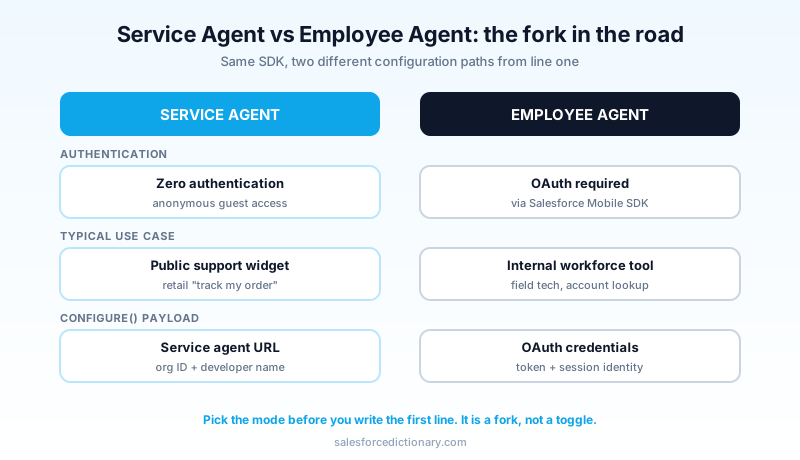
A useful test: if you would be comfortable putting this feature behind your public marketing site with no login wall, it is Service Agent. If the first sentence out of the agent could plausibly include someone's account balance, it is Employee Agent. Do not build a Service Agent flow and bolt authentication on top later as a patch. The SDK configuration path is different enough that it is closer to a second integration than a toggle.
The Architecture: A Bridge, Not a Rewrite
Understanding the shape of the SDK saves you a lot of confused debugging later, especially on the React Native side.
The React Native package is not a from-scratch chat client. It is a thin JavaScript layer that calls into the native Agentforce SDK for iOS and the equivalent for Android. On iOS, the bridge depends on the native AgentforceSDK distributed through CocoaPods. If you need Employee Agent's OAuth support, you pull in an additional subspec that adds the Salesforce Mobile SDK's core authentication library as a dependency. Skip that subspec and Service Agent mode still works fine, because anonymous access does not need it.
On Android, the package registers a native module that exposes the agent APIs to your JavaScript code. It also checks, using reflection, whether the Salesforce Mobile SDK is present on your app's classpath. If it finds it, it registers the authentication bridge needed for Employee Agent mode. If it does not find it, that bridge simply is not registered, which is the SDK's way of keeping Service Agent-only apps free of a dependency they do not need.
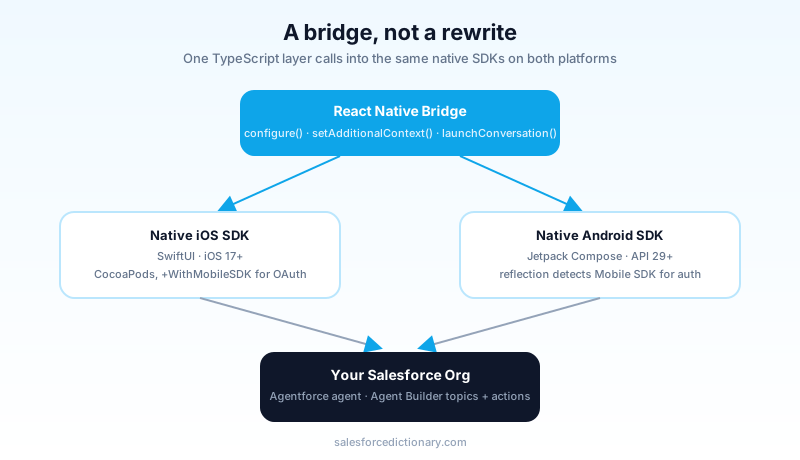
The practical upshot: your app's minimum OS version and your dependency tree are not cosmetic details. An app still supporting iOS 16 or an ancient React Native version cannot pull this SDK in without a platform upgrade first. Budget that conversation with your mobile team before you promise a delivery date to anyone.
The Three Calls That Do Almost Everything
Once the mode decision is made, the actual integration surface is small. Three methods carry the entire feature.
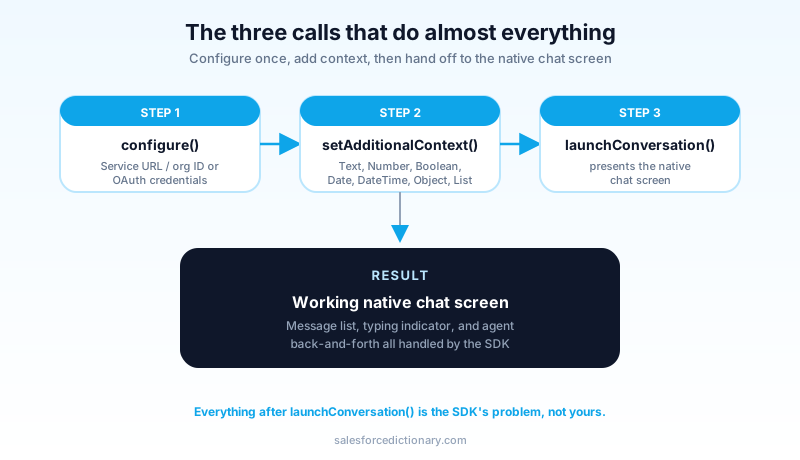
configure() initializes the SDK. For Service Agent mode, you pass the service agent URL, the org ID, and the developer name of the published agent. For Employee Agent mode, you pass OAuth credentials instead, typically the same ones your app already uses for other authenticated Salesforce calls.
setAdditionalContext() is how you hand the agent information it would otherwise have to ask for. Pass a key, a value, and a type. Salesforce supports typed context values: Text, Number, Boolean, Date, DateTime, Object, and List. This is where you pass a loyalty tier, an account ID, a flag like isVIP, or a support ticket number the user already had open in a different screen. Skipping this step is the single most common reason a "smart" agent feels dumb in production: it is not missing intelligence, it is missing context you never handed it.
launchConversation() presents the native chat screen. That is it. You present it the way you would present any other screen in your navigation stack, and the SDK owns everything from that point forward: rendering messages, showing typing indicators, and handling the back-and-forth with the agent running server-side.
The SDK ships a working, pre-built chat interface out of the box. You are not styling message bubbles from scratch, though you have room to theme colors and fonts to match your app. If your agent's agent actions return structured data instead of plain text, and you want that data to render as a designed card rather than a wall of text, that is a separate feature (Custom Lightning Types) layered on top of this SDK, not a replacement for it. Treat the Mobile SDK as the delivery mechanism and Lightning Types as the presentation layer for anything more structured than a sentence.
In React Native, the three calls read close to this in practice:
import { AgentforceService } from '@salesforce/agentforce-mobile-sdk-react-native'

await AgentforceService.configure({
  serviceAgentUrl: SERVICE_AGENT_URL,
  orgId: ORG_ID,
  developerName: AGENT_DEVELOPER_NAME,
})

await AgentforceService.setAdditionalContext('accountTier', 'Gold', 'Text')
await AgentforceService.setAdditionalContext('isVIP', true, 'Boolean')

await AgentforceService.launchConversation()
Swap the configure() payload for OAuth credentials and you have the Employee Agent version of the same three lines. Everything below that call, the message list, the input box, the typing indicator, is the SDK's problem, not yours.
Setting It Up: What the Sample App Actually Requires
Salesforce publishes a working React Native sample that builds both a Service Agent app and an Employee Agent app from one codebase, and it is the fastest way to see the real behavior before you touch your own app.
The prerequisites are ordinary but specific: Node 20.19.4 or later, Xcode 15 or later, Android Studio, JDK 17, and Boost (installed via Homebrew on macOS). Miss one and the install script fails in ways that look unrelated to the missing dependency, so check versions first rather than debugging blind.
Installation is selective by design. You can pull in just the Service Agent pieces, just the Employee Agent pieces, or both, through a single install script with a mode argument. Running the app is a single command per platform and mode, and the sample deliberately keeps the navigation shell (a home screen, a settings screen, an about screen) as plain React Native, so you can see exactly where the native bridge takes over and where it is ordinary JavaScript.
Clone the sample first. Get it running in both modes on a simulator before you write a single line in your production app. The half hour you spend here saves a much longer debugging session later, because you will have a known-good reference for exactly what "working" looks like.
Where the Mobile SDK Fits Against Voice, Messaging, and the Raw API
The Mobile SDK is not the only way to put an agent in front of a mobile user, and picking the wrong channel wastes real engineering time.
If your requirement is a phone call, not a chat, that is Agentforce Voice, which also went GA in Summer '26 and even shares the same underlying SDK for its in-app voice mode. If you already have an embeddable web widget and mobile is a secondary surface, Messaging for In-App may get you there with less native code, at the cost of a less native feel. If you need something the pre-built chat UI cannot do, a fully custom conversational interface with your own message rendering, you can talk to the agent directly over the REST API instead of using the SDK's UI layer at all, though you take on building and maintaining that interface yourself.
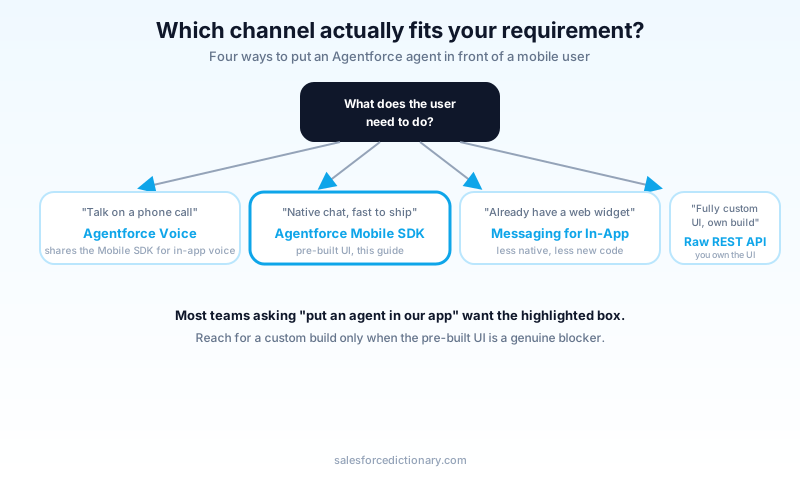
Most teams asking "how do we put an agent in our app" want exactly what the Mobile SDK ships: native, fast to integrate, and already handling the hard parts of rendering a conversation. Reach for the raw API only when the pre-built UI is a genuine blocker, not because a custom build sounds more impressive in a design review.
The Security Question You Cannot Skip
Service Agent mode's biggest strength, zero friction, is also its biggest risk if you configure it carelessly. Anonymous access means anyone with your app installed can start a conversation, so any agent action exposed to a Service Agent should be one you are comfortable a stranger can trigger. Do not wire a Service Agent to actions that touch another customer's data, even indirectly, and rate-limit at the org level if your app has any public visibility at all.
Employee Agent mode inherits whatever OAuth hygiene your app already practices, token refresh, session expiry, and revocation on device loss. If your mobile team already has a solid pattern for that from other authenticated Salesforce Mobile SDK features, reuse it here rather than inventing a parallel one. The one habit worth adding regardless of mode: audit what each agent action actually returns before you ship it to a mobile surface, because a mobile chat screen has no page layout quietly filtering fields the way Service Cloud console views did for a decade. The agent shows exactly what the action gives it, so the action is where you enforce the boundary.
Common Errors You Will Hit First
A handful of failures show up often enough to name in advance.
"Configuration failed" with no other detail, on iOS. Almost always a missing subspec. You added Employee Agent authentication code but never pulled in the WithMobileSDK subspec, so the OAuth dependency is not actually in the build.
The Android bridge silently ignores auth calls. Check whether the Salesforce Mobile SDK is actually on your app's classpath. Remember, the Android package uses reflection to detect it and register the authentication bridge. If it is not there, Employee Agent calls fail quietly instead of throwing a clear error.
The conversation launches but the agent seems to know nothing about the user. This is almost never a model problem. It is a missed setAdditionalContext() call, or a context value passed with the wrong type. A Number passed as Text still "works" in the sense that nothing crashes, but the agent's instructions may not parse it the way you expect.
Build fails after a dependency bump. Re-check the minimum versions. iOS 17, Android API 29, React Native 0.72. An app that has not touched its minimum OS targets in a year is the most common reason a fresh SDK install fails on the first build, not anything specific to Agentforce.
What to Build This Week
Pick one mode, based on whether the feature needs a login or not, and clone the sample app before you touch your production codebase. Get one working conversation on a simulator, in the mode you actually need, and only then start wiring configure() and launchConversation() into your real app's navigation. That order, sample first, production second, is the difference between a Friday demo that works and one where you are debugging a CocoaPods dependency an hour before the meeting.
About the Author
Dipojjal Chakrabarti is a B2C Solution Architect with 29 Salesforce certifications and over 13 years in the Salesforce ecosystem. He writes and edits salesforcedictionary.com, published by KineticBit Inc., to help admins, developers, architects, and cert/interview candidates sharpen their fundamentals. More about Dipojjal.
Share this article
Sources
Related dictionary terms
Practise it
Five questions on Agentforce Specialist
Exam-style questions with an explanation after each one. No account needed, and your answers build a weak-topic map once you have one.
Keep reading
Agentforce Service: The Complete 2026 Guide (Formerly Service Cloud)
Service Cloud is now Agentforce Service. This 2026 guide cuts through the rebrand: the Service Agent, IT Service, Agentic Milestones, knowledge grounding, and the real deflection numbers.

Agentforce Voice: The Complete 2026 Guide to AI Phone Agents
Agentforce Voice puts an AI agent on your phone line: it listens, acts on CRM data, and escalates with context. Summer '26 added Mobile SDK GA and SIP routing. How it works, what it costs, where it falls short.

Salesforce Multi-Agent Orchestration: The Complete 2026 Guide
In 2026, orgs run an average of 12 AI agents - half in isolated silos. Learn the primary-and-specialist architecture, Agent Fabric, and the A2A protocol that turn agent sprawl into coordinated enterprise AI.
Comments
No comments yet. Start the conversation.
Sign in to join the discussion. Your account works across every page.