
Profile, Chatter
A Chatter profile is the people-facing page for a Salesforce user.
Definition
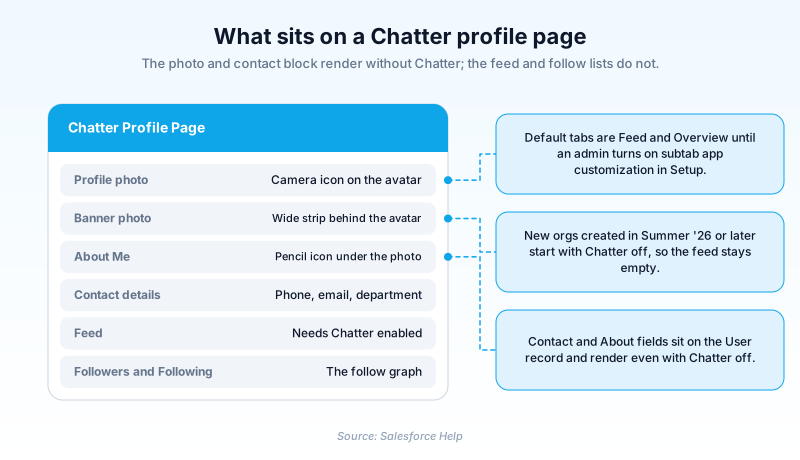
A Chatter profile is the people-facing page for a Salesforce user. It holds a photo, a banner, an About Me statement, contact details, a personal feed, and follow relationships. Salesforce docs still call it the Chatter profile page, and you reach it by clicking any user's name or avatar.
Part of it works with Chatter switched off, because the contact and About fields belong to the User record. The feed, the follower counts, and the group memberships need Chatter enabled.
That split got sharper in Summer '26, when Salesforce began creating new orgs with Chatter off by default. Existing orgs kept their settings. A fresh org needs an admin to enable Chatter before the social half of the page fills in.
In plain English
“Think of it as the page in a company directory that each person writes themselves. There is a picture, a line about what they do, a way to reach them, and a list of recent posts. You can subscribe to someone from that page so their updates land where you already look. If nobody fills theirs in, the directory stops being worth opening.”
Worked example
Priya joins a 400-person logistics operator as a Regional Ops Manager. On day one she clicks her own name and uploads a headshot through the camera icon on the avatar. She adds a banner photo of the Rotterdam yard. The pencil icon opens her About Me statement, where she writes her title and the fact that she owns EU carrier onboarding. On the Contact tab she sets Phone and Department, but not Manager, which only admins edit. She then follows her six teammates. By the second morning her What I Follow feed carries their posts. When a dispatcher types @Priya on a delayed-shipment case, the mention links back to this page.
What the page holds, who controls it, and what has to be on
Photo, banner, About Me, and the lists underneath
The top of the page is deliberately visual. The camera icon on the default avatar is the upload control for a profile photo, and the pencil icon underneath opens the About Me statement. A banner photo sits behind the avatar as a wide strip. Salesforce adds a personal statement and links to your social accounts on the same page. Contact details render beside all of it, read straight off the User record. You can edit your own, with one exception. Manager belongs to admins, which is why it looks read-only when you go hunting for the pencil. Below that block the page turns into lists of what Chatter tracks: posts, followers, groups, files, topics.
Why the extra tabs are called a subtab app
Out of the box the profile page is close to fixed. Anything beyond the standard tabs arrives as a subtab app, which is Salesforce's name for a bundle of tabs attached to the profile page rather than to an object. The design point is the audience split. Salesforce ships one set for what you see on your own page and another for what colleagues see on yours, plus a second pair covering Experience Cloud sites. That is deliberate. A payroll link or a personal task tab belongs on your own profile and is clutter on everybody else's. The walkthrough below has the Setup switch, the allowed tab types, and the per-profile scoping.
What a Chatter-off org actually looks like
Open a brand new org and the user pages can look broken. No feed, no follower count, no group list, just contact fields and white space. Nothing is broken. That is the starting state now, and the fix is one trip: Setup, then Chatter Settings, then Enable. Do that before you evaluate anything built on the Chatter APIs, because several platform features ride the same plumbing, and before you audit permission sets. Chasing an empty feed through profiles when the org-level switch is off costs you an afternoon.
Profile-based rollout, and the two-step trap
Large or regulated companies often want Chatter for one department first. Profile-based rollout exists for that. Access hangs on the Enable Chatter permission, found under Administrative Permissions on a permission profile. A permission set grants it too. The trap is documented and still catches people. Ticking Enable Chatter on a profile does not by itself enable Chatter for those users. The org-wide setting has to be on. Correct order is org first, then profile-based rollout, then the permission. People without it use every object as normal. They just see no feeds.
The follow graph is what the page is really for
A photo makes someone recognizable. Following makes them useful. Subscribe from someone's profile and their public posts land in your What I Follow feed, beside the records and groups you track. The page shows it both ways: a follower count, and the list of who this person follows. Read together, those tell you who is central to a topic without anyone drawing an org chart. Mentions run on the same graph. Typing @ and a name notifies the person and links back to their page. A filled-in profile earns its keep even for someone who never posts.
Reading profiles from code
The page is addressable from code, which matters when you build an intranet or a mobile client. Apex ships a ConnectApi.UserProfiles class. Its static methods cover the pieces a person otherwise edits by hand: getUserProfile, setPhoto, setBannerPhoto, deletePhoto, deleteBannerPhoto. Connect REST API serves clients living outside Apex. Two cautions. Salesforce states that some Connect REST API features need Chatter enabled for the org, which loops back to the Summer '26 default. And treat every response as presentation data. It tells a client what to draw. It is never an authorization decision, so do not let it stand in for a permission check.
Add a custom tab to the Chatter profile page
Default profile pages carry a Feed tab and an Overview tab. Anything more means turning on customization, then editing the right subtab app.
- Turn on profile customization
From Setup, enter User Interface in the Quick Find box and select User Interface. Tick Enable Customization of Chatter User Profile Pages, then save.
- Build the tab first
Create a Web tab, a Visualforce tab, or a Visualforce tab wrapping a Canvas app. It has to exist before a subtab app can reference it.
- Edit the right subtab app
Profile (Self) governs what a person sees on their own page. Profile (Others) governs what colleagues see. The Communities pair covers Experience Cloud sites.
- Scope it per profile
Use the Tab Hidden option in Tab Settings on each permission profile, so only the intended audience gets the new tab.
The Setup, User Interface checkbox that makes subtab apps editable.
Standard internal subtab apps, split by who is viewing.
The Experience Cloud equivalents, edited separately.
A per-profile Tab Settings value that removes a tab.
- Editing Profile (Self) changes nothing for colleagues viewing that page. The Others variants are configured separately.
- On a new Summer '26 org, Chatter is off by default. The Feed tab stays blank until you enable it under Chatter Settings.
- A custom tab does not bypass sharing. Visualforce runs under the viewing user's permissions.
Prefer this walkthrough as its own page? How to Profile, Chatter in Salesforce, step by step
How organizations use Profile, Chatter
Makes profile setup an onboarding task with a deadline: photo, two lines of About Me, department, follow your team.
Runs profile-based rollout, granting Enable Chatter to marketing and HR while the trading desk waits on legal review.
Traced bare-looking user pages to the new Chatter default and fixed it in one Setup step, not a permission rebuild.
Trust & references
Cross-checked against the following references.
- Chatter Overview (opens in new tab)Salesforce
- Control Chatter Access Through User Profiles (opens in new tab)Salesforce
- Update Your Profile Page (opens in new tab)Salesforce
- Let Admins Customize Chatter Profile Pages (opens in new tab)Salesforce
- Welcome to Chatter in Lightning Experience (opens in new tab)Salesforce
- Chatter Profile Overview (opens in new tab)Salesforce
- Recommended resolution size for Profile or Group photos (opens in new tab)Salesforce
Straight from the source - Salesforce's reference material on Profile, Chatter.
Hands-on resources to go deeper on Profile, Chatter.
About the Author
Dipojjal Chakrabarti is a B2C Solution Architect with 29 Salesforce certifications and over 13 years in the Salesforce ecosystem. He writes and edits salesforcedictionary.com, published by KineticBit Inc., to help admins, developers, architects, and cert/interview candidates sharpen their fundamentals. More about Dipojjal.
Test your knowledge
+5 pts / dayQ1. In a Salesforce org created after Summer '26, a user's profile page shows contact details but no feed. What is the most likely cause?
Q2. Which change is required before an admin can add a custom tab to Chatter profile pages?
Q3. An admin selects Enable Chatter on the Sales User profile, but those users still see no feeds. What is missing?
Discussion
Loading discussion…