
Payment
A Payment in Salesforce is a record that captures money received from a customer against an invoice balance.
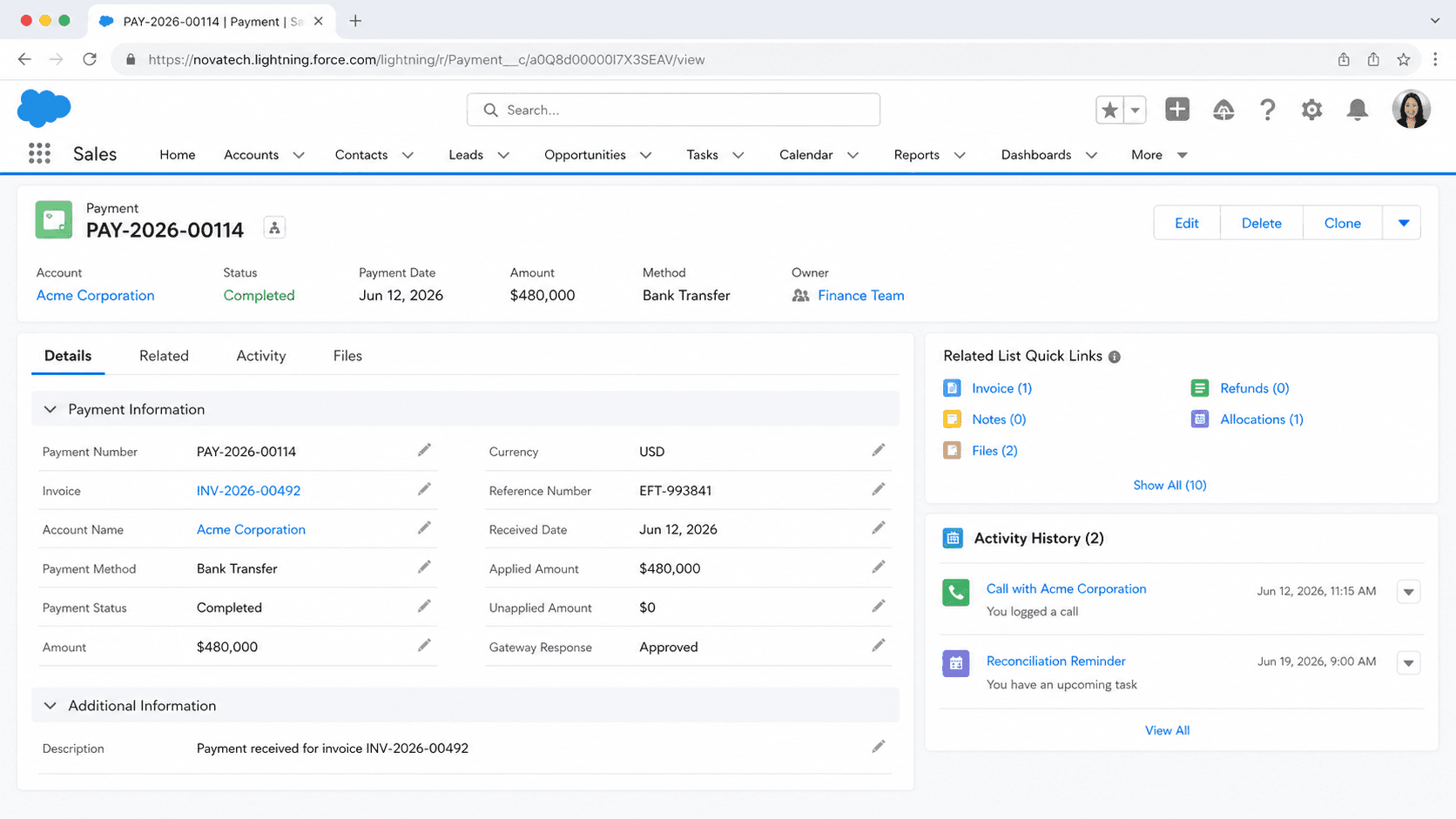
Definition
A Payment in Salesforce is a record that captures money received from a customer against an invoice balance. It tracks the amount, the payment method, the date funds were collected, and how that money is applied across one or more invoices. Payments live in Salesforce Billing, which is part of Revenue Cloud, where they sit at the end of the quote-to-cash flow that runs from quote to order to invoice to payment.
A Payment can be entered by hand for a check or cash receipt, or created automatically when a payment run charges a gateway. Either way, the record is only useful once it is allocated, meaning the amount is linked to specific invoices so their balances drop and the account stops showing money it has already received.
How payments close out the accounts receivable loop
Where the Payment record sits in quote-to-cash
Salesforce Billing models the full revenue lifecycle. A quote becomes an order, the order generates billing schedules, and those schedules produce an Invoice that lists what the customer owes. The Payment record is the last link in that chain. It represents the cash the customer sent back to settle the invoice. Without a Payment record, an invoice stays open in the system even after the customer has paid. That gap shows up as overstated accounts receivable, wrong aging buckets, and collections calls to people who already paid. Recording the payment and applying it keeps the books honest. The invoice balance drops, the status moves toward paid, and reports reflect reality. Payments connect to other billing objects too. Credit Notes reduce a balance for returns or goodwill, and Refunds return money the customer should not have been charged. A Payment is specifically the inbound side, money coming in, while a Refund is the matching outbound correction when a payment was taken in error.
Manual payments versus gateway payments
There are two ways a Payment record gets created, and the difference matters for how you work with it. A manual payment is entered directly, usually in the Payment Center, by an admin, an internal user, or the customer. This is how you record a check, a wire, or cash that arrived outside Salesforce. No gateway is involved, so you allocate the amount to invoices yourself. An electronic payment runs through a payment gateway, an integration that talks to the customer bank or card network. Salesforce supports gateways such as Authorize.net and Payeezy. Electronic payments are collected one of two ways. A payment run is a scheduled, automated process that looks at outstanding invoices and charges the stored payment method. The Payment Center handles on-demand charges when someone wants to collect right now. The lifecycle is similar for both paths. You set up the method and gateway, collect the funds, record the gateway response, allocate the payment to invoices, then reconcile once the bank confirms settlement or flags a failure.
Allocation is what makes a payment count
A Payment record on its own only says money arrived. Allocation is the step that ties that money to specific invoice lines so balances actually change. In Salesforce Billing, a payment allocation is the amount of a payment applied to an invoice line balance, managed on the Payment Allocation page. When a payment run charges a customer, it creates allocations automatically that cover the full invoice line balance. Manual payments give you more control. You can apply part of the amount now and leave the rest for later, as long as the total allocated never exceeds the payment amount. A single payment can spread across several invoice lines, even lines from different invoices, provided they all belong to the same account. Three operations keep allocations correct. Allocate assigns payment to one or more invoice lines. Unallocate pulls back an allocation made in error and returns that money to unallocated status. Reallocate moves an allocation from one invoice to another on the same account when you applied it to the wrong place.
Unallocated amounts and partial payments
Customers do not always pay the exact invoice total, and Salesforce Billing handles that without forcing a one-to-one match. If a customer overpays, or sends a lump sum to cover several invoices, the extra money becomes an unallocated amount on the Payment record. Unallocated payments stay on the account indefinitely until someone applies them. This is useful in real collections work. A customer might send a single payment meant to clear three invoices. You record one Payment, then allocate slices of it against each invoice line until the money is fully applied. Partial payments work the same way in reverse. If someone pays half of one invoice, you allocate that half, the invoice balance drops by that amount, and the remaining balance keeps aging until the rest arrives. Tracking unallocated cash matters for accuracy. Money that sits unapplied is still owed to the customer in an accounting sense, so finance teams watch these amounts during month-end close to make sure nothing is double counted or forgotten.
The objects behind a Payment
Under the hood, several objects work together. The Payment record holds the header level facts: amount, method, date, and status. The link between a payment and an invoice is a separate junction object. PaymentLineInvoice represents a payment applied to or unapplied from an invoice, and in newer releases PaymentLineInvoiceLine ties the payment down to a specific invoice line. Salesforce Billing creates these allocation records when you allocate in the Payment Center. Supporting objects round out the model. Payment Method stores the customer banking or card details and points at the gateway that will process charges. Payment Gateway is the integration record for the provider. Payment Authorization captures a pre-approval, and Payment Group bundles the transactions tied to a single processing event. Refund is the object that reverses money already collected. Knowing the object split helps when you build reports or automation. Aging and AR reports usually join Payment and Invoice through the allocation objects, not by reading the Payment record alone.
Reporting, reconciliation, and finance close
Payment data drives the accounts receivable picture that finance teams rely on. Because every allocation links a payment to an invoice line, you can build aging reports that show what is still open, what was paid, and how long balances have been outstanding. Salesforce Billing also offers Balance Snapshots to capture aging at a point in time and Finance Logging to audit financial transactions during close. Reconciliation is the discipline of matching what Salesforce says against what the bank actually settled. For gateway payments, the recorded gateway response is the first checkpoint, and the bank settlement file is the second. A payment that shows as collected in Salesforce but never settles needs follow up, and that is where the Refund or a correcting reallocation comes in. Organizations not running Salesforce Billing usually handle this differently. They track opportunities and orders in Salesforce, then push the receivable side to an external accounting system like an ERP, where the actual Payment record lives outside the platform.
Record and allocate a manual payment
Use these steps to record a manual payment in Salesforce Billing, for example a check or wire that arrived outside a gateway, and apply it to an invoice. This assumes Salesforce Billing is installed and the customer account already has at least one posted invoice.
- Open the Payment Center for the account
Navigate to the customer account and launch the Payment Center. This is where admins and users create payments and manage allocations against that account.
- Create a manual payment
Choose to create a payment, enter the amount received, the payment method, and the payment date. A manual payment does not call a gateway, so it records the money as already collected.
- Allocate the payment to invoices
Apply the payment amount to one or more invoice lines on the account. You can fully or partially apply it, but the total allocated cannot exceed the payment amount.
- Confirm balances and leftovers
Verify that each invoice balance dropped by the allocated amount. Any remaining money stays on the account as an unallocated amount you can apply to a future invoice.
The total funds received from the customer for this payment record.
How the money was paid, such as check, ACH, wire, or card; manual payments often use a non-gateway method.
The date the funds were collected, which drives aging and reconciliation.
The customer account the payment belongs to; allocations can only target invoices on this same account.
- Total allocations across all invoice lines can never exceed the payment amount.
- A single payment can only be allocated to invoices that belong to the same account.
- Unallocated amounts sit on the account indefinitely, so unapplied cash will quietly distort AR if you forget about it.
- To reverse a posted payment taken in error, use a Refund rather than deleting the record, so the audit trail stays intact.
Prefer this walkthrough as its own page? How to Payment in Salesforce, step by step
Trust & references
Cross-checked against the following references.
Straight from the source - Salesforce's reference material on Payment.
Hands-on resources to go deeper on Payment.
About the Author
Dipojjal Chakrabarti is a B2C Solution Architect with 29 Salesforce certifications and over 13 years in the Salesforce ecosystem. He writes and edits salesforcedictionary.com, published by KineticBit Inc., to help admins, developers, architects, and cert/interview candidates sharpen their fundamentals. More about Dipojjal.
Test your knowledge
+5 pts / dayQ1. What does a Payment record represent in Salesforce Billing or Payments?
Q2. Where does a Payment sit within the broader quote-to-cash flow?
Q3. How does a Payment record relate to the invoices that it covers?
Discussion
Loading discussion…