
Process Builder to Flow Migration: The Complete 2026 Playbook
Retirement timelines, migration priority triage, flow type mapping, gotchas, and the exact steps to move 47 active processes without breaking production.

You open the org audit on a Monday morning and the number stares back: 47 active processes, plus 31 workflow rules nobody has touched since 2019. Some of them fire on the same object. A couple still send emails to people who left the company. The cutover stopped being a slide in someone's roadmap deck and became your problem, with a date attached.
This is the position most admins are in right now. Process Builder and Workflow Rules are retired. They still run in many orgs out of inertia, but Salesforce stopped letting you create new ones, and the clock on the existing ones is real. This playbook walks you through the whole move: the timeline you are working against, what Flow replaces each tool with, how to audit and prioritize, the exact conversion steps, the gotchas that break production, and how to test before you flip the switch.
The retirement timeline
Salesforce announced the retirement back in 2021, and it has rolled out in stages rather than one hard kill date.
The first milestone: you can no longer create new Workflow Rules or new Process Builder processes. That door closed. The "Migrate to Flow" tool became the front door, and the create buttons for the old tools quietly disappeared from most orgs.
The second milestone: existing processes and rules still execute. This is the part that lulls teams into doing nothing. Your old automation keeps firing, so the migration feels optional. It is not. Salesforce has been clear that running automation will eventually stop, and once it does, any record action that depended on a process simply will not happen. No error, no alert, just silence.
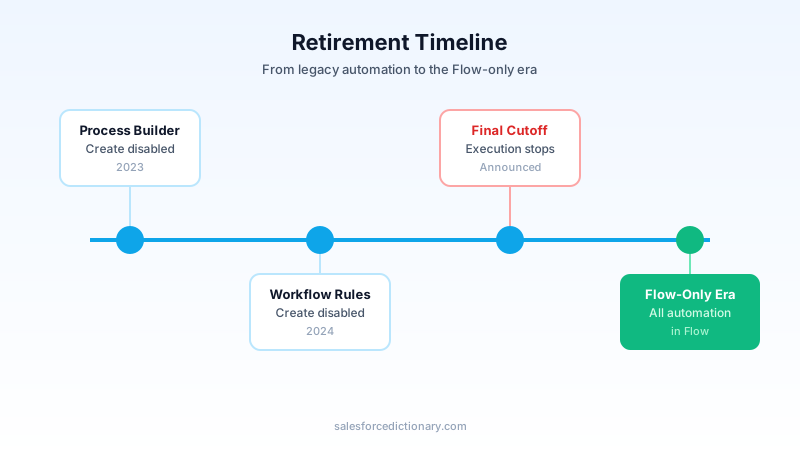
Treat the "still works" window as borrowed time, not a reprieve. Orgs that wait until the final cutoff end up migrating under pressure, with no buffer to test. The teams who finished early did it on their own schedule, in daylight, with a sandbox to fall back on.
What Flow replaces
Every old automation pattern has a Flow equivalent. The trick is picking the right flow type, because the wrong one works in a demo and falls over in production.
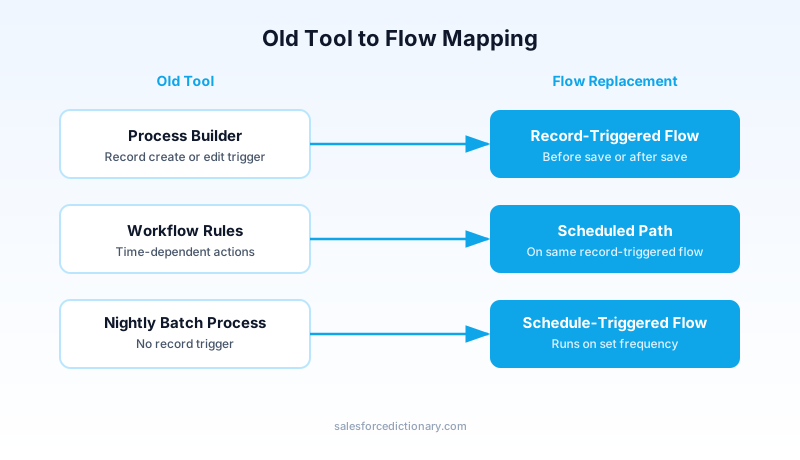
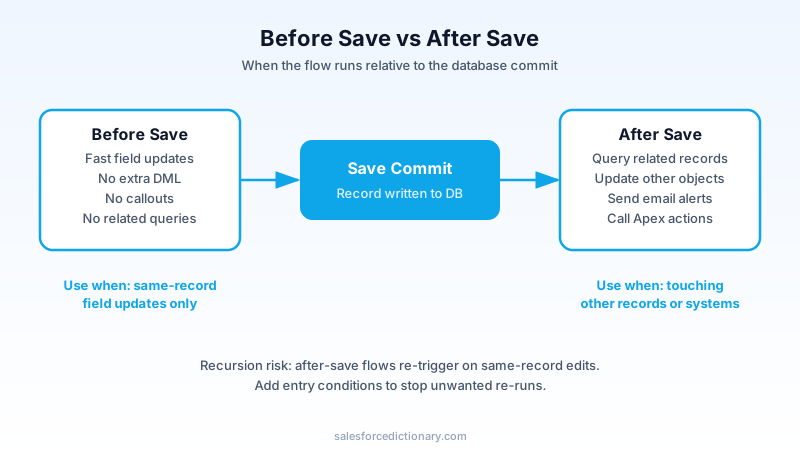
Process Builder triggers map to Record-Triggered Flow. A process that ran "when a record is created or edited" becomes a record-triggered flow with the same object and trigger condition. If the process only set fields on the triggering record, use a before-save flow, which runs inside the original transaction and costs no extra DML. If it updated other records, sent email, or called Apex, use after-save.
Time-based workflow actions map to Scheduled Paths. Workflow Rules had time-dependent actions, the ones that fired "3 days after Close Date". In Flow you build those as scheduled paths on a record-triggered flow. You set the base time field, the offset, and the direction, and Flow handles the queueing. One flow can hold the immediate path and several scheduled paths together, which is cleaner than the old split between rule and time trigger.
Scheduled actions with no triggering record map to Schedule-Triggered Flow. If you had a nightly batch pattern, say a process kicked off by a scheduled Apex job that looped records, that belongs in a schedule-triggered flow. It runs on a set frequency, queries a defined set of records, and processes each one.
Screen-driven or user-initiated automation maps to Screen Flow. Anything a process triggered off a checkbox a user clicked to "run automation" is usually better as a real screen flow on a button or Lightning page.
The audit: where to start
You cannot migrate what you have not counted. Start by pulling the full inventory.
In Setup, the Migrate to Flow tool lists eligible Workflow Rules and shows what it can convert automatically. For Process Builder, open each process and note the object, the trigger type, and the action groups. For a complete picture across the org, query the metadata. A SOQL query against FlowDefinitionView plus an inspection of WorkflowRule and ProcessDefinition metadata via the Tooling API gives you a real list rather than what you remember building.
Sort the list by complexity, not alphabetically. A one-action process that stamps a date is a five-minute job. A process with eight decision nodes, three scheduled actions, and an Apex callout is a project. Tag each one.
Then prioritize by blast radius. Ask which automation, if it broke for an hour, would page someone. Those go last in the build queue and first in the test queue, because they need the most scrutiny. The low-risk, low-traffic processes are where you build confidence and refine your pattern.
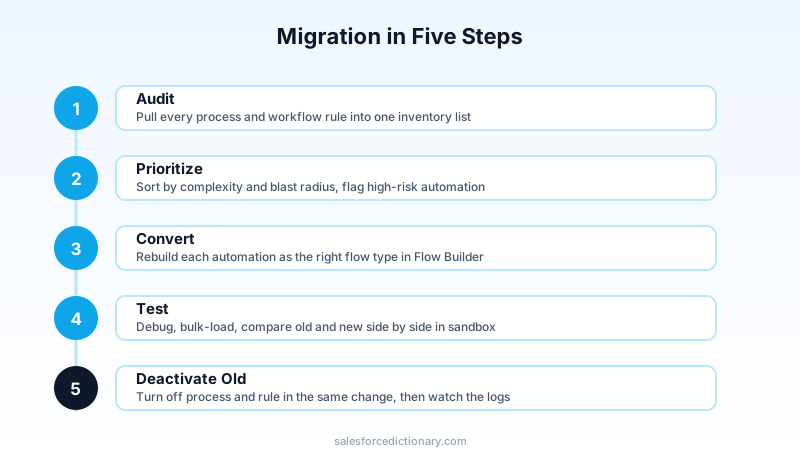
Flag the risky ones explicitly. Anything that touches Opportunity stage, anything that fires on a high-volume object like Case or Lead, and anything that integrates with an external system. These deserve a dedicated test plan, not a quick smoke test.
One more audit step people skip: find the duplicates. You will often discover two processes and a workflow rule all firing on the same object for overlapping reasons. Migration is the moment to consolidate, not to copy the mess into a new tool.
Step-by-step migration
Here is the conversion for the common case: a Process Builder process on Opportunity that runs on create or edit.
Step one, recreate the trigger. Build a new Record-Triggered Flow on Opportunity. Set the trigger to "A record is created or updated". Match the process's start condition in the flow's entry conditions. If the process had no criteria and ran on everything, leave entry conditions open, but consider tightening them now, because every saved record will run the flow otherwise.
Step two, pick before-save or after-save. Walk the process's immediate actions. If every action is "Update Records" pointing at the triggering Opportunity itself, choose before-save. If any action sends email, updates a related Contact or Account, or calls Apex, choose after-save.
Step three, rebuild immediate actions as elements. Map each one directly:
- Process "Update Records" on the same record becomes an Assignment element in before-save, setting
{!$Record.FieldName}values directly. No Update element needed. Before-save commits those assignments as part of the same transaction. - Process "Update Records" on a related record, say updating the parent Account's custom field when an Opportunity closes, becomes a Get Records element (to fetch the Account) followed by an Update Records element in after-save. Use the Opportunity's
AccountIdin the filter condition of Get Records. - Cross-object field updates that traversed multiple relationships in Process Builder, for example updating a field two levels up from Opportunity to Account to parent Account, require two separate Get Records elements in Flow, one per hop, before the final Update Records. Process Builder handled this with its "Select a Field" tree. Flow makes the traversal explicit, which is more readable but more work to build.
- Process "Email Alerts" becomes an Action element of type Email Alert, referencing the same email alert definition you already have. The definition does not need to change.
- Process "Apex" actions map to Action elements of type Apex, calling the same invocable Apex class. Check that the invocable method signature still matches the input/output variable names. If the Apex class uses
@InvocableVariable, the variable names must match exactly what the flow expects. Mismatches surface as deployment errors, not runtime errors. - Process field updates that referenced formulas become Formula resources in the flow, then referenced in Assignment or Update elements.
Step four, map decision logic correctly. Process Builder action groups each had their own criteria, and those criteria used either "All Conditions Met" (AND logic) or "Any Condition Met" (OR logic). In Flow, a Decision element has multiple outcomes. Each outcome has its own condition set, and you can set the condition logic to ALL or ANY per outcome. The common mistake is building one outcome with a single mixed condition when the original process used OR logic. Check every action group's criteria operator before you translate it.
A process with three action groups becomes a Decision element with three named outcomes plus a Default outcome. Name the outcomes after the business case they represent, not the condition they check. "High Priority Case" is better than "Outcome 3".
Step five, rebuild scheduled actions as scheduled paths. If the process had time-based actions, add a scheduled path to the same record-triggered flow. Set the time source field (for example, Close Date), the offset (minus 3 days), and the direction (before). Move the relevant actions into that path. Each scheduled path runs in its own transaction later, so you cannot assume the record looks the same as when it triggered. Always re-read the relevant fields at the start of a scheduled path using a Get Records element, then check a condition before proceeding. The old time-dependent action re-evaluated the rule criteria before firing. Your flow will not unless you build that check.
Step six, handle Apex callout actions carefully. If the original process called an invocable Apex method that itself made a callout to an external system, you must keep that Apex in after-save context. Callouts are never allowed in before-save flows. Additionally, if the invocable Apex does DML, make sure the flow does not also do DML on the same object in the same transaction, or you will hit the mixed DML error. In those cases, move the Apex invocation to an async path using a sub-flow or a platform event to decouple the callout.
Migration gotchas
This is where production breaks. None of these show up in a happy-path test.
Order of execution differs. Process Builder ran after workflow field updates in the save order. Before-save flows run earlier, alongside the system validation phase. If you had a workflow rule setting a field and a process reading that field on the same record edit, naively converting both to flows can flip the read and write order. Map the dependency before you build, not after the values come out wrong.
Recursion is easier to trigger. A process that updated the triggering record could re-enter itself, and Salesforce had guardrails that limited re-entry. In Flow, an after-save flow that updates its own triggering record causes a second save, which re-runs after-save flows on that object. If you must update the same record after save, either move the logic to before-save (where the update is free and does not re-trigger), or add an entry condition that stops the flow from re-running once the target field is already set.
SOQL limits hit differently. Before-save flows cannot query the database for related records using Get Records elements. That is by design. Before-save is meant to be fast and cheap. If your process queried a related object before stamping a field, you need to restructure: move to after-save, pass data through a formula that reads relationship fields directly (which does work in before-save via {!$Record.Lookup__r.Field__c}), or accept that a Get Records is an after-save concern.
Email alert dedupe is on you now. Process Builder and Workflow could both fire on the same record and sometimes send overlapping emails, and teams relied on quirky evaluation order to avoid it. When you consolidate into one flow, double-check each outcome path. A flow that reaches two separate Email Alert actions for the same recipient in the same run will send two emails. The flow does exactly what you draw.
Scheduled path record IDs can go stale. A scheduled path fires hours or days later. The record may have been deleted, merged, or updated in ways that make the scheduled action irrelevant or incorrect. Always re-fetch the record at the start of a scheduled path using Get Records filtered by Id equals {!$Record.Id}. Then run a Decision element to confirm the record still meets the criteria before taking any action. Treating the scheduled path like a snapshot of the record state at trigger time is how you send the wrong email to the wrong person three days later.
Test coverage for flows counts against your org and your deployments. Flows that include Apex actions, or flows that are referenced by Apex code, count toward your org's overall test coverage requirements. More directly: if you deploy an active flow to production and a failing Apex test class references the object that flow touches, the deployment can fail. Build at least one Apex test class per migrated flow that exercises the main path. A flow with no Apex test coverage is technical debt with a deployment risk attached.
Testing migrated flows
Do not trust a flow that has only run once in a debug session.
Write an Apex test class that performs the exact DML which triggers the flow. For a record-triggered flow on Opportunity, the test inserts or updates a test Opportunity record inside a Test.startTest() and Test.stopTest() block, then queries the record and asserts the expected field values. The Test.stopTest() call also drains the async queue, which means any scheduled paths queued during the test run within that call. Assert after Test.stopTest() completes, not before. Include a test method for the "entry conditions not met" case, the path where the flow should not fire, and assert that the field was not changed. If that test fails, your entry conditions are wrong.
Use Flow debugging in the sandbox with real-looking data. Run the flow in debug mode against an existing record, watch each element execute, and check the variable values at each step. The debug trace shows the value of every element input and output. If a Get Records element returns zero records when you expected one, the filter condition is wrong. The trace tells you exactly which filter was evaluated and what value it used.
To verify a scheduled path queued correctly, check the Time-Based Workflow queue in Setup after triggering the flow. Scheduled path entries appear there. Confirm the queue entry shows the correct record Id, the correct flow name, and the scheduled execution time. If the entry is missing, the scheduled path condition was not met at trigger time, or the record did not enter the flow at all.
Before cutover, run three things in the sandbox: a bulk load of 200 records to check governor limits under volume, a single-record debug trace for the main path and the skip path, and a side-by-side comparison run where you trigger both the old process and the new flow against equivalent records and compare the resulting field values. Discrepancies in that comparison are your bugs. Find them in sandbox, not in production.
Activate the flow, deactivate the old automation in the same deployment, and watch the event logs for the first few hours.
What to read next
- The Complete 2026 Guide to Record-Triggered Flows
- Salesforce Flow vs Apex: When to Use Each in 2026
- Flow Fault Paths and Error Handling
- Salesforce Flow Orchestration: The Complete 2026 Guide
Your next step is small and concrete: open Setup, run the Migrate to Flow tool, and export your full process inventory today. Sort it by complexity before lunch. The migration does not get easier by waiting, and the orgs that finished early did it one process at a time, starting with the count.
About the Author
Dipojjal Chakrabarti is a B2C Solution Architect with 29 Salesforce certifications and over 13 years in the Salesforce ecosystem. He writes and edits salesforcedictionary.com, published by KineticBit Inc., to help admins, developers, architects, and cert/interview candidates sharpen their fundamentals. More about Dipojjal.
Share this article
Sources
Related dictionary terms
Practise it
Five questions on Administrator
Exam-style questions with an explanation after each one. No account needed, and your answers build a weak-topic map once you have one.
Keep reading

The Complete 2026 Guide to Record-Triggered Flows in Salesforce
Record-triggered flows are the Salesforce automation default in 2026. This is the complete tutorial: before-save, after-save, scheduled paths, gotchas, and 5 worked examples.

Salesforce Flow Fault Paths and Error Handling: The Complete 2026 Guide
Most flows fail silently when something goes wrong. Here is how to wire fault paths, write rollback logic, and surface errors your users can actually act on.

Salesforce Flow vs Apex in 2026: A Decision Matrix for Admins, Developers & Consultants
Flow vs Apex is not a religious war anymore. Here is the 2026 decision matrix. Capability gaps, governor limits, the 70/30 rule, and 12 worked scenarios with the right answer for each.
Comments
No comments yet. Start the conversation.
Sign in to join the discussion. Your account works across every page.