
The Complete 2026 Guide to Record-Triggered Flows in Salesforce
Before-save vs after-save, entry conditions, scheduled paths, the 'Only when updated to meet criteria' gotcha, and five worked examples.

A user reports that a Case is not sending its escalation email even though the Priority is "High" and the IsEscalated flag is true. You open the flow, see the entry condition reads "Only when updated to meet criteria", and stare at the screen. The data looks right. The criteria look right. The flow is active. Nothing is firing. You will spend twenty minutes finding the answer, and the answer will be that the record was already meeting the criteria before the last update, so the flow correctly did not fire. That is the Mode 2 versus Mode 3 gotcha, and once you internalize it, half the "why did my flow not fire" tickets disappear.
Workflow Rules and Process Builder are retired. Their successor, the record-triggered Flow, is the most-used automation primitive on the Salesforce platform in 2026. Knowing this primitive cold is the difference between an admin who ships and an admin who debugs all day. This guide is the complete tutorial. When to pick before-save versus after-save, how to use entry conditions correctly, scheduled paths, the "Only when updated to meet criteria" gotcha that costs teams hours, and five worked examples you can rebuild in your own org.
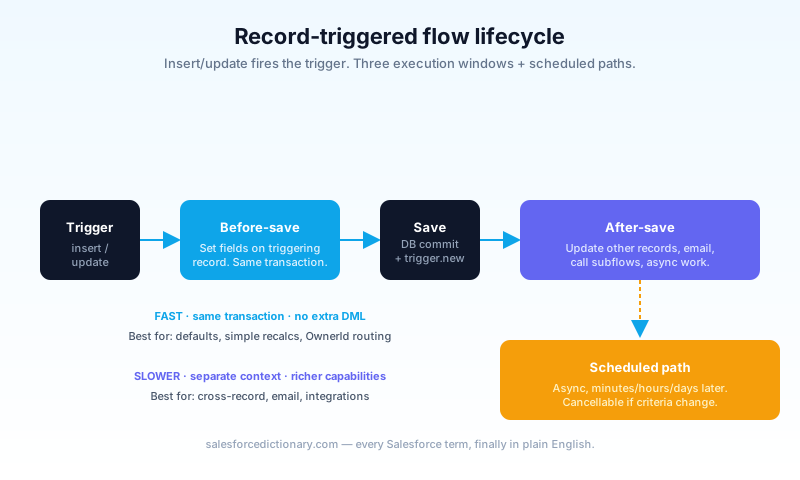
Before-save vs after-save
The single biggest decision in record-triggered flow design.
| Aspect | Before-save | After-save |
|---|---|---|
| When it runs | Before the record commits | After the record commits |
| What it can do | Set field values on the triggering record | Update other records, send email, call sub-flows, run async work |
| Speed | Very fast (no second DML) | Slower (separate transaction context) |
| Use it for | Defaulting fields, simple recalculations | Cross-record updates, notifications, integrations |
Rule of thumb: if the only change is to the record itself, use before-save. Anything else, use after-save. The reasoning is simple. Before-save runs inside the same database transaction as the original DML, so any field change you make piggybacks on that one commit. After-save runs in its own context, and any field change you make on the triggering record costs a second DML, which sounds harmless until you multiply it across a Bulk API load.
A common mistake is using after-save to set fields on the triggering record. That works, but it costs you a second DML on the same record, which is wasteful at scale. Promote it to before-save. The performance difference is small for a single record and obvious at one thousand.
Entry conditions
Entry conditions decide whether the flow fires at all. They evaluate at the moment the trigger is checked.
Three modes:
- Every time a record is created or updated. Fires unconditionally. Use sparingly. Most flows should not fire on every change.
- Only when a record is updated to meet criteria. Fires only when the record transitions into matching the criteria. The famous gotcha: if the record was already meeting criteria before the update, the flow does not fire. This is what trips up most admins.
- A record is updated and meets criteria. Fires on every update where the record currently meets criteria, regardless of whether it just transitioned in.
The difference between #2 and #3 is the source of more "why did my flow not fire?" tickets than anything else. #2 equals transition. #3 equals current state. Pick deliberately.
Before update: Account.Type = 'Customer'
After update:  Account.Type = 'Customer' (no change)

Mode 2 ('updated to meet'): does NOT fire
Mode 3 ('meets criteria'):   DOES fire
If you need "fire when X becomes true and stays true", use mode 2 plus mode 3 in two separate flows or build the transition logic explicitly. A clearer naming convention helps: name the Mode 2 flow OnTransitionTo<State> and the Mode 3 flow WhileIn<State>. The names alone prevent half the future confusion.
Scheduled paths
A scheduled path delays after-save work to the future. Examples: send a follow-up email 3 days after a Case is closed; create a renewal task 30 days before subscription end; auto-close stale Opportunities after 90 days of inactivity.

Scheduled paths run in a separate, async transaction context, so they get higher governor limits (60s CPU, 12MB heap). They are charged against your async limits, not sync.
Important: scheduled paths can be canceled if the entry conditions change before they fire. A path scheduled for "3 days from Case Closed" will not fire if the Case is reopened in the interim. That cancellation behavior is a feature, not a bug, but it surprises teams the first time they see a scheduled job vanish without an explanation. Confirm the entry conditions still hold on the scheduled-path side, and document the cancellation logic in the flow's description so the next maintainer understands why.
Five worked examples
Build these in a Developer Edition org. Each takes 5 to 15 minutes.
Example 1: Auto-create a follow-up Task on Lead Conversion
Before-save mode would seem natural, but you are creating a different record (Task), so it is after-save.
- Object: Lead
- Trigger: A record is updated
- Mode: Only when updated to meet criteria
- Criteria:
IsConverted = TRUE - Action: Create a Task with subject "Follow up on converted Lead", due in 3 days, assigned to Lead Owner
This is the smallest example that touches a different object. Once you have built it, the pattern generalizes to any "when X happens, create Y" automation.
Example 2: Email Alert on Case Escalation
- Object: Case
- Trigger: A record is updated
- Mode: Only when updated to meet criteria
- Criteria:
Priority = 'High' AND IsEscalated = TRUE - Action: Send Email Alert to the Case Team using a pre-built email template
Test this one by toggling IsEscalated on a record that already has Priority equals High. The email fires. Now toggle Priority to Medium, then back to High while IsEscalated stays true. The email does not fire, because the criteria transition was on Priority alone, not on the joint condition. That is the Mode 2 behavior in practice.
Example 3: Parent-Child Update on Closed Won
When an Opportunity hits Closed Won, increment a custom counter on the parent Account.
- Object: Opportunity
- Trigger: A record is updated
- Mode: Only when updated to meet criteria
- Criteria:
StageName = 'Closed Won' - Action: Update Records (Account where Id equals Opportunity.AccountId), set
NumberOfWonOpps__c = NumberOfWonOpps__c + 1
Bulk caution: if a Subflow does this in a loop, you risk DML-statement-per-iteration. Use the Flow's collection-aware update pattern instead. The collection-aware path is the runtime's bulkified version of the same logic, and it is the difference between a flow that handles a single conversion and one that survives a 5,000-row data migration.
Example 4: Closed Won Workflow Suite
When an Opportunity reaches Closed Won, do five things in sequence:
- Update Account
Customer_Status__c = 'Active' - Create a project record (custom object)
- Send a celebration email to the Sales Team
- Schedule a 30-day check-in task
- Post to a Slack channel via Apex-callout subflow
This is a single record-triggered flow with after-save mode plus one scheduled path (for #4) plus one subflow call (for #5). Build it as one flow, not five, and use Subflows to keep each step independently testable.
Example 5: Queue Assignment for High-Value Opportunities
When a high-value Opportunity is created, route it to a Queue.
- Object: Opportunity
- Trigger: A record is created
- Mode: Every time a record is created
- Criteria:
Amount > 100,000 - Action: Update Records (this Opportunity), set
OwnerId = [HighValueQueueId]
This is a great before-save use case. You are setting OwnerId on the triggering record itself. No second DML. The same pattern works for any "stamp this field on creation based on rules" automation, and you can wire in the Queue Id via a Custom Metadata Type to avoid hardcoding it.
Performance tips
- Bulkification. Even though you are "looking at one record" in Flow Builder, the runtime processes records in batches. Get Records and Update Records elements take collection variables. Use them.
- Get Records once. Multiple Get Records on the same object in the same flow is almost always a sign you should refactor to one query with multiple filters.
- Decision elements before Get Records. If you do not need the data unless a condition is true, put the Decision first. Skipping an unnecessary query is the cheapest performance win you can make.
- Async paths for slow work. Anything that calls an external API, generates a PDF, or does heavy computation belongs in an async path or a Subflow that calls invocable Apex.
- Avoid recursion across flows. Flow A updates a record, which fires Flow B, which updates the same record, which fires Flow A again. Even with the platform's recursion guards, the CPU cost adds up. Use a single flow with internal branches when the logic is related.
Testing flows
Flow Builder ships an in-product test runner. Create a Flow Test for each entry-condition mode, fix the input record state, run, and assert on the post-state. Tests live next to the flow metadata and deploy with it. They run in seconds, which is the right cost for the value, and they catch the kind of "I thought this would fire" regression that takes an hour to debug in production.
For flows that call invocable Apex, write the Apex test class alongside. Flow Tests cover the flow's branching logic; the Apex tests cover the callable. Together they form the same kind of dual coverage that a well-tested Apex trigger gets. Add the Flow Test results to your release-readiness dashboard and you have a real signal that your automation suite survived the last deploy.
The migrate-to-Flow tool
Salesforce ships Migrate to Flow to convert old Workflow Rules and Process Builders. It works for roughly 70 percent of cases cleanly. The 30 percent that need manual help:
- Cross-object field updates with custom logic
- Workflow Rules with a custom field-update plus outbound message combination
- Process Builders with conditional logic that does not translate 1:1 to Flow's branch model
- Anything calling an Apex Action that does not have a clean Flow equivalent
For the 30 percent, plan to rebuild manually rather than fight the converter. Then delete the originals. Do not leave them disabled-but-present, because a disabled automation in Setup is one careless click away from becoming an enabled regression.
Common mistakes
- Mode 2 vs Mode 3 confusion. "Only when updated to meet criteria" fires on transition only. "Meets criteria" fires every update. Pick deliberately.
- Set fields in after-save. Wastes a DML. Move to before-save.
- DML inside a loop. Even Flow can do this. Use Update Records on a collection, not inside a loop.
- No test classes for Flow. Flow tests are optional but should be required practice for any production-bound Flow.
- Forgetting that Agentforce Actions can fire flows. If your flow has side effects, an agent can trigger them. Audit accordingly.
- Using Process Builder in 2026. It is retired. If you are still on it, run Migrate to Flow.
- Naming flows by feature, not by behavior. "Account Flow 2" tells the next maintainer nothing.
OnTransitionToCustomer_CreateProject_AfterSavereads as a sentence and explains the entry condition and action without opening the flow.
Frequently asked questions
Can I have multiple record-triggered flows on the same object? Yes, but you should consolidate. Salesforce evaluates flow order alphabetically and the order can affect outcomes. Best practice: one flow per object, organize internally with Subflows.
Will a record-triggered flow fire on a Bulk API insert? Yes. Flow fires for every record, regardless of source. Bulkify accordingly.
Can a record-triggered flow modify the running user's permissions?
No. Flows run in the context of the running user (or a system context if Run As is configured). They cannot bypass governor limits or Field-Level Security.
What is the difference between a Flow and a Subflow? A Subflow is just a Flow that is invoked from another Flow. It is the modular reuse pattern.
Should I use Apex instead? See our Flow vs Apex 2026 decision guide. The short version: Flow first, Apex when you need recursion, mid-transaction callouts, or precise CPU control.
How do I debug a flow that is not firing? Open Setup, Flows, click the flow, Debug. Run with a record that should trigger it, and compare your entry conditions against the actual field values. The Debug log shows which condition evaluated true or false. Nine times out of ten, the answer is a Mode 2 versus Mode 3 mismatch or a stale criterion that no longer reflects the current record state.
Can I undo a flow's effect? Not directly. Flows have no "undo." Either build a compensating flow that reverses the change, or restore from a backup. Plan for this when designing flows that touch high-stakes data.
What to read next
- Flow, Subflow, Migrate to Flow: the dictionary entries.
- Flow vs Apex 2026: when to combine.
- Governor Limits 2026: the limits Flow shares with Apex.
Build all five examples this week. The patterns only stick once your hands have done them, and once they stick you will see new automation requests in terms of these five patterns rather than as one-off problems.
About the Author
Dipojjal Chakrabarti is a B2C Solution Architect with 29 Salesforce certifications and over 13 years in the Salesforce ecosystem. He writes and edits salesforcedictionary.com, published by KineticBit Inc., to help admins, developers, architects, and cert/interview candidates sharpen their fundamentals. More about Dipojjal.
Share this article
Sources
Related dictionary terms
 Our appAdWake up sharp. Not just awake.The alarm that rings through Silent and DND — free on iOS & Android.Get WakeSharp →
Keep reading

Salesforce Flow vs Apex in 2026: A Decision Matrix for Admins, Developers & Consultants
Flow vs Apex is not a religious war anymore. Here is the 2026 decision matrix. Capability gaps, governor limits, the 70/30 rule, and 12 worked scenarios with the right answer for each.

Salesforce Governor Limits Explained: The 2026 Cheat Sheet (with Examples)
The canonical 2026 cheat sheet: SOQL/DML/CPU/heap limits, sync vs async, the most-hit limits in production, and 10 patterns to keep your org out of the red.


Comments
No comments yet. Start the conversation.
Sign in to join the discussion. Your account works across every page.