
Salesforce CRM Content
Salesforce CRM Content is the older Salesforce file management feature that stores documents in shared repositories called libraries.
Definition
Salesforce CRM Content is the older Salesforce file management feature that stores documents in shared repositories called libraries. Membership in a library, plus the one library permission you hold there, decides who can publish, tag, deliver or delete each file. It predates Salesforce Files and grew up around the Libraries tab in Salesforce Classic.
Its data model did not go away. The objects it introduced now carry Salesforce Files as well. That is why a file uploaded in Lightning Experience and a document published to a Classic library are the same record underneath. In Lightning Experience those libraries show up in the left-hand menu of the Files tab. Creating one, though, is still documented from the Classic Libraries tab and the API.
What is legacy is the licensing and the interface wrapped around it. Salesforce now describes the CRM Content feature license as legacy and hands library access to a separate user permission instead. New work should assume Salesforce Files rather than the Classic content UI.
In plain English
“Think of a shared filing cabinet at work. Everyone on the team gets a key, and the key decides whether you can only read what is inside, add new papers, or throw things out. Salesforce CRM Content is the older version of that cabinet. The newer one has the same drawers behind a different door.”
Worked example
A regional insurance brokerage keeps its policy wordings in a library called Product Collateral. The library has WorkspaceType set to R for a regular library, and TagModel set to G. So when an underwriter publishes a new PDF, they get suggested tags but can still type their own. Two library permissions are in play: Author, which switches on Add Content and Tag Content, and Viewer, which switches on View Comments only. When a broker needs to send a wording to a client, they need Deliver Content enabled. That privilege is what creates a ContentDistribution record with a public URL and an optional password. Granting Manage Library instead would not help, since it covers every privilege except that one.
How a content library actually controls a file
The library is the unit of control
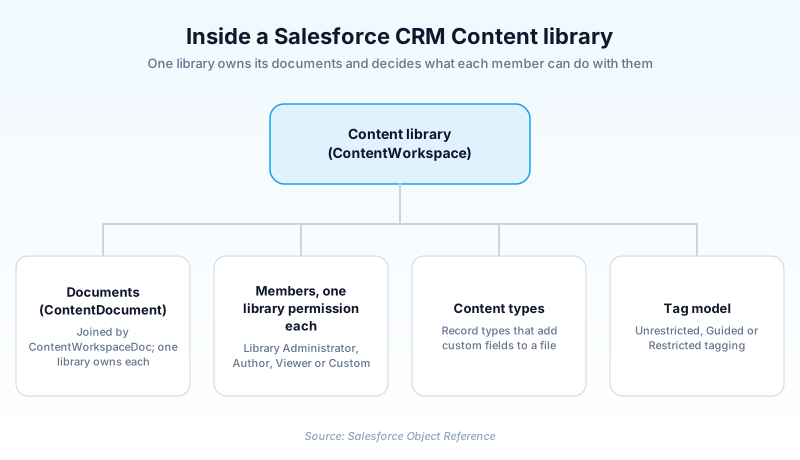
A library is a ContentWorkspace record, and it is the thing that owns a document rather than any folder path. Membership is explicit. You are added to a library and given one library permission there. The same person can hold a different permission in every library they belong to. Two kinds exist, set by the WorkspaceType field: R for a regular library and B for the org asset library. Personal libraries sit outside all of this. Anyone with a content feature license can save files to their own personal library, and library permissions do not apply there at all.
Library permissions, and the one privilege Manage Library skips
ContentWorkspacePermission holds the privilege set, and its Type field records whether that permission is Library Administrator, Author, Viewer or Custom. The individual switches cover publishing, publishing on someone else's behalf, archiving, deleting, tagging, featuring content, commenting and folder organization. Manage Library is the super permission: it turns on everything else in that list with a single exception, Deliver Content. The exception catches people out. An admin who assumes the super permission also covers external sharing will hit a wall. It shows up the first time a member tries to generate a public link.
Content types are record types in a costume
Custom fields on a file live on content types, and a content type is a record type. DefaultRecordTypeId on the library names the one applied when a publisher does not choose. IsRestrictContentTypes records whether the available choices have been narrowed. That is how a marketing library ends up with a Campaign Asset type carrying Expiry Date and Approved By. A legal library beside it uses something entirely different. It also means the usual record type rules apply, assignment through profiles included. Admins who expected file metadata to be its own separate system tend to find that out late.
Tagging is governed, not a free-for-all
The TagModel picklist decides how much freedom publishers get. Unrestricted lets anyone type anything, which is how you end up with contract, contracts and Contract as three separate tags. Guided still allows free text but offers a suggested list first. Restricted forces the publisher to pick from that list. Restricted is the right default for anything a large team searches. Content search reads tags alongside the file body, title, description and author name. Sloppy tags are not a cosmetic problem here, they directly degrade what people can find.
Sharing a file outside the org
External sharing runs through ContentDistribution, available since API version 32.0. Creating one produces a public URL, optionally protected by a password, and tracks how often the file has been viewed. The object reference frames the access rule as a limit on querying, and it binds even a View All Data user. You see distributions only for files you already have access to. For a file managed by a library that means Deliver Content in the library permission, plus membership in the library. For a file the libraries do not manage, it means the Enable Creation of Content Deliveries for Salesforce Files permission instead. Delete the underlying document and the distribution goes with it. Archive the document and only the expiry date and its preference stay editable.
Why the objects outlived the interface
ContentDocument arrived in API version 17.0 for CRM Content and picked up Salesforce Files support at version 21.0. ContentVersion tells the same story at 17.0 and 20.0. A join object, ContentWorkspaceDoc, links a document to a library. Its IsOwner flag settles which library governs security once a file has been published into several of them. The platform limits are shared too. An org can publish 30 million documents in total. Contact Manager, Group, Professional, Enterprise, Unlimited and Performance editions get 200,000 new versions per 24 hour period, while Developer Edition and trials get 2,500.
The license that made it legacy
Access Libraries is the user permission that replaced the feature license, added in API version 40.0. It opens libraries on most standard user licenses. It is not universal: High Volume Customer Portal, Customer Community and Chatter Free licenses are excluded. Creating a library still needs either Create Libraries or the older Manage Salesforce CRM Content administrator permission. Editing the permission definitions themselves needs Manage Content Permissions, a separate grant again. Admins usually discover that right after handing someone Create Libraries and watching them get stuck.
How organizations use Salesforce CRM Content
Gives its two editors Add Content On Behalf of Others, so policy documents publish under the named author while the editors do the uploading. Everyone else stays on Viewer.
Runs product spec sheets through a content type carrying an Approved By field, with Guided tagging so engineers get a suggested list without being locked out of new terms.
Audits which libraries hold live documents and who still holds the CRM Content feature license, then moves those users onto the Access Libraries permission before switching the interface.
Trust & references
Cross-checked against the following references.
- ContentWorkspace | Object Reference for the Salesforce Platform (opens in new tab)Salesforce
- ContentWorkspacePermission | Object Reference for the Salesforce Platform (opens in new tab)Salesforce
- ContentDistribution | Object Reference for the Salesforce Platform (opens in new tab)Salesforce
- ContentWorkspaceDoc | Object Reference for the Salesforce Platform (opens in new tab)Salesforce
- Salesforce Past Product & Feature Retirements (opens in new tab)Salesforce
- Library Folders in Lightning Experience and Classic UI (opens in new tab)Salesforce
Straight from the source - Salesforce's reference material on Salesforce CRM Content.
Hands-on resources to go deeper on Salesforce CRM Content.
About the Author
Dipojjal Chakrabarti is a B2C Solution Architect with 29 Salesforce certifications and over 13 years in the Salesforce ecosystem. He writes and edits salesforcedictionary.com, published by KineticBit Inc., to help admins, developers, architects, and cert/interview candidates sharpen their fundamentals. More about Dipojjal.
Test your knowledge
+5 pts / dayQ1. Which library privilege does Manage Library NOT grant?
Q2. What does setting a library's TagModel to G mean?
Q3. Which permission lets users work with libraries without the legacy Salesforce CRM Content feature license?
Discussion
Loading discussion…