
Content Pack
A Content Pack is a retired Salesforce CRM Content feature that bundled several files into one named group, so a user could share and track them as a single unit instead of one file at a time.
Definition
A Content Pack is a retired Salesforce CRM Content feature that bundled several files into one named group, so a user could share and track them as a single unit instead of one file at a time.
The pack was a record with its own name and description. The files inside stayed in their libraries, and one file could belong to many packs.
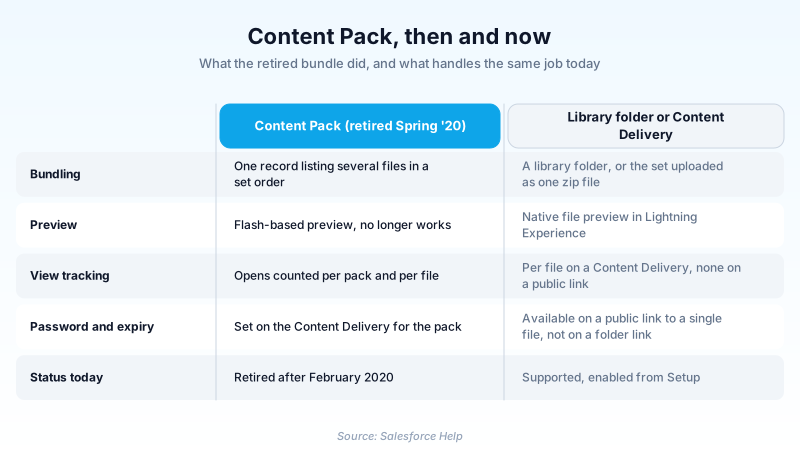
Salesforce pulled the feature after the Spring '20 release in February 2020. Nothing replaced it directly. Library folders, public links and Content Deliveries now cover the ground it used to.
In plain English
“Imagine stapling five handouts together so you can pass them along as one packet. A Content Pack was that staple inside Salesforce. Salesforce removed it in 2020, so today you share a folder of files instead.”
Worked example
A regional insurance broker built a pack called Q4 Renewal Kit back in 2018. It held five files: Renewal_Overview.pptx, Rate_Sheet_2018.pdf, Claims_FAQ.pdf, Coverage_Comparison.xlsx and a signed W-9. Reps created a Content Delivery from the pack, set the expiration date 30 days out, and emailed the encrypted URL to each broker contact. Recipients previewed each file in the browser and the org counted opens per file. After February 2020 that same pack record still lists all five files, but preview no longer renders them. The fix was a library folder named Q4 Renewal Kit shared as a folder link, plus a Content Delivery on the rate sheet alone.
How Content Packs worked, and what is left of them
What the pack record actually held
You created a pack from the Content tab in Salesforce Classic, named it, then picked documents and set the order they appeared in. The pack held pointers, not bytes. That is why retirement destroyed nothing: the list went dark, the documents did not.
Adobe Flash is what took it down
The pack experience depended in part on Adobe Flash Player, and Flash was being retired industry-wide, so the feature went with it after Spring '20. Existing packs kept their metadata and the member files stayed downloadable. Only the viewer went away. An old org can still list pack records that look healthy and fail the moment somebody opens one.
The replacements Salesforce points you at
There is no like-for-like successor. Salesforce's guidance is to put the set in a library folder and share a folder link, or upload the whole set as one zip file and link that. For a single sensitive document you still have Content Deliveries, enabled from Setup by entering Content Deliveries and Public Links in the Quick Find box.
What the swap costs you
Rebuilding the bundle is easy. Rebuilding the measurement is not. A public link to a file or a folder records no views, and a folder link carries neither a password nor an expiration date. A Content Delivery keeps the password, the expiry and the open counts, and exposes them through the ContentDistribution object, but it covers one file and caps at 50,000 views or 50 GB of bandwidth a day.
Trust & references
Cross-checked against the following references.
Straight from the source - Salesforce's reference material on Content Pack.
Hands-on resources to go deeper on Content Pack.
About the Author
Dipojjal Chakrabarti is a B2C Solution Architect with 29 Salesforce certifications and over 13 years in the Salesforce ecosystem. He writes and edits salesforcedictionary.com, published by KineticBit Inc., to help admins, developers, architects, and cert/interview candidates sharpen their fundamentals. More about Dipojjal.
Test your knowledge
+5 pts / dayQ1. Why did Salesforce retire Content Packs?
Q2. What happened to existing Content Pack records after the retirement?
Q3. You replace a retired Content Pack with a public link to a library folder. What do you give up?
Discussion
Loading discussion…