
Role
A Role in Salesforce is a record-sharing concept, not a job-title concept.
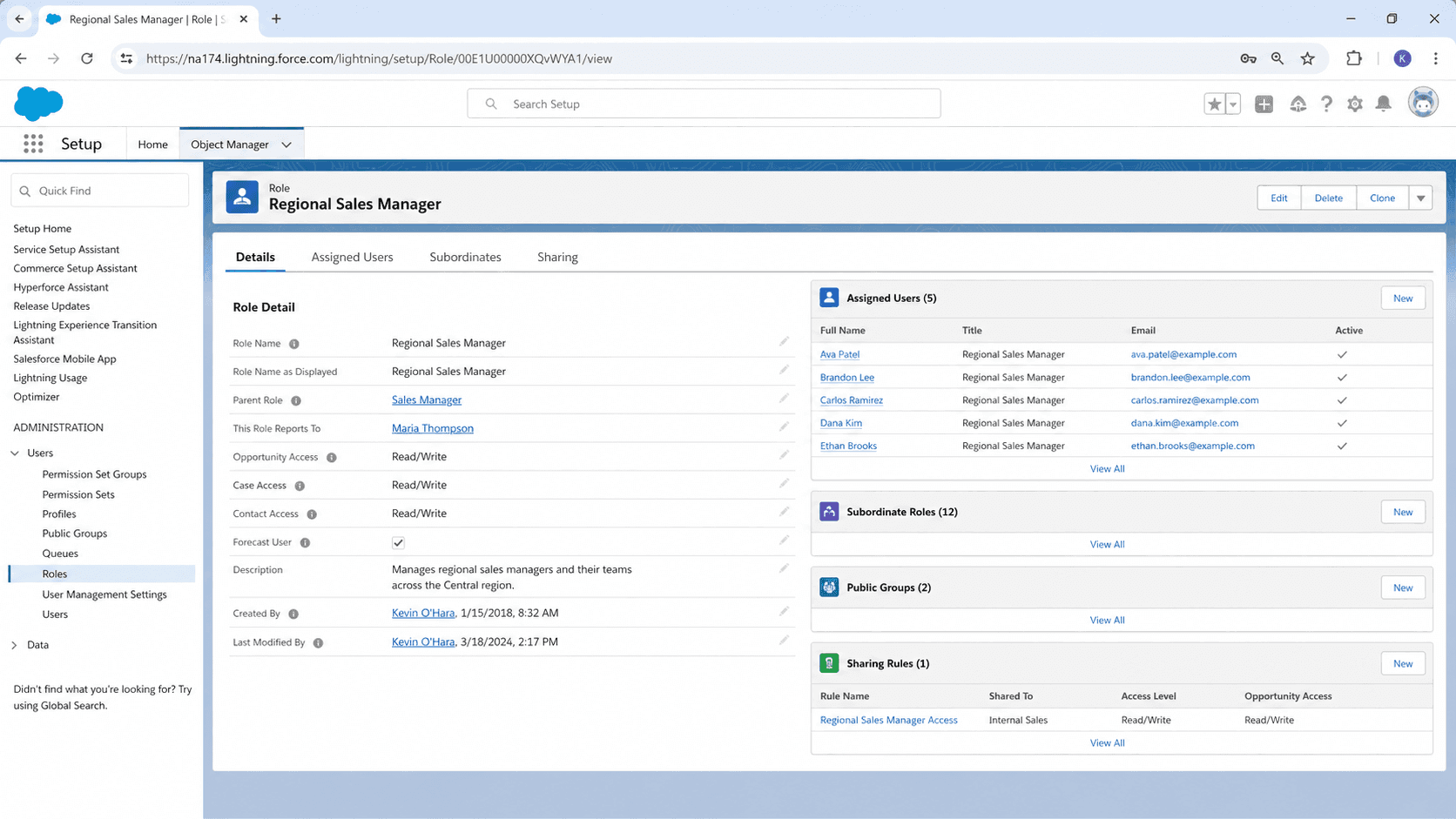
Definition
A Role in Salesforce is a record-sharing concept, not a job-title concept. The Role assigned to a User decides which records the User can see by default through the Role Hierarchy, independent of what their Profile lets them do. A Sales Rep Profile says "this user can read and edit Opportunity records." The Sales Rep's Role says "this user can see Opportunities owned by themselves and by anyone whose Role rolls up underneath theirs in the hierarchy." Together, Profile and Role decide both capability and visibility.
The Salesforce permission model splits authorization (Profile + Permission Sets) from visibility (Role + Sharing Rules). The split is intentional: a sales manager who can edit any Opportunity (Profile-level capability) should only see Opportunities owned by their team (Role-level visibility), not by every team in the company. Building those two layers independently gives admins enough flexibility to model real organizations where a Service Manager and an Account Executive carry the same Profile (both can edit Cases) but see entirely different record sets (the Service Manager sees their team's Cases; the Account Executive sees their owned Accounts and the Cases that hang off them).
How Role Hierarchy actually controls record visibility
Role Hierarchy
Role Hierarchy is the tree structure that defines which Roles roll up to which. Each Role has one parent Role (or none, for the top-of-tree Role), and records owned by users in a subordinate Role are visible to users in any parent Role above them. The hierarchy supports up to 500 levels in theory and about 5 to 7 levels in practice before the visualization breaks down. Most enterprise orgs configure two to four levels: Executive, Regional VP, Manager, Rep. Adding more levels usually means modeling matrix reporting or geographic regions, both of which often work better through Sharing Rules and Public Groups than through nested Roles.
Per-object access control
Role-Hierarchy access is configured per object in Setup. By default, records of standard objects (Account, Contact, Opportunity, Case, Lead) propagate up the hierarchy: a Rep's records become visible to their Manager, the Manager's records become visible to the VP, and so on. The behavior is configurable through Organization-Wide Defaults (OWD): for each object, you set the default access (Private, Public Read Only, Public Read/Write) and then toggle "Grant Access Using Hierarchies" separately. Some objects (Cases in some service orgs, Knowledge Articles in some compliance regimes) need flat sharing where managers do not automatically see subordinate records; disable the hierarchy grant on those objects rather than restructuring the Role tree.
Role changes and the sharing cascade
Role changes are some of the highest-blast-radius operations in Salesforce. Moving a User from one Role to another re-cascades sharing across every record they own: every Account, every Opportunity, every Case, every Activity. The cascade is fast on the platform but invisible to users; reps who used to see a deal because they shared a Role suddenly lose visibility, and managers who never saw a deal because they were under a different branch of the hierarchy suddenly gain it. The change also affects forecast roll-ups, since Forecast Hierarchy reads from Role Hierarchy by default. Plan Role changes for after-hours runs, notify the affected reps the day before, and confirm visibility checks the next morning.
Forecast Hierarchy
Forecast Hierarchy is the related concept that decides how forecast roll-ups flow. By default, Forecast Hierarchy mirrors Role Hierarchy, with each manager's forecast aggregating their subordinates' forecasts up to the executive level. The mapping is configurable in Setup > Forecasts > Forecasts Hierarchy. Most orgs leave the default mapping in place because changing it creates a second hierarchy to maintain. Orgs whose sales reporting structure differs from their org-chart reporting structure (Geographic Sales VPs reporting to a Global Sales SVP for forecast purposes but to Regional Presidents for HR purposes) customize Forecast Hierarchy explicitly while keeping Role Hierarchy aligned to the operational structure.
Role and Profile interactions
Role and Profile interact in non-obvious ways around standard reports and views. Most Salesforce standard reports filter by "My Team" by default, which uses the Role Hierarchy to scope the data: a manager's "My Team" view shows records owned by anyone in any Role that rolls up to theirs. The behavior is intuitive once you understand it but confuses managers in their first quarter who wonder why they see their reps' deals on a report they did not configure as a team view. The same logic drives the standard list views, the standard dashboards, and many third-party Salesforce apps that use the My Team semantics.
Public Groups
Public Groups are the complement to Roles for sharing scenarios that do not fit a hierarchy. A Public Group is an arbitrary collection of Users, Roles, Roles-and-Subordinates, or other Public Groups, used as a target for Sharing Rules and Manual Sharing. Where Role Hierarchy models the chain of command, Public Groups model arbitrary cross-functional teams: a Compliance Review group spanning Legal, Finance, and Sales Ops; a Strategic Accounts team spanning AEs from three regions. Public Groups solve the matrix-reporting problem without requiring a parallel Role Hierarchy, which is why most enterprise Salesforce orgs accumulate dozens of Public Groups over time.
Roleless users
Without Roles assigned, users have access to their owned records and nothing more (under Private OWD). Some compliance-heavy orgs use Roleless users intentionally for service-account scenarios where the user should not have hierarchy visibility into anyone else's records. The pattern is unusual; most production users get a Role assignment as part of normal provisioning. If your User table has people without Roles assigned, audit whether that is intentional or whether somebody forgot the step.
How to set up Roles
Configuring Roles is one of the more architecturally important Salesforce setup tasks. The Role design lives for the life of the org, and changing it after thousands of records have been created and shared through it is significantly more expensive than designing it correctly on day one.
- Open Setup and navigate to Roles
Setup > Users > Role Hierarchy. The default view shows the hierarchy as a tree, which is easier to reason about than the flat list view.
- Plan the hierarchy on paper first
Map your sales and service organization's reporting structure, including any matrix-reporting cases. Decide which relationships go through Role Hierarchy and which go through Public Groups or Sharing Rules. Keep the depth shallow (3 to 5 levels in most orgs).
- Click Add Role
For each new Role, set the Label, the Role Name (API), the Parent Role (the Role this one reports to), and the Forecast Manager-related fields if applicable.
- Configure Role-Hierarchy access per object
In OWD (Setup > Sharing Settings), confirm Grant Access Using Hierarchies is enabled (or disabled) for each object based on your sharing model.
- Assign Roles to Users
Setup > Users > select User > Role. Configure the Role for every active User; document any deliberately Roleless users.
- Test with a representative user
After assignment, log in as the user (or use Login As) and confirm they see the records they should and do not see records they should not.
- Audit assignments quarterly
Build a report grouping Users by Role and have managers confirm the assignments are correct. Role drift is one of the harder-to-catch CRM hygiene problems because it does not produce error messages.
Configure per object through OWD. Default is on for standard objects; some service-and-compliance scenarios need it off.
Mirrors Role Hierarchy by default. Customize separately only if your forecast structure differs from your operational reporting structure.
- Role Hierarchy is a sharing mechanism, not an authorization mechanism. Changes to a User's Role re-cascade sharing across every record they own; plan changes carefully.
- The Grant Access Using Hierarchies toggle in OWD lets you disable role-based propagation per object. Default is on; some objects need flat sharing.
- A User without a Role has no Role-Hierarchy-based visibility. Owned records remain visible; nothing else propagates up.
- Role design is hard to change after the fact. Once thousands of records have been shared through the hierarchy, restructuring the tree means re-running the sharing cascade across every affected record, which can take hours and produce visibility gaps in the meantime.
Prefer this walkthrough as its own page? How to Role in Salesforce, step by step
Trust & references
Cross-checked against the following references.
- Roles (opens in new tab)Salesforce Help
- Sharing Rules (opens in new tab)Salesforce Help
Straight from the source - Salesforce's reference material on Role.
- Roles (opens in new tab)Salesforce Help
Hands-on resources to go deeper on Role.
About the Author
Dipojjal Chakrabarti is a B2C Solution Architect with 29 Salesforce certifications and over 13 years in the Salesforce ecosystem. He writes and edits salesforcedictionary.com, published by KineticBit Inc., to help admins, developers, architects, and cert/interview candidates sharpen their fundamentals. More about Dipojjal.
Test your knowledge
+5 pts / dayQ1. What does a Role record control in Salesforce security?
Q2. How does a Role differ from a Profile in the Salesforce security model?
Q3. How many Roles can a single Salesforce user occupy at any one time?
Discussion
Loading discussion…