
Personal Settings
Personal Settings is the self-service area where each Salesforce user manages their own preferences, identity fields, and personal security options without asking an administrator.
Definition
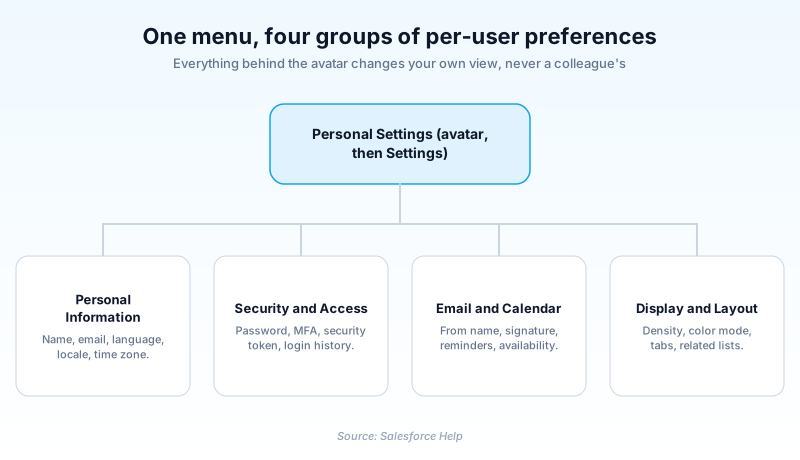
Personal Settings is the self-service area where each Salesforce user manages their own preferences, identity fields, and personal security options without asking an administrator. It covers your name and email, language, locale and time zone, email signature, calendar reminders, display density, security token, and the connected apps you have authorized.
The name is current in both interfaces. In Lightning Experience you click your avatar at the top of any page and choose Settings. In Salesforce Classic you click the arrow beside your name and pick either Setup or My Settings, depending on the org's user interface configuration. Those are two labels on one menu, not two toolsets.
Everything here is scoped to one person. Nothing you change affects a colleague, which is why Salesforce hands these controls to end users rather than gating them behind admin permissions.
In plain English
“Think of Salesforce as an office everyone at your company shares. Personal Settings is your own desk drawer. You can change the photo on the desk, the clock, the language on your labels, and how your letters get signed. Nobody else's desk changes when you do.”
Worked example
Priya joins a distributor's inside sales team in Manchester, and her user record was cloned from a US template. Her tasks show due dates month first, and her 9:00 AM calls appear at 4:00 AM. She clicks her avatar, chooses Settings, and opens Language & Time Zone. She sets Time Zone to (GMT+01:00) British Summer Time (Europe/London) and Locale to English (United Kingdom), leaving Language as English. Dates render as 22/08/2026 and her calendar shifts to the right hours. She then opens My Email Settings, sets Email Name to Priya Raman and Email Address to priya.raman@example.com, and pastes a three-line signature. Four minutes, and her administrator never touched the record.
What actually sits behind the avatar menu
Identity fields that quietly change what you see
Most of this menu is preference. This part is not, because a handful of fields here rewrite what every other page shows you. Personal Information holds your name, phone, email, mailing address, title, and department. The email field matters most, because password resets and any new security token land there. Language, Locale, and Time Zone sit alongside it and do more than their labels suggest. Locale sets date, number, and currency format, so 22/08/2026 against 08/22/2026 is a locale decision rather than a language one. Time Zone decides when every due date, event, and report timestamp appears to happen for you.
The security work that belongs to you
You change your own password here and register multi-factor authentication methods. Login History sits on the same menu and covers your own sign-ins only. The page integration teams care about is Reset My Security Token, reached by typing Reset into Quick Find. Resetting invalidates the old token on the spot and emails the replacement to the address on file. Three situations hide the option outright: login IP ranges on your profile, the API Only User permission, and Multi-Factor Authentication for API Logins, where an authenticator code takes the token's place. If the page is simply absent, check those three before opening a case.
Advanced User Details and the apps you forgot you authorized
Type Advanced User Details into Quick Find and scroll to OAuth Connected Apps. It lists every app you personally granted access to, how many times it has reached for your data, and when it last tried. Each row carries a Revoke button that kills all access tokens for that app. This is the closest thing an ordinary user gets to an app permissions audit, and almost nobody opens it. Salesforce notes one app can be listed more than once, because an OAuth 2.0 app requesting tokens with different scopes shows up on a line each time. There is a ceiling too: each connected app allows five unique approvals per user, and the oldest is revoked once a further one is made.
Email, calendar, and how the page looks
My Email Settings controls the from name and reply address on mail Salesforce sends for you, plus the signature appended to it. Calendar pages decide whether activity reminders pop up, how far ahead they fire, and which hours you publish as available for meetings. Display options live on the avatar menu itself rather than in the settings tree. Density offers Comfy, which puts labels above fields with room to breathe, or Compact, which moves them left and tightens the rows. Color mode needs a caveat. Dark mode is still a Salesforce beta, and not every edition is on the documented list. An admin switches it on for an SLDS 2 theme under Themes and Branding. Where that holds, the menu adds Light, Dark, and System.
Where your control stops
Nothing here widens your access. You cannot grant yourself a field, an object, or a permission, because those arrive from your profile and permission sets. Session timeouts, login hour restrictions, and login IP ranges belong to an administrator. An admin can also classify user fields as personal information so others cannot see them. That is a display setting, not a guard: Salesforce documents that it is not enforced in Apex, even with WITH USER_MODE, WITH SECURITY_ENFORCED, or stripInaccessible. Automation running in system mode ignores it too. Treat this as the boundary of what one person may change about their own experience, not as a security control.
How to set up your Personal Settings on day one
Five minutes on day one saves a month of confusing dates and missed reminders. The steps below assume Lightning Experience.
- Open the settings menu
Click your avatar at the top right of any page and choose Settings. Every page below is reachable from the Quick Find box, so you never expand the tree.
- Fix Language, Time Zone, and Locale first
Open Language & Time Zone. Locale is the one people miss: it sets date and number format, while Language only touches interface text. Time Zone decides when everything appears to happen. Get these wrong and the rest looks broken.
- Confirm the email on Personal Information
Check the Email field. Password resets and new security tokens go to this address, so a stale one turns a two-minute fix into a support ticket.
- Set your outbound email identity
In My Email Settings, set the name and reply address recipients see, and paste a signature. Decide there whether you want a blind copy of everything Salesforce sends for you.
- Audit your connected apps
Under Advanced User Details, scroll to OAuth Connected Apps and revoke anything you do not recognize.
Setup or My Settings, depending on which label the org's user interface options expose. The pages behind both are identical.
Comfy for labels above fields and more spacing, Compact for left-aligned labels and tighter rows.
Light, Dark, or System, where dark mode is on. It is still a Salesforce beta with an edition limit.
- Changing display density reloads the page on the spot, so an unsaved record loses its edits.
- A security token reset takes effect immediately and breaks every stored integration credential until you update it.
- Reset My Security Token is missing rather than broken when login IP ranges sit on your profile.
Prefer this walkthrough as its own page? How to Personal Settings in Salesforce, step by step
How organizations use Personal Settings
Adds a five-minute checklist to onboarding so every hire sets Time Zone and Locale before their first pipeline review, ending the complaint that forecast dates look wrong.
Has integration owners reset their own security token after a password change and update the stored credential in the same sitting, instead of filing a ticket.
Asks staff to revoke unused connected apps under Advanced User Details each quarter, shrinking the token surface without an admin touching a record.
Trust & references
Cross-checked against the following references.
- Access Your Personal Settings in Lightning Experience (opens in new tab)Salesforce
- Access Your Personal Settings in Salesforce Classic (opens in new tab)Salesforce
- Reset Your Security Token (opens in new tab)Salesforce
- Manage OAuth-Enabled Connected Apps Access to Your Data (opens in new tab)Salesforce
- Personalize Lightning Experience Display (opens in new tab)Salesforce
- Personal User Information Considerations (opens in new tab)Salesforce
Straight from the source - Salesforce's reference material on Personal Settings.
Hands-on resources to go deeper on Personal Settings.
About the Author
Dipojjal Chakrabarti is a B2C Solution Architect with 29 Salesforce certifications and over 13 years in the Salesforce ecosystem. He writes and edits salesforcedictionary.com, published by KineticBit Inc., to help admins, developers, architects, and cert/interview candidates sharpen their fundamentals. More about Dipojjal.
Test your knowledge
+5 pts / dayQ1. How does a Lightning Experience user reach their Personal Settings?
Q2. Which condition hides the Reset My Security Token page from a user?
Q3. Under OAuth Connected Apps in Advanced User Details, how many approvals of one connected app can a single user hold?
Discussion
Loading discussion…