
Salesforce Flow Orchestration: The Complete 2026 Guide for Admins and Developers
How to automate multi-step, multi-user business processes without writing Apex
A new hire starts Monday. By Tuesday afternoon you have five open Slack threads, three forwarded emails, an approval request stuck on a manager who is on PTO, and an IT ticket that nobody can find. The actual onboarding "process" lives in a Google Doc that was last updated when Sarah from HR still worked here. You open Salesforce and ask the obvious question: why isn't this one thing?
It can be. That is what Flow Orchestration is for.
This guide walks through what Flow Orchestration is, when it earns its keep, when it absolutely does not, and how to ship your first orchestration without setting your governor limits on fire.
What Flow Orchestration actually is
Flow Orchestration is a separate tool inside Salesforce Flow that coordinates multiple flows, multiple users, and multiple stages into a single process. A regular flow runs end to end in one transaction, usually for one user, usually in seconds. An orchestration sits one layer above that. It can pause for days, route work to different people, wait for human input, then resume on its own.
If a record-triggered flow is a single instrument, an orchestration is the conductor. The official Flow Orchestration overview in the developer docs frames it the same way: it is a way to compose existing autolaunched and screen flows into a longer, multi-user process without writing custom Apex to stitch them together.
The problem it solves is the one everyone has felt. You have five small flows that work fine on their own. The business wants them executed in a specific order, by specific people, with specific waits in between, and they want visibility when something stalls. Before Flow Orchestration, you either built a giant Frankenflow with platform events and scheduled paths, or you wrote Apex queueable chains, or (most commonly) you gave up and emailed people.
Salesforce announced the feature on the official Admin Blog in 2022 and GA'd it in Spring '23. By 2026 it has moved from "interesting beta" to a tool you should genuinely reach for.
Core terminology you need to actually know
The terminology trips people up because it sits on top of regular flow vocabulary. Here is the short version, mostly aligned with the Salesforce Help glossary.
Orchestration. The top-level definition. Think of it as the recipe. It can be record-triggered (kicks off when a record is created or updated) or autolaunched (kicked off by Apex, REST, or another flow).
Orchestration Instance. A running copy of the orchestration. One orchestration definition can have hundreds of instances alive at once, each tied to a specific record. The Account "Acme" and the Account "Globex" each get their own instance.
Stage. A group of steps that run together. Stages run sequentially by default, but the steps inside a stage can run in parallel. This is where the conductor metaphor pays off: stage one finishes, then stage two starts.
Step. A single unit of work inside a stage. Two flavors:
- Background Step. Runs an autolaunched flow. No human touches it. Useful for record updates, callouts, and data prep.
- Interactive Step. Assigns a screen flow to a specific user, group, or queue. The orchestration pauses until that person opens their work item and finishes the flow.
Assigned Work Item. The thing that lands in a user's queue. It shows up in the Work Guide component on a Lightning record page, in the assigned user's home page list, and (since Winter '24) in Slack notifications when configured.
Evaluation Flow. A small decision flow that controls whether a stage exits. You can put logic at the stage boundary so the orchestration only moves on when the data is in the right shape.
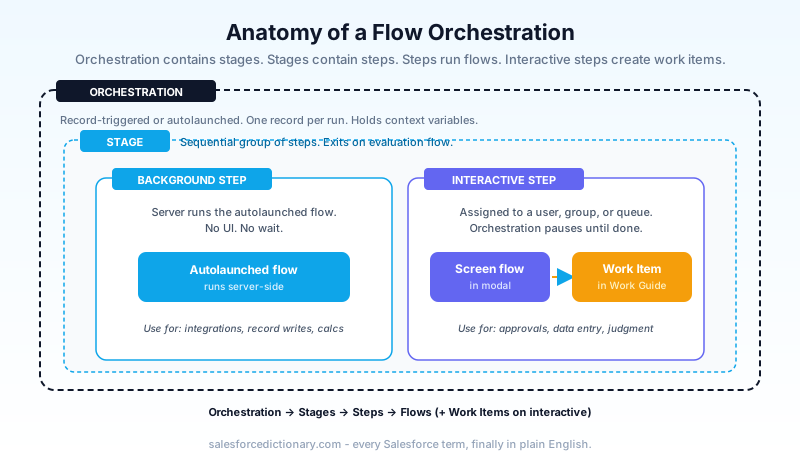
If you remember nothing else, remember this: orchestration contains stages, stages contain steps, steps run flows, and interactive steps create work items. Everything in the UI is a variation on those four nouns.
When to use Flow Orchestration vs Record-Triggered Flow vs Apex
This is the question that matters, because picking the wrong tool turns a one-week build into a three-month maintenance disaster.
Use a record-triggered flow when the work happens in a single transaction, on a single record, with no human in the loop. Lead created, owner assigned, task generated, done. Sub-second execution.
Use Flow Orchestration when the work spans multiple people, multiple steps, or multiple days, and at least one step needs a human to make a decision or fill in a screen. New hire onboarding. Multi-stage discount approval. Contract review with legal, finance, and the AE. Case escalation that bounces through tier one, tier two, and a specialist.
Use Apex when you need recursion control, complex error handling, low-level callout patterns, or performance characteristics that flows cannot give you. Or when you are integrating with an external system in a way that requires custom retries.
There is also overlap to watch. Flow Orchestration is not a replacement for the classic Approval Process in every case. Approvals still win when you need parallel approver groups with explicit reject/approve buttons, an out-of-the-box approval history, and standard manager-hierarchy routing. Orchestration wins when the "approval" is just one step in a longer process, or when you need more than yes/no.
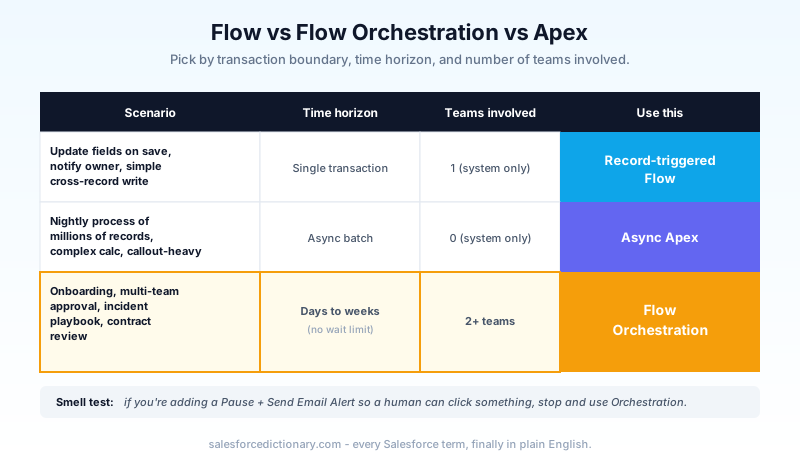
One rule of thumb that has held up: if you find yourself adding a Pause element and a Send Email Alert to a record-triggered flow so a human can click something, you are about to build a bad orchestration inside a flow. Stop. Open Flow Orchestration instead.
How to build your first Flow Orchestration
Here is the practical sequence. The Trailhead Flow Orchestration module walks through a similar build with full screenshots if you want a hands-on lab.
1. Build the small flows first. An orchestration is glue. Before you open Flow Orchestration, build the autolaunched flows that do the actual work (create the IT ticket, update the Contact, send the email) and the screen flows that capture human input (the manager's approval form, HR's equipment selection screen). Test them in isolation.
2. Create the orchestration. Go to Setup, search for Flows, click New Flow, and choose Start From Scratch. The Orchestrator templates are Record-Triggered Orchestration and Autolaunched Orchestration. Pick record-triggered if a Salesforce record event should start the process. Pick autolaunched if Apex or an external system will start it.
3. Define stages. Drop in stages and name them after business outcomes, not actions. "Manager Approval" is good. "Step 4 Subflow" is not. Future you will thank present you.
4. Add steps inside each stage. Background steps point to autolaunched flows. Interactive steps point to screen flows and require an Assignee. The assignee can be a User reference (the record's Owner, a related Account Manager), a Group, or a Queue. Queues are usually the right answer for anything that should not single-thread on one person.
5. Set entry and exit conditions. Each stage can have an entry condition (only run this stage if X) and an evaluation flow at exit. Use these to model the real branching in your business process instead of cramming everything into one giant linear sequence.
6. Activate and test. Like regular flows, orchestrations have a Debug option. Use it on a sandbox record before activating in production. The debug log shows which stage and step is currently in flight, which is invaluable when an instance gets stuck.
7. Surface work items on the record page. Drag the Work Guide Lightning component onto the relevant record page in App Builder. Without this, assigned users have to find their work items from the home page, and adoption tanks. Half of all failed Flow Orchestration rollouts I have seen failed at this exact step.
Real-world use cases that actually fit
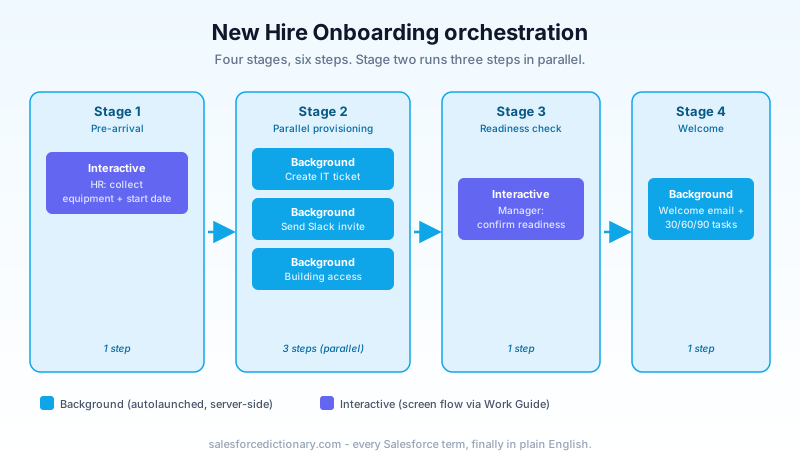
New hire onboarding. The textbook case. Stage one: HR collects equipment preferences and start date confirmation. Stage two (background, parallel): create the IT ticket, create the Slack invitation, create the building access request. Stage three: hiring manager confirms readiness. Stage four: send welcome email and create the 30/60/90 review tasks.
Quote approval with multiple gates. Discount over 15% triggers an orchestration. Stage one: deal desk reviews margin. Stage two: regional VP approves commercial terms. Stage three: legal reviews custom clauses (only runs if Custom Terms checkbox is true). Stage four: quote is auto-generated and emailed.
Case escalation. Tier one fails to resolve in SLA. Orchestration starts. Stage one: tier two specialist gets a work item with the case summary and previous troubleshooting. Stage two: if tier two cannot resolve, route to engineering with required reproduction steps captured via screen flow. Stage three: post-resolution review and knowledge article draft.
Contract review. New contract uploaded. Stage one: AE confirms commercial terms. Stage two: legal reviews. Stage three (parallel background steps): generate the signed PDF, update the Opportunity, create the renewal reminder. Stage four: customer success kickoff.
Incident management. Sev-1 case opened. Background step pages the on-call. Interactive step for the on-call to acknowledge. Parallel background steps to post to a Slack channel and create a status page entry. Interactive step for the incident commander to declare resolution. Background step to schedule the post-mortem.
In all five cases the common shape is the same: real human steps interleaved with system steps, a process that lives across hours or days, and a need to see what state every instance is in. That is the orchestration sweet spot.
Limitations and gotchas
Flow Orchestration is good. It is not magic. Things to know before you commit:
Governor limits still apply per transaction. Each step's flow runs inside a normal Apex transaction with normal SOQL and DML limits. Orchestrations let you spread work across many transactions, but no single step gets a free pass. If you put a 10,000-record loop inside a step's autolaunched flow, it will still blow up.
You cannot orchestrate inside an orchestration. No nested orchestrations. If you need that level of complexity, you are probably modeling the process wrong, but be aware.
Stages run sequentially. Steps within a stage can run in parallel. That is the only concurrency model. There is no "stage A and stage B run at the same time and merge at stage C." You can fake it with parallel steps inside a single stage, but it is not real fork/join.
Work item assignment is not dynamic across the orchestration. Once a step assigns a work item to a user, reassignment requires either Apex or a workaround flow that cancels and recreates. The orchestration does not natively reroute when an assignee goes on vacation. Use queues defensively.
Debug logs are noisier than for regular flows. Each step generates its own log entries. When you are debugging a stuck instance, filter by orchestration instance ID and stage name, not just by user.
Mobile work item experience is functional, not pretty. The Work Guide on Salesforce mobile works, but complex screen flows still feel cramped. Design screen flows for mobile from the start if your assignees are field users.
Permissions are not obvious. Users need the Run Flows permission and access to the underlying flows. They also need the Manage Flow permission to debug. Audit this before go-live.
What changed in 2026
The Spring '26 release notes for Flow Orchestration are worth a careful read. The biggest 2025-2026 improvements:
Reactive Work Guide. Work items now refresh in near real time when an upstream step completes. Before this, assignees had to refresh the record page to see their new task. Small change, big adoption impact.
Improved debug for paused instances. You can now inspect the variable state of an orchestration that has been waiting for days, not just the most recent execution. This was the single biggest support burden in 2024.
Slack integration for work items. Assigned work items can now post to Slack via Slack-First Workflows, with the link going straight to the record. Combined with reactive Work Guide, this killed most of the "did anyone see my email?" friction.
Better fault paths. Orchestrations now support fault connectors at the step level, with named exception handlers per stage. Before, a failed step would freeze the whole instance. Now you can route faults to a recovery flow.
Einstein-suggested orchestrations (beta). In orgs with Einstein for Flow turned on, the platform can suggest orchestration templates based on existing flow chains it sees in the org. Useful as a starting point, not as a finished product.
What to do next
Pick one process this week. The right candidate has three traits: it involves at least two different people, it lives across at least one calendar day, and it is currently held together by email or Slack. Onboarding, approvals, and case escalation are the easy wins.
In a sandbox, build the small flows first. Then wire them together in a Flow Orchestration with two or three stages. Drop the Work Guide component on the relevant record page. Run one instance end to end with test users and watch where it stalls. Fix the stalls. Then ship it to production behind a feature flag (a custom permission or a checkbox on the trigger record) so you can turn it off if it misbehaves.
Bookmark the Flow Orchestration Developer Guide and the Trailhead module. The first time something goes sideways, you will need both.
About the Author
Dipojjal Chakrabarti is a B2C Solution Architect with 29 Salesforce certifications and over 13 years in the Salesforce ecosystem. He runs salesforcedictionary.com to help admins, developers, architects, and cert/interview candidates sharpen their fundamentals. More about Dipojjal.
Share this article
Sources
Related dictionary terms
Keep reading
The Complete 2026 Guide to Record-Triggered Flows in Salesforce
Record-triggered flows are the Salesforce automation default in 2026. This is the complete tutorial: before-save, after-save, scheduled paths, gotchas, and 5 worked examples.
Salesforce Flow vs Apex in 2026: A Decision Matrix for Admins, Developers & Consultants
Flow vs Apex is not a religious war anymore. Here is the 2026 decision matrix. Capability gaps, governor limits, the 70/30 rule, and 12 worked scenarios with the right answer for each.
Salesforce Governor Limits Explained: The 2026 Cheat Sheet (with Examples)
The canonical 2026 cheat sheet: SOQL/DML/CPU/heap limits, sync vs async, the most-hit limits in production, and 10 patterns to keep your org out of the red.
Comments
No comments yet. Start the conversation.
Sign in to join the discussion. Your account works across every page.