
Mini Page Layout
A Mini Page Layout is a Salesforce Classic setting that picks which fields appear in condensed record previews.
Definition
A Mini Page Layout is a Salesforce Classic setting that picks which fields appear in condensed record previews. There are three: hover details, calendar event overlays, and the mini view in the old Console tab.
It is a filter, not a layout of its own. Everything it shows is borrowed from the page layout that contains it, field access included, so it can narrow a view but never widen one.
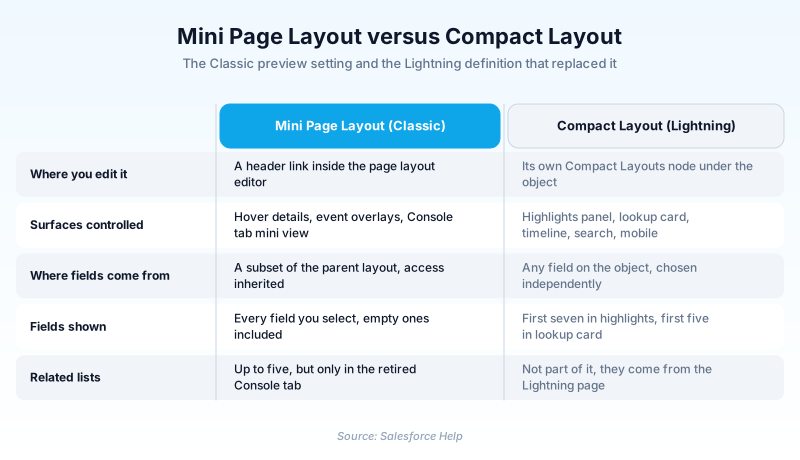
This is the older option. Lightning Experience ignores mini layouts and uses the Compact Layout instead. That one feeds the highlights panel, the expanded lookup card, the activity timeline, search previews, and the mobile app.
In plain English
“Think of a record as a full page in a folder. A mini page layout is the sticky note version: a few lines you can read without opening the folder. Someone picks which lines go on the note, and only lines already printed on the full page qualify.”
Worked example
An admin at a regional insurance brokerage still runs part of her org in Salesforce Classic. Reps hover over account names in the Recent Items sidebar all day, and the popup returns fifteen fields including Billing Street and SIC Code. She opens Object Manager, Account, Page Layouts, then Account Layout, and clicks Mini Page Layout in the header. She trims the selection to Account Name, Phone, Policy Renewal Date, Account Owner, and Rating. Billing Street stays on the full layout, it just stops crowding the popup. Her first instinct, adding Open Activities as a related list, does nothing here. Related lists on a mini layout render in the Console tab only, never in hover details.
Inside a Mini Page Layout
The three surfaces it feeds
The Metadata API is blunt about the scope. A mini layout is used in the mini view of a record in the Console tab, in hover details, and in event overlays. Hover details are the popup you get on mouseover of a record name in the Recent Items sidebar, or of a lookup. Event overlays are the small card on the Classic calendar. The Console tab is gone, retired with the Summer '20 release in favor of the Lightning Console. Two previews remain, and only for users still on Classic.
What you cannot override
Record type associations, profile associations, related lists, fields, and field access settings all come down from the parent. Anything marked Always Displayed or Always on Layout is pulled in and cannot be taken out. Related lists are capped at five, cannot be sorted, and render only in the Console tab. You never assign a mini layout directly either, since the parent's profile and record type assignment settles which one a user gets.
Where it hides in Setup
Searching Setup for it turns up nothing, which is the usual reason admins conclude the feature was removed. You reach it through the object's page layouts: open Page Layouts, open the layout, then click the Mini Page Layout link in the editor header. Today that route runs through Object Manager. The editor is plain: Add and Remove buttons for fields, the same for related lists, arrows for ordering. Each mini layout belongs to exactly one page layout, so six Opportunity layouts mean six mini layouts.
Compact Layouts do this job now
Lightning Experience does not read mini layouts at all. The Compact Layout replaced them and is defined on its own, outside any page layout. An object can carry several, since you assign a compact layout per record type. Up to the first seven fields fill the highlights panel, though the count shifts with screen width and user permissions. The first five fill the expanded lookup card shown when someone hovers a link in record details. Copying a mini layout's field selection straight across is usually wrong. A field that reads fine in a desktop popup can eat half a phone screen.
It still exists in metadata
The setting has never been formally retired, which matters when you deploy. The Layout metadata type still exposes a miniLayout field, and Apex that manipulates layouts can still reach Metadata.MiniLayout with its fields and relatedLists properties. Retrieve a page layout from a long-lived org and the mini layout comes along, dormant but intact. Nothing breaks. It simply has no effect for anyone on Lightning. Salesforce files the documentation under legacy service features, which is a fair summary.
How organizations use Mini Page Layout
Trims the Account hover popup to five fields so reps scanning the Recent Items sidebar see renewal date and owner without opening the record.
Leaves its mini layouts alone and builds fresh Compact Layouts per object, since switched users get nothing from the Classic hover configuration.
Trust & references
Cross-checked against the following references.
Straight from the source - Salesforce's reference material on Mini Page Layout.
Hands-on resources to go deeper on Mini Page Layout.
About the Author
Dipojjal Chakrabarti is a B2C Solution Architect with 29 Salesforce certifications and over 13 years in the Salesforce ecosystem. He writes and edits salesforcedictionary.com, published by KineticBit Inc., to help admins, developers, architects, and cert/interview candidates sharpen their fundamentals. More about Dipojjal.
Test your knowledge
+5 pts / dayQ1. Which Lightning Experience feature took over the job of the Classic Mini Page Layout?
Q2. An admin adds Open Activities as a related list on an Account mini page layout. Where will reps actually see it?
Q3. A field is set to read only on the Account page layout. What happens to that field on the same layout's mini page layout?
Discussion
Loading discussion…