
Event
An Event in Salesforce is a calendar item: a meeting, a call, a demo, a customer onsite, or any other interaction scheduled at a specific time.
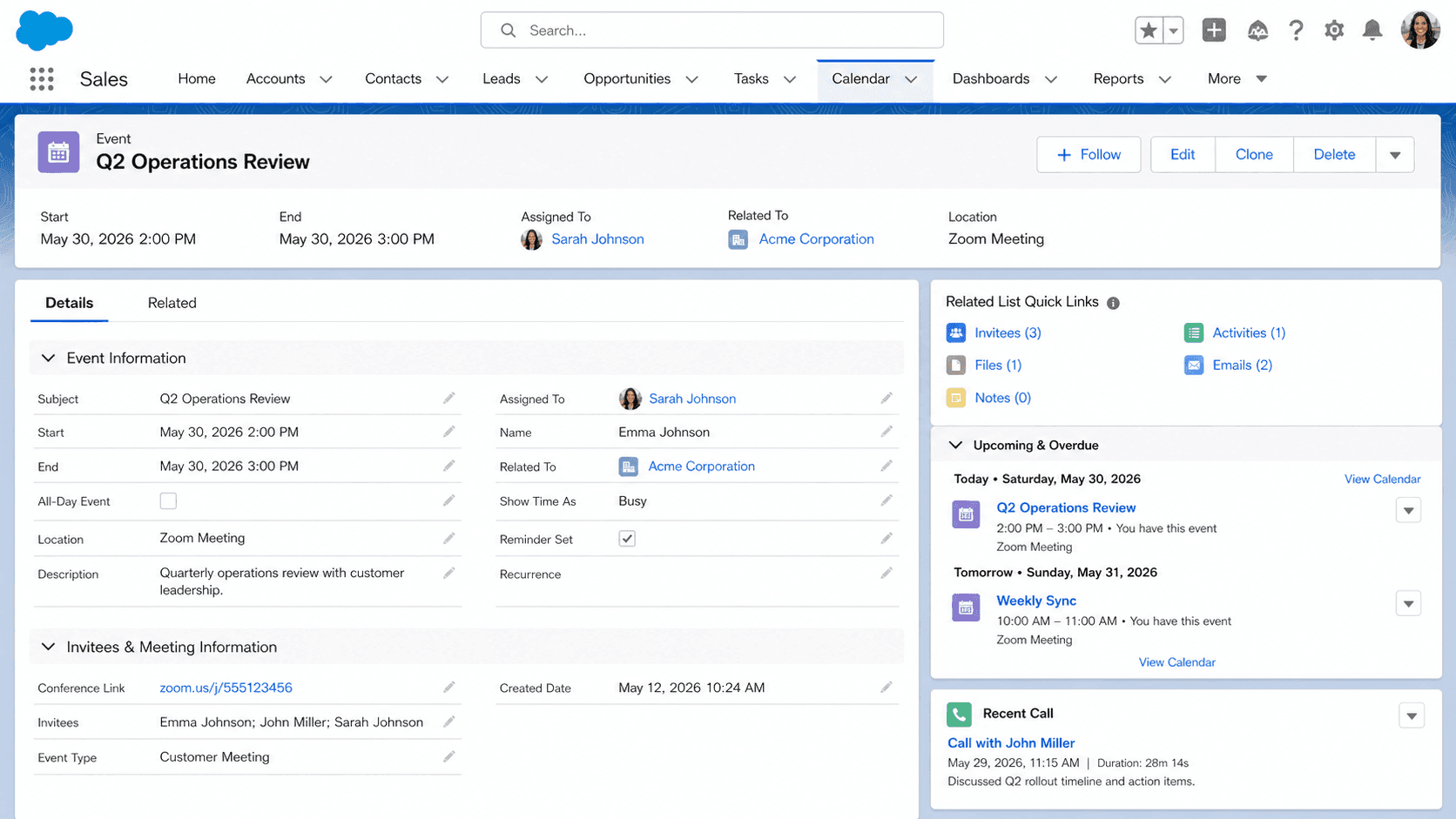
Definition
An Event in Salesforce is a calendar item: a meeting, a call, a demo, a customer onsite, or any other interaction scheduled at a specific time. The Event object holds Subject, StartDateTime, EndDateTime, Location, ShowAs (Free, Busy, Tentative, Out of Office), and the polymorphic WhoId and WhatId fields that tie the Event to a Lead or Contact and to an Account, Opportunity, Case, or custom object. Events surface in Salesforce list views, on the Activity Timeline of related records, and in any calendar app (Outlook, Gmail) connected to Salesforce through Einstein Activity Capture or one of the Lightning Sync products.
Event is the synchronous half of the Activity abstraction in Salesforce. Where Task captures an async to-do with a due date, Event captures a scheduled session with a start time and an end time. Both objects share the same WhoId and WhatId polymorphic structure and surface together on the Activity Timeline of any related record. Reps in field-heavy roles (account executives, customer success, field service) create more Events than Tasks; reps in inside-sales roles (SDRs, BDRs, AMs) create more Tasks than Events. Most enterprise Salesforce orgs eventually need reporting that combines both, which is where the polymorphic complexity of Activity reporting starts to bite.
How Events behave in calendar sync, recurrence, and invitee tracking
Calendar sync
Calendar sync is the most useful and most-trapping feature of the Event object. Einstein Activity Capture, Salesforce Inbox, and the older Lightning Sync products all sync Outlook or Gmail calendar entries to Salesforce Event records bidirectionally. An Event created in Salesforce shows up in the rep's Outlook calendar; an Event created in Outlook shows up in Salesforce on the WhoId or WhatId record (when the sync logic can find one). The trap is that calendar sync products differ in how they create Events: EAC writes to its own Einstein Activity data layer by default, surfacing Events on the Activity Timeline without populating the standard Event object. Reports built against standard Event in an EAC org miss the EAC-captured Events unless sync-to-Activity is explicitly enabled.
Recurring Events
Recurring Events are more flexible than Recurring Tasks in standard Salesforce. The IsRecurrence flag, plus the RecurrenceStartDateTime, RecurrenceEndDateOnly, RecurrenceType (Daily, Weekly, Monthly, Yearly), RecurrenceInterval, and RecurrenceDayOfWeekMask fields combine to capture rules like "every Monday and Thursday for the next twelve weeks." Editing a single instance of a recurring Event creates an exception (a separate Event record with RecurrenceActivityId pointing back to the master); editing the series rewrites every future instance. Recurrence on Event is closer to what calendar users expect than recurrence on Task, but it still trails native calendar apps in complex cases (multi-rule recurrence, conditional skips).
EventRelation and invitees
EventRelation tracks who was invited to an Event and their RSVP. Each EventRelation row maps one Event to one User, Lead, or Contact, with a Status (Accepted, Declined, Tentative, Not Responded) and a Response field. EventRelation is how Group Events (events with multiple attendees) work underneath: one Event record, many EventRelation records, one per attendee. Invitation tracking is most useful for marketing-event Events (webinars, customer roundtables, training sessions) where you need to know who was invited, who accepted, and who showed up. Build invite-conversion reports off EventRelation joined to Event; standard Salesforce reports cover the basic case, and custom report types handle the more complex multi-dimensional analysis.
ShowAs and calendar pickers
ShowAs is the field that decides how an Event appears in calendar pickers when other users are scheduling. The values (Free, Busy, Tentative, Out of Office) map directly to Outlook and Google Calendar status semantics, so calendar-sync products carry the value across both directions. Use ShowAs = Out of Office to block focused work time, not just for meetings. The Salesforce Lightning Schedule feature reads ShowAs to surface free time slots when scheduling customer meetings, and respecting Out of Office in that surface saves reps from getting overbooked on prep time.
Group Events
Group Events are Events scheduled by one user for many invitees. Salesforce models them as a single Event record (Owned by the organizer) with multiple EventRelation rows pointing to attendees. The platform supports Group Events in Lightning Experience but with some constraints: the organizer is the Owner, attendees see the Event but cannot edit it, and recurrence on Group Events compounds the complexity of any change (editing a series of Group Events propagates through every attendee's calendar). Most orgs running customer-meeting motion at scale (Customer Success teams scheduling QBRs, Implementation teams running training sessions) build a custom scheduling layer on top of Group Events or use a third-party tool like Chili Piper or Salesforce Inbox.
Private Events
Privacy on Events through the IsPrivate flag is one of the more misused features. A Private Event is visible only to the Owner; nobody else, including the Owner's manager and admins with View All Data, can see it in standard Salesforce. The intent is to let reps keep personal calendar blocks (medical appointments, school pickups) private. The misuse is reps marking customer meetings as Private to avoid manager scrutiny, which most orgs treat as a violation of CRM hygiene rules. Some compliance-heavy industries disable IsPrivate entirely through profile-level permissions to prevent the abuse pattern.
Event reporting
Activity Reporting on Events tends to combine with Task reporting through the Tasks and Events report type. Standard reports cover Events scheduled per week, Events per Owner, Events per Account, and similar volume reports. More complex analysis (cycle time from first Event to Closed/Won, average time between Events on a deal) requires custom report types or analytics tools. The Activity Timeline on a Lightning record page surfaces Events alongside Tasks, Emails, and Chatter posts, so most reps experience Events as part of the broader timeline rather than as a separate object.
How to create an Event
Creating an Event in Salesforce is most often done from a related record or from the global Calendar view, occasionally synced in automatically from an external calendar app.
- Open the record the Event belongs to
Most Events are easier to create from the related record (Contact, Account, Opportunity, Case) than from the global Events tab, because starting from the related record auto-populates WhoId or WhatId.
- Click New Event on the Activity composer
The composer sits at the top of any record page. The Event tab is one of several (Task, Event, Log a Call, Email); pick Event for a scheduled session with a start and end time.
- Set the Subject
Write the Subject as a meeting agenda rather than a placeholder. "Q1 QBR with VP Sales" reads better than "Meeting" or "Call."
- Set StartDateTime and EndDateTime
Confirm the time zone is correct. Recurring Events use the StartDateTime as the anchor for every future instance.
- Set Location and ShowAs
Location can be a physical address, a Zoom link, or a meeting-room name. ShowAs controls how the Event appears in calendar pickers; use Out of Office for blocks.
- Invite attendees through EventRelation
Add Users, Contacts, or Leads to the attendee list. Invitations flow to their calendars through whichever calendar sync the org has enabled.
- Save
Click Save. The Event attaches to the parent records, surfaces in calendar sync, and shows up on the Activity Timeline.
Required. The headline that shows up in calendar views and reports.
Required. The scheduled start.
Required. The scheduled end.
- EAC-captured Events live in a separate data layer. Reports built against standard Event miss them unless sync-to-Activity is explicitly enabled.
- Recurring Event edits propagate to future instances by default. Editing a single instance creates an exception; editing the series rewrites every future Event in the recurrence.
- Private Events are hidden from everyone except the Owner. Salesforce admins cannot see them through Setup; manager visibility is also blocked.
- EventRelation rows track invitee RSVPs separately from the Event itself. Reports on invite-conversion need to join Event and EventRelation, which most standard report types do not handle.
Prefer this walkthrough as its own page? How to Event in Salesforce, step by step
Trust & references
Cross-checked against the following references.
- Events and Calendars (opens in new tab)Salesforce Help
- Einstein Activity Capture (opens in new tab)Salesforce Help
Straight from the source - Salesforce's reference material on Event.
- Event (Object Reference) (opens in new tab)Salesforce Developers
- EventRelation (Object Reference) (opens in new tab)Salesforce Developers
About the Author
Dipojjal Chakrabarti is a B2C Solution Architect with 29 Salesforce certifications and over 13 years in the Salesforce ecosystem. He writes and edits salesforcedictionary.com, published by KineticBit Inc., to help admins, developers, architects, and cert/interview candidates sharpen their fundamentals. More about Dipojjal.
Test your knowledge
+5 pts / dayQ1. Which pair of polymorphic fields ties a Salesforce Event to a person and to a related business record?
Q2. How does an Event differ from a Task within the Salesforce Activity model?
Q3. What does the ShowAs field on an Event control?
Discussion
Loading discussion…