
Intelligent Sales Settings
Intelligent Sales Settings is the Salesforce Setup page that switches on Intelligent Sales, the industry capability for medical device sales teams.
Definition
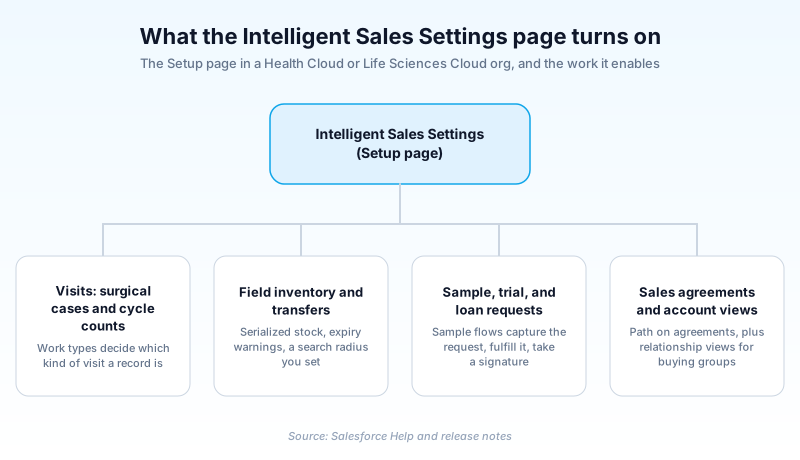
Intelligent Sales Settings is the Salesforce Setup page that switches on Intelligent Sales, the industry capability for medical device sales teams. It needs a Health Cloud or Life Sciences Cloud license. The switch is not the whole page: with the feature on, it also carries cycle count work types and a transfer distance limit. Metadata deploys it as enableMedicalDeviceEnabled on IndustriesSettings.
Intelligent Sales is about physical stock. Device reps carry consigned inventory into hospitals, hand units to clinicians during procedures, and account for every serial number afterwards. Turning it on gives them visits, field inventory, cycle counts, sample and trial and loan requests, and expiry warnings.
The name misleads people. This is not an Einstein scoring add-on for core Sales Cloud, and an org with neither industry license has nothing to switch on.
In plain English
“A medical sales rep drives to a hospital with a case of expensive equipment. Some gets used in surgery, some comes back, and every item has to be counted. This setting turns on the part of Salesforce that keeps that count straight.”
Worked example
A mid-market orthopedic implant maker enables Intelligent Sales. The admin sets enableMedicalDeviceEnabled to true, then assigns permission sets to 40 field reps. Rep Dana Whitfield loads a tray of 42 serialized implants for a regional hospital. During one procedure she records 3 units consumed, and the app flags 2 more expiring within 31 days. She returns 2 units, so Friday's cycle count should find 37. It finds 35. That gap reaches her manager that week rather than an audit six months later.
What the page holds
Which license you actually need
The word sales in the name pulls people toward Sales Cloud, which is the wrong shelf. Salesforce gates this on an industry license. Spring '23 scoped every note on the feature to Enterprise and Unlimited editions with the Health Cloud or Health Cloud Life Sciences license. Current help restates it in newer branding: Health Cloud or Life Sciences Cloud.
What the reps get, release by release
Visits are the spine of the whole thing. One visit record covers a surgical case or a cycle count, and its work type decides which. Spring '22 added planned and ad hoc counts. Summer '22 added expiry warnings and a mobile home page listing visits, counts, and expiries. Spring '23 brought sample flows for sample, trial, and loan requests. Winter '24 added Path on sales agreements and a configurable search radius.
Enabling is not granting
The org preference and the user permissions are two separate jobs. Flipping the setting makes the capability available. Access arrives through permission sets and the permission set licenses behind them. That is the failure mode admins hit most: Setup says the feature is on, and the field team finds nothing changed.
Where the feature lives now
Intelligent Sales still exists, and the Summer '26 Metadata API guide describes its flag in the present tense. What moved is the address. No release note has carried the name since Winter '24, and the Enable Intelligent Sales article now renders inside the Life Sciences Cloud help tree. Life Sciences Cloud for Customer Engagement went generally available in October 2025. Read that as a move, not a shutdown.
Turning Intelligent Sales on
The order matters. License first, then the switch, then what the page offers, then access.
- Confirm the license
Check that the org carries Health Cloud or Life Sciences Cloud before you go hunting for the page.
- Enable it from Setup
Enter Intelligent Sales Settings in the Quick Find box, select it, and set Intelligent Sales to enabled. Metadata deploys the same switch as enableMedicalDeviceEnabled.
- Set the cycle count work types
A work type section appears once the feature is on. Mark which types are counts, and set the transfer distance limit.
- Assign permission sets and their licenses
Grant reps and their managers access. A permission set only assigns when the permission set license behind it exists.
- Deploy the sample flows you need
Salesforce publishes flows for sample, trial, and loan requests. Deploy and customize those rather than modeling request handling yourself.
The IndustriesSettings field behind the switch, for metadata deployments.
Which work types mark a visit as a count, and whether it feeds projections.
The inventory search radius, from 50 to 5,000 miles since Winter '24.
- A rep sees nothing without the Health Cloud Foundation, Industries Visit, and Action Plans permission sets.
- Book a count on a work type not marked for cycle counting and it lands in your inventory projections.
- Action plan templates for counts need the right visit task contexts, or reps open a count with nothing in it.
Prefer this walkthrough as its own page? How to Intelligent Sales Settings in Salesforce, step by step
How organizations use Intelligent Sales Settings
Reps reconcile serialized units against each procedure instead of chasing consignment paperwork at quarter end.
Managers run cycle counts against field stock and catch expiring inventory before write-off.
Trust & references
Cross-checked against the following references.
- Metadata API Developer Guide: IndustriesSettings (opens in new tab)Salesforce
- Salesforce Help: Enable Intelligent Sales (opens in new tab)Salesforce
- Salesforce Winter '21 Release Notes (PDF) (opens in new tab)Salesforce
- Salesforce Spring '22 Release Notes (PDF) (opens in new tab)Salesforce
- Salesforce Summer '22 Release Notes (PDF) (opens in new tab)Salesforce
- Salesforce Spring '23 Release Notes (PDF) (opens in new tab)Salesforce
- Salesforce Winter '24 Release Notes (PDF) (opens in new tab)Salesforce
Straight from the source - Salesforce's reference material on Intelligent Sales Settings.
Hands-on resources to go deeper on Intelligent Sales Settings.
About the Author
Dipojjal Chakrabarti is a B2C Solution Architect with 29 Salesforce certifications and over 13 years in the Salesforce ecosystem. He writes and edits salesforcedictionary.com, published by KineticBit Inc., to help admins, developers, architects, and cert/interview candidates sharpen their fundamentals. More about Dipojjal.
Test your knowledge
+5 pts / dayQ1. Which license does an org need before Intelligent Sales can be enabled?
Q2. An admin enables Intelligent Sales in Setup, but reps report that nothing changed in their app. What is the most likely cause?
Q3. Which capability did Salesforce ship for Intelligent Sales in Spring '23?
Discussion
Loading discussion…