
Email Approval Response
Email Approval Response is a Salesforce Setup option that lets an approver approve or reject an approval request by replying to the notification email, without opening Salesforce at all.
Definition
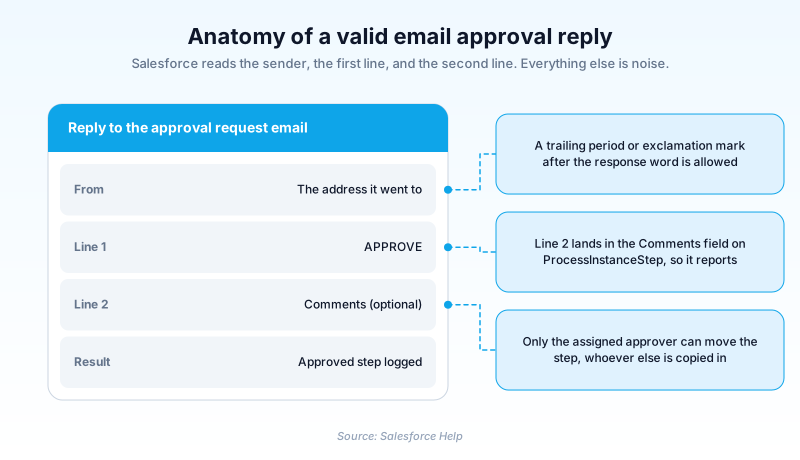
Email Approval Response is a Salesforce Setup option that lets an approver approve or reject an approval request by replying to the notification email, without opening Salesforce at all. The approver types a recognized response word, APPROVE or REJECT for example, on the first line of the reply. Anything on the second line is stored as the approval comment.
It is a single org-wide checkbox in Process Automation Settings, and it covers both Classic Approval Processes and the newer Flow Approval Processes. There is no per-process configuration. Approvers also need the API Enabled user permission, which is the prerequisite most orgs miss on the first attempt.
The parsing is stricter than people expect. The reply has to arrive from the same address the request was sent to, so forwarding it to a colleague to answer does not work.
In plain English
“Imagine your boss emails you asking for permission to spend money. Instead of logging into a system, you hit reply and type one word: yes or no. The system reads that first word and records your answer. Anything you write on the next line becomes your note.”
Worked example
A regional distributor routes any Opportunity with Discount Percent above 20 to the VP of Sales. A rep submits a 27 percent discount on the Opportunity Northwind Facilities Retrofit, worth 145,000 dollars. The VP gets the approval request email on her phone while boarding a flight. She replies with APPROVE on the first line and Approved on volume, hold list price at renewal on the second. Salesforce matches her sending address to her user record, marks the step Approved, and writes her sentence into the Comments field of the resulting ProcessInstanceStep. The Opportunity is released from its approval lock and the next step fires. She never opened the app.
What actually has to be true for a reply to count
The one checkbox, and how far it reaches
From Setup, enter Process Automation Settings in the Quick Find box, open it, select Enable Email Approval Response, and save. That is the whole feature switch, and it applies to the entire org. For flow approval processes, the same setting also governs whether members of an assigned group or queue receive the notification email at all. There is one documented exception, and it catches people out. The setting has no bearing on a step that requires unanimous approval. There, the run creates a work item for every assigned group member and sends each of them a personalized notification regardless.
Response words, and the myth that they are English only
Six words are recognized on the first line of the reply body: APPROVE, APPROVED, YES, REJECT, REJECTED, NO. A trailing period or exclamation mark is tolerated, and comments go on the second line. The common claim that this is English only is wrong. Salesforce checks the word against the approver's current language dictionary first and, if nothing matches, against every other supported language dictionary. An approver whose user language is German can answer in German and it registers. What does not survive is a misspelling, or the word buried under quoted text.
Where the comment actually lands
Whatever sits on that second line ends up in the Comments field of the ProcessInstanceStep record created for the step. It is the same field they would have used on the approval page, so an emailed decision is not second class in the audit trail. You can query it with a child relationship on ProcessInstance and surface it on the record page or in a report. When compliance asks why a discount was approved, that sentence is the answer.
Sender identity is the entire security model
There is no signature check and no token to paste back. Salesforce requires only that the reply arrive from the same address the request was sent to. Answer from a personal account, or forward the request to a colleague who replies from theirs, and you get the message: Your workflow approval message was not processed. That rules out the usual holiday workaround. The supported answer is a delegated approver, who gets their own request email and replies from their own mailbox.
The notification template is part of the configuration
Salesforce ships a default approver template whose body already spells out both routes: click the link, or reply with a response word. Swap in a custom template and that instruction is yours to reproduce, because approvers who were never told the format will not guess it. One more behavior worth designing around: an approval request can be processed only once. If two people sit on the same pending item, the slower reply errors out. It does not overwrite the decision already recorded.
It is not a bet on the old approval engine
Salesforce has retitled this entire documentation set to say Classic Approval Processes, and now points new builds at Flow Approval Processes, which route on conditions instead of being pinned to a single object. Neither model is retired and no end of support has been announced. The useful detail is that one Process Automation Settings checkbox covers both. Assigned approvers and their delegates can approve or reject a flow approval work item by email, exactly as on a classic request.
Turn on email approval response and prove it works
One checkbox, one user permission, one test submission. The test is the step people skip and rediscover in production.
- Open Process Automation Settings
From Setup, enter Process Automation Settings in the Quick Find box and select it. This page is org wide, so what you change reaches every approval process.
- Select Enable Email Approval Response
Tick the checkbox and save. There is no matching switch on the individual approval processes themselves.
- Grant API Enabled to your approvers
Add the API Enabled user permission to a permission set and assign it to every approver. Without it, replies are quietly ignored.
- Check the approver email template
If your process uses a custom approver template, confirm its body tells the reader where the response word and the comments go.
- Submit a real record and reply to it
Reply from the approver's own mailbox with APPROVE on line one and a sentence on line two, then check the approval history for that comment.
the org-wide checkbox that turns a reply into a recorded approval
the user permission each approver needs before their reply is accepted
the sender that flow approval notifications go out from
- Being copied on the request email does not make someone an approver. Only the user the step was assigned to can move it.
- If the response word is not on the first line, or is misspelled, nothing registers and the approver gets no useful signal back.
- An approver who never sees the email cannot answer it, so check the Receive Approval Request Emails field on their user record first.
Prefer this walkthrough as its own page? How to Email Approval Response in Salesforce, step by step
How organizations use Email Approval Response
Discounts over 20 percent route to two sales VPs who are rarely at a desk. Email replies let them clear requests from a phone, and line two of each reply becomes the justification finance reads later in the approval history.
Grant disbursements need a program director and a finance lead to sign off. Neither logs into Salesforce most weeks, so the request email is their whole interface: they reply YES or NO and name the funding source underneath.
Every credit exception has to show who approved it and why, and auditors will not accept a verbal yes. Emailed decisions land in the same approval history as clicked ones, so the compliance team could stop keeping a parallel spreadsheet.
Trust & references
Cross-checked against the following references.
- What is email approval response? (opens in new tab)Salesforce
- Can I respond to email approval requests in languages other than English? (opens in new tab)Salesforce
- What if the approval request has already been approved or rejected by another user? (opens in new tab)Salesforce
- Let Users Respond to Approval Requests from Classic Approval Processes by Email (opens in new tab)Salesforce
- Troubleshoot Email Responses to Approval Requests from Classic Approval Processes (opens in new tab)Salesforce
Straight from the source - Salesforce's reference material on Email Approval Response.
- Enable Email Approval Response for Classic Approval Processes (opens in new tab)Salesforce
- How do I enable email approval response? (opens in new tab)Salesforce
- ProcessInstanceStep, Object Reference for the Salesforce Platform (opens in new tab)Salesforce
- Default Template for Email Approval Response used by Classic Approval Processes (opens in new tab)Salesforce
Hands-on resources to go deeper on Email Approval Response.
About the Author
Dipojjal Chakrabarti is a B2C Solution Architect with 29 Salesforce certifications and over 13 years in the Salesforce ecosystem. He writes and edits salesforcedictionary.com, published by KineticBit Inc., to help admins, developers, architects, and cert/interview candidates sharpen their fundamentals. More about Dipojjal.
Test your knowledge
+5 pts / dayQ1. An approval step is assigned to a queue and two members reply APPROVE within a minute of each other. What happens to the second reply?
Q2. Your approvers are based in Germany and Japan. What does Salesforce do with a response word that is not in English?
Q3. A VP forwards an approval request email to a director and asks her to reply with APPROVE from her own mailbox. What happens?
Discussion
Loading discussion…