
Classic Email Templates
A Classic Email Template is a reusable, pre-written email stored as an EmailTemplate record with a uiType of Aloha.
Definition
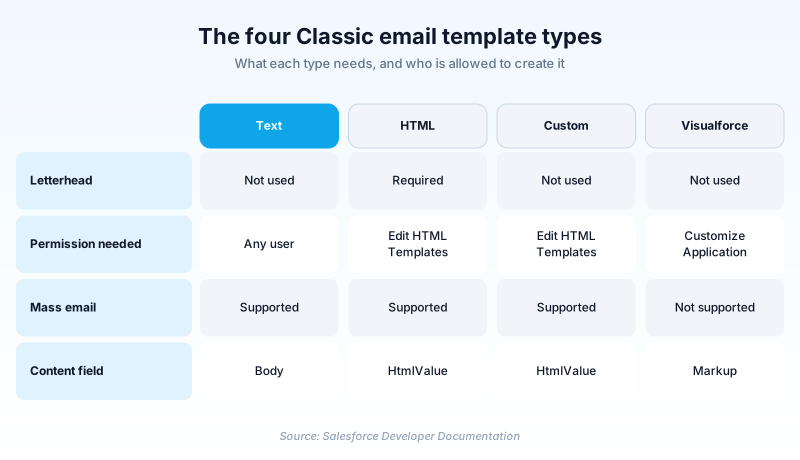
A Classic Email Template is a reusable, pre-written email stored as an EmailTemplate record with a uiType of Aloha. Four types exist: Text, HTML built on a letterhead, Custom HTML built without one, and Visualforce.
Personalization comes from merge fields written in the {!Object.Field} syntax. The HTML type pulls its logo, page color, and text settings from a Classic Letterhead record, and every template is filed in a folder.
This is the older of Salesforce's two template families. Lightning Email Templates are the newer option, and the one Salesforce points new work toward. Classic templates stay fully documented in the current release, so the ones you already have keep working.
In plain English
“Think of a drawer of pre-written letters with the name and a few details left blank. Salesforce fills in those blanks from whatever record you are emailing about, so each letter comes out personal. Classic Email Templates are the original drawer. There is a newer drawer now, and the old one still opens.”
Worked example
A regional insurance brokerage stores a renewal reminder as a Classic Email Template of type html, filed in a folder named Renewals. The subject reads: Your policy {!Policy__c.Name} renews on {!Policy__c.Renewal_Date__c}. That sits well under the 230 character subject cap Classic templates enforce, though the same line would also be legal on a Lightning template, which allows 1,000. Because the type is html, the template must reference a Classic Letterhead, and it inherits the brokerage logo and navy header bar from it. Encoding stays on the UTF-8 default that Classic templates require. An email alert sends the template when Renewal_Date__c falls 30 days out. Rebuilding the same message in Lightning means dropping the letterhead reference and rewriting the merge fields in HML.
What actually makes a template Classic
One object, two families
Classic and Lightning email templates are not separate objects. Both are rows in EmailTemplate, and the Metadata API field uiType is what tells them apart. Aloha is Salesforce Classic and SFX is Lightning Experience. SFX_Sample is reserved for the Lightning samples Salesforce ships. One constraint is worth memorizing: if uiType is SFX, the type must be custom. Lightning templates are always custom HTML underneath. The consequence bites the first time you build a report or a SOQL query over EmailTemplate and get both families back mixed together. Filter on uiType, or you will be counting templates nobody uses. LastUsedDate is another tell. Salesforce documents it as a Classic field that Lightning templates do not typically populate, so a last-used report looks misleadingly empty for the newer half of your library.
The four types, and who may build each
Type text is the plain one, and it is documented as the only type any user can create or change. Type html is HTML built on a letterhead and needs the Edit HTML Templates permission. Type custom takes that same permission but skips the letterhead, which is what you pick when you want to paste in your own markup and control every tag. Type visualforce needs Customize Application, because you are writing code that can pull related records into the body. That permission split drives more org politics than it looks like it should. Granting Edit HTML Templates is the line between users producing their own branded mail and filing a ticket for it. The Visualforce type also carries one flat limitation: Salesforce states that you cannot send a mass email using a Visualforce email template.
Letterheads attach to exactly one type
A Classic Letterhead holds the logo, background and body colors, header, footer, and border lines that HTML templates inherit. Branding sits in one record rather than being pasted into fifty. The letterhead field is available only when type is html. The style field behaves the same way, offering values such as formalLetter, newsletter, products, and promotionLeft, and it too applies only to that type. Here the Classic and Lightning stories diverge hardest. Lightning uses EnhancedLetterhead instead, and the docs are explicit that an enhanced letterhead has to be paired with a Lightning template using the HML merge language. The two branding systems do not cross over, so converting an html template means rebuilding its branding rather than repointing a lookup.
Subject caps and encoding, where the families differ
Subject lines cap at 230 characters on a Classic template against 1,000 on a Lightning one. Encoding is the sharper difference. encodingKey is required on Classic templates and defaults to UTF-8. It accepts only a fixed list, including ISO-8859-1, Shift_JIS, Big5, and GB2312. Lightning templates ignore that field and take encoding from the user's own settings. The 384 KB cap on Body and HtmlValue is not a family difference at all. Both are fields on EmailTemplate, and the limit applies to every row regardless of family. Worth knowing anyway, because somebody will eventually inline a base64 image. None of the real gaps matter until you move in the wrong direction. A 400 character subject that was fine in Lightning will not fit going back. An org that deliberately pinned Shift_JIS on its Classic templates gives up that control once those templates become Lightning ones.
Deployment is the part people underestimate
Each template ships as a .email file plus a companion metadata file named after it, stored in the email directory of the package alongside its Salesforce folder name. Then comes the tedious part: package.xml does not accept the wildcard for EmailTemplate. The documented answer is to call listMetadata() with EmailTemplate as the type, then write out every member explicitly in folder-and-name form, such as unfiled$public/SalesNewCustomerEmail. A release touching twenty templates therefore needs twenty lines in the manifest. Any template added in production after you generated that list simply will not come along. Packaging adds one more constraint on top: EmailTemplate is supported in first-generation managed packages only.
When Classic is still the right answer
Visualforce email templates have no Lightning equivalent. Anything that has to loop over related records and render them as a line-item table belongs in the Classic Visualforce type. So does anything reaching into Apex through a custom controller. Deep-rooted automation looks like the second case, and mostly it is not. An email alert that has fired correctly for eight years is probably attached to a Workflow Rule. Workflow Rules and Process Builder reached end of support on December 31, 2025. Leaving that alert alone is not the safe option it sounds like. Keep the template. Move the automation around it to Flow. For everything else, start in Lightning. You get Email Template Builder, HML, enhanced letterheads, and a subject line four times longer. The honest framing is that Classic templates are supported rather than invested in, and the distance between the two builders grows with each release. Treat Classic as somewhere to maintain what already exists, not somewhere to begin.
How organizations use Classic Email Templates
Keeps a decade of Text templates wired into email alerts, because rewriting them in Lightning would mean regression testing every automation that references them.
Runs quote acknowledgements through a Visualforce email template so the body can render a line-item table from related records, which the Lightning builder cannot express.
Points every HTML acknowledgement template at one Classic Letterhead, so authors inherit the same logo and header colors instead of rebuilding branding per template.
Trust & references
Cross-checked against the following references.
Straight from the source - Salesforce's reference material on Classic Email Templates.
Hands-on resources to go deeper on Classic Email Templates.
About the Author
Dipojjal Chakrabarti is a B2C Solution Architect with 29 Salesforce certifications and over 13 years in the Salesforce ecosystem. He writes and edits salesforcedictionary.com, published by KineticBit Inc., to help admins, developers, architects, and cert/interview candidates sharpen their fundamentals. More about Dipojjal.
Test your knowledge
+5 pts / dayQ1. In the Metadata API, which uiType value marks an email template as a Salesforce Classic template?
Q2. Which Classic email template type is required to reference a letterhead?
Q3. How do you list email templates for retrieval in package.xml?
Discussion
Loading discussion…