
Email Notification
An Email Notification is an email that Salesforce sends on its own, because a record changed, an automation fired or a platform event demanded it, rather than because a person composed it.
Definition
An Email Notification is an email that Salesforce sends on its own, because a record changed, an automation fired or a platform event demanded it, rather than because a person composed it. Approval requests, case assignment alerts and password resets all qualify.
The name covers several mechanisms, not one feature. An Email Alert in Setup, a Send Email action in a flow, an Approval Process step, a user's own Email Settings and Messaging.SingleEmailMessage in Apex each produce one.
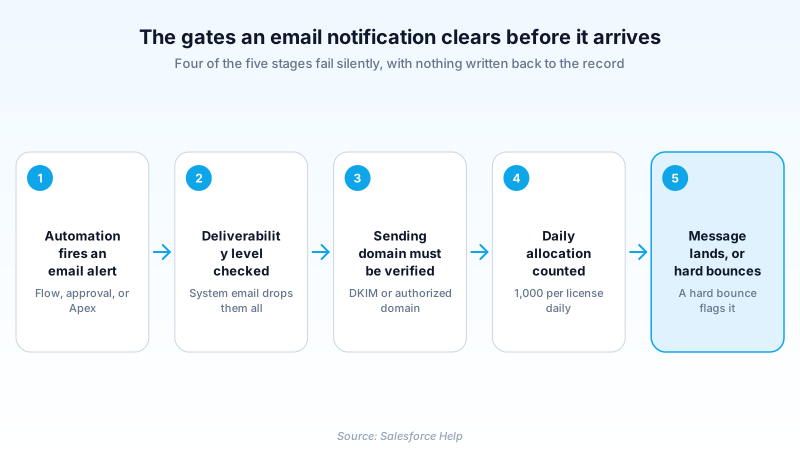
What they share is the road out. Every one passes the org's Deliverability access level, the sending-domain verification Salesforce made mandatory during 2026, and a daily allocation.
In plain English
“Salesforce can write and send emails for you. When something happens that a person needs to know about, like a discount waiting on a manager's approval, the system composes the message and sends it. Set the rule up once and it fires every time.”
Worked example
A regional HVAC distributor routes any discount over 20% to a manager. The admin creates an Email Alert on Opportunity named Discount_Approval_Request, points it at a Lightning email template, sets Recipient Type to Owner's Manager, and picks the org-wide address deals@example.com as the sender. A record-triggered flow fires the alert when Discount_Percent__c is above 20 and Stage equals Negotiation/Review. The manager gets the message inside a minute with account name, amount and record link merged in. When the same alert went quiet in June 2026, the flow was fine: example.com had no DKIM key, its sending domain failed verification, and every message was dropped before it left.
What actually sends the email, and what quietly stops it
Which of the five actually sent it
There is no Email Notification object and no single Setup page that owns one. That matters the first time a user forwards you a message and asks where it came from. Work backwards from the artefact each sender leaves rather than guessing at the automation. Setup's Email Alerts list is searchable, so a distinctive subject line usually lands you on the record. A flow's Send Email action can log the send against the record it ran on. Apex appears in a debug log and nowhere in Setup at all. Naming the sender first saves you from debugging the wrong one of five.
The Email Alert is the reusable unit
An Email Alert bundles a template, a recipient list and a sender into one Setup record that automation calls by API name. Reach it through Quick Find, under Process Automation. Recipients come from record context: owner, owner's manager, a role, a public group, a related contact, plus up to five fixed addresses. The sender is the running user, the default workflow user, or a verified organization-wide address. A flow invokes it with nothing but SObjectRowId, the ID of the record supplying merge context. Holding the recipient list inside the alert means changing who gets mailed never means editing a flow.
Domain verification is the new failure mode
Since Spring '26 Salesforce refuses to deliver mail whose sending domain has not been verified, even when the individual address was verified years earlier. Verification means an active DKIM key for that exact domain, or a matching row in Authorized Email Domains under Setup. New domains were caught straight after Spring '26 patch 11; domains on Salesforce's temporary allowlist were enforced from 29 June 2026. Addresses at gmail.com, hotmail.com and outlook.com are exempt, as is Marketing Cloud. Everything else stops, and the symptom looks exactly like automation that never ran.
One Setup page can silence the whole org
Deliverability offers three access levels: No access, System email only, and All email. The middle one permits the platform's own mail and password resets while dropping every alert an admin configured. New and refreshed sandboxes land on it deliberately, and a refresh also appends .invalid to user email addresses so a test run cannot reach real customers. Correct in a sandbox, catastrophic in production, and a common casualty of an org migration.
Allocations that run out mid-afternoon
Email alerts draw on 1,000 sends per standard Salesforce license per day, capped at 2,000,000 for the org, counted across workflow rules, approval processes, flows and the REST API together. Developer Edition and trial orgs get 15, which is why a demo build stops mailing after the third test. The window resets at midnight GMT rather than local midnight, which is how an org in Sydney runs dry by mid-afternoon. Anything over the line is discarded, not queued, so no backlog flushes overnight.
When a notification should not be an email at all
Plenty of alerts exist only because email was the one channel the original admin had. Custom notifications are defined in Notification Builder and fired by the Send Custom Notification action. They land in the desktop bell tray and as a mobile push. A title runs to 250 characters and a body to 750. One send takes up to 500 recipient IDs, queues and team members included. Orgs created in Winter '21 or later need the Send Custom Notifications permission for user-context flows. If the recipient acts on the message inside Salesforce anyway, that beats an inbox nobody reads.
How to get an email notification actually delivering
Most notification failures in 2026 are not broken automation. They are a delivery setting nobody checked. Work the chain in this order before opening Flow Builder.
- Confirm the Deliverability access level
In Setup, Quick Find for Deliverability. Production should read All email. If it reads System email only, every configured alert is being thrown away and nothing on the record says so.
- Verify the sending domain
Check that the domain behind your organization-wide address has an active DKIM key or a row in Authorized Email Domains. Without one, Salesforce discards the send instead of bouncing it back.
- Build the Email Alert
Quick Find for Email Alerts, click New Email Alert, choose the object, pick a template, set Recipient Type, and select the verified organization-wide address as the From. Note the API name.
- Call it from a record-triggered flow
Add an Action element, search for the alert by name, and pass the triggering record's Id into SObjectRowId. Entry criteria on the flow decide when it fires; the alert has no conditions.
- Send one real test, then read the Email Log
Request an Email Log for the window you tested in. It reports whether Salesforce accepted the message and what the receiving server answered, which a flow debug log never will.
No access, System email only, or All email. The org-wide gate on everything except the platform's own system mail.
Running user, default workflow user, or a verified organization-wide address. Only the last gives a domain you control.
Owner, owner's manager, role, public group or related contact, plus up to five hard-typed addresses.
- Every member of a public group counts separately against the daily workflow email allocation, so one alert to a 40-person group costs 40 sends.
- Workflow rules, approval processes, flows and the REST API all spend the same daily allocation, so one chatty flow can starve every other notification.
- Verifying an email address is not the same as verifying its domain. Spring '26 requires both.
Prefer this walkthrough as its own page? How to Email Notification in Salesforce, step by step
How organizations use Email Notification
Routes discount approvals above 20% through an Email Alert on Opportunity, then moves the daily deal-desk digest to a custom notification once reps complain about inbox volume.
Finds its grant reminder emails stopped in mid-2026, traces it to a sending domain with no DKIM key, and fixes the whole class of failures with one DNS record.
Leaves every sandbox on System email only so a full copy refresh cannot mail 40,000 policyholders during regression testing.
Trust & references
Cross-checked against the following references.
- Spring '26 Email-Sending Domain Verification Requirement (opens in new tab)Salesforce
- Email-Sending Domain Verification FAQ (opens in new tab)Salesforce
- Daily Allocations for Email Alerts (opens in new tab)Salesforce
- Email Deliverability in Sandboxes (opens in new tab)Salesforce
- Salesforce Sandbox: User Email Addresses Appended With .invalid After Sandbox Refresh or Clone (opens in new tab)Salesforce
- Send Email for Users with Unverified Domains (opens in new tab)Salesforce
- Salesforce Workflow Rules and Process Builder End of Support (opens in new tab)Salesforce
- Messaging.SingleEmailMessage Class (opens in new tab)Salesforce
Straight from the source - Salesforce's reference material on Email Notification.
Hands-on resources to go deeper on Email Notification.
About the Author
Dipojjal Chakrabarti is a B2C Solution Architect with 29 Salesforce certifications and over 13 years in the Salesforce ecosystem. He writes and edits salesforcedictionary.com, published by KineticBit Inc., to help admins, developers, architects, and cert/interview candidates sharpen their fundamentals. More about Dipojjal.
Test your knowledge
+5 pts / dayQ1. Email alerts in a production org stopped arriving in July 2026, yet flow debug logs still show successful runs. What is the most likely cause?
Q2. A freshly refreshed full sandbox sends none of the email alerts an admin configured. Which setting explains it?
Q3. Which daily allocation governs an Email Alert fired from a record-triggered flow?
Discussion
Loading discussion…