
Connect Offline
Connect Offline was a Windows desktop client that let users edit a local copy of their Salesforce records with no connection.
Definition
Connect Offline was a Windows desktop client that let users edit a local copy of their Salesforce records with no connection. It is retired: the download is gone, and no org has a Setup entry for it today.
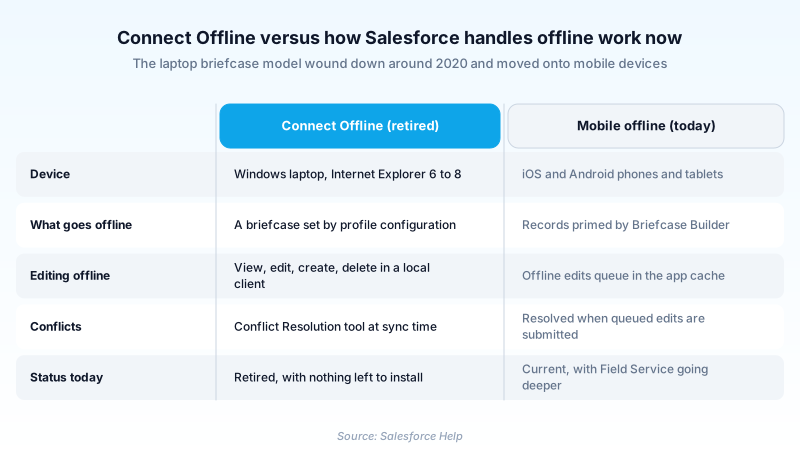
The records a user took offline were called a briefcase, and an admin decided its contents with a briefcase configuration tied to a profile. Reconnecting pushed local edits up and pulled server changes down, with a tool for resolving records both sides had touched.
Offline work in Salesforce now happens on mobile devices instead, through the Salesforce mobile app, Briefcase Builder, and the deeper offline layer in Field Service.
In plain English
“Think of copying a few work files onto a laptop before a long flight, editing them in the air, then plugging back in. Everything catches up. Connect Offline did exactly that for Salesforce records. Salesforce switched it off years ago, once phones and tablets took over the job.”
Worked example
Picture a rep at a building-products distributor in 2014, flying to three job sites with no wifi. Before leaving she opens her personal settings, types Connect Offline in Quick Find, and clicks Install Now. Her admin's briefcase configuration sends down her open opportunities, their accounts and contacts, and this week's tasks. On the plane she edits the Northwind Supply opportunity: Stage moves from Value Proposition to Negotiation/Review, Amount from 45,000 to 61,500, Close Date to 03/31/2014. Back online she logs in with Synchronize my data checked. Sales ops had already changed Amount on the server, so the Conflict Resolution tool shows both values and she keeps 61,500.
How Connect Offline worked and what replaced it
Which records a briefcase held
A Sales Representative profile might receive leads and opportunities. An Account Executive profile received accounts and their related opportunities. What separated them was the briefcase configuration an admin built and assigned, a parameter set aimed at one profile. Users with no assigned configuration could set their own briefcase and hand-pick accounts. Supported objects were accounts, activities, contacts, opportunities, leads, and custom objects, plus products and schedules on opportunities.
Internet Explorer 6, and a spec sheet nobody updated
Published requirements were Internet Explorer 6, 7, or 8, with Firefox, Safari, and Chrome ruled out by name. Windows 2000, XP, Vista, or 7. 256 MB of RAM, 512 recommended. 20 MB of disk, 250 MB for a large briefcase. A Pentium II at 500 MHz. Salesforce last revised that page in November 2019, and none of those numbers had moved in years. That tells you how much investment the client was still getting.
Sync and the Conflict Resolution tool
The first login needed a connection, and an org with IP restrictions meant appending a security token to the password. Two checkboxes mattered at login: Update tab names, which pulled down renamed fields, objects, and tabs, and Synchronize my data, which ran the sync. When both sides had edited the same record, the Conflict Resolution tool listed the differences and made the user choose. You could defer it and come back through the Errors section of the Connect Offline home tab.
Priming replaced the briefcase configuration
The idea outlived the mechanism. Rather than an admin picking objects for a profile, Briefcase Builder writes filtered rules that prime matching records onto a device. LWC Offline sits under that for developers: a priming engine, plus a durable on-device store holding primed records and the drafts made against them. Those drafts queue until the device is online again. Nobody has to remember a Synchronize my data checkbox. What you give up is depth. A phone cache is sized for a sales call, not a whole shift in a basement.
Trust & references
Cross-checked against the following references.
- Getting Started with Connect Offline (archived cheat sheet, last updated November 2019) (opens in new tab)Salesforce
- Salesforce Spring '20 Release Notes (OfflineUser listed under deprecated scratch org features) (opens in new tab)Salesforce
- Salesforce Winter '17 Release Notes (Connect Offline still listed as Internet Explorer only) (opens in new tab)Salesforce
Straight from the source - Salesforce's reference material on Connect Offline.
Hands-on resources to go deeper on Connect Offline.
About the Author
Dipojjal Chakrabarti is a B2C Solution Architect with 29 Salesforce certifications and over 13 years in the Salesforce ecosystem. He writes and edits salesforcedictionary.com, published by KineticBit Inc., to help admins, developers, architects, and cert/interview candidates sharpen their fundamentals. More about Dipojjal.
Test your knowledge
+5 pts / dayQ1. In Connect Offline, what was a briefcase?
Q2. Which browser did the official Connect Offline system requirements name?
Q3. A rep edited an opportunity offline while sales ops edited the same field online. What happened at sync?
Discussion
Loading discussion…