
Advanced Search
Advanced Search is the secondary search window Salesforce opens when the quick, name-only results are not enough to identify a record.
Definition
Advanced Search is the secondary search window Salesforce opens when the quick, name-only results are not enough to identify a record. In Lightning Experience it is the modal that appears from a lookup field once you click Show more results, and it queries every searchable field on the target object rather than just Name. Salesforce Classic has its own Advanced Search, reached from the sidebar, which reaches custom fields that basic sidebar search skips.
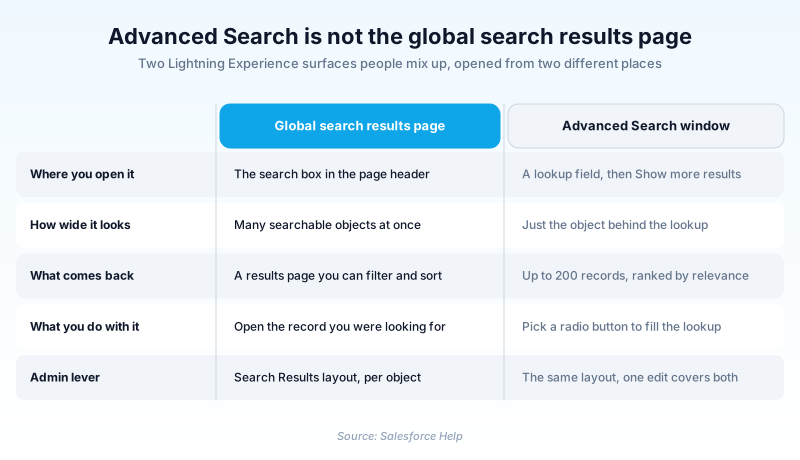
Advanced Search is not the global search results page. The page you land on after pressing Enter in the header search box spans many objects and is documented as Filter and Sort Search Results. Advanced Search is scoped to one object and exists to resolve a single record, usually so you can drop it into a lookup field.
How useful the window turns out to be depends entirely on the object's search layout. Salesforce ships defaults that expose little beyond Name, which defeats the point of opening a wider search at all.
In plain English
“Think of the lookup field as a narrow doorway that only admits records whose name matches what you typed. Two customers called Miller Roofing both fit, so you are stuck. Advanced Search is the wider door beside it. Everything written on the record counts there, so one detail nobody else shares gets you the right one.”
Worked example
A service rep at a solar installer is logging a case and needs the right Account on it. She types Miller into the Account lookup and gets three suggestions, all named Miller Roofing. The Name field alone cannot separate them. She clicks Show more results to open Advanced Search and enters 603-555-0142. Only one Miller Roofing carries that Phone value, so it comes back on its own. She picks its radio button and the lookup fills in. Typing that number straight into the lookup field would have returned nothing at all.
Where Advanced Search lives, and what it can actually reach
How the window opens, and the Enter key that misfires
Type two or more characters into a lookup field and Salesforce shows instant suggestions matched against the Name field. Click Show more results and the window opens with the wider query already run. There is a trap here. Pressing Enter in the lookup itself also fires that full search, which is why people occasionally get back records that look nothing like what they typed. Enter silently moves you from the narrow query to the wide one. Salesforce's guidance is to arrow down through the suggestions rather than hitting Enter.
What Spring '25 changed about the window
The modal used to be called Lookup Search. In Spring '25 it took the Advanced Search title and gave up several things. Clickable column headers are gone, so you can no longer sort by hand; records come back ranked by relevance and that is the only order on offer. You select a record with a radio button instead of clicking its title, and record titles are no longer links at all. Pagination went away, as did the inline option to create a new record from the window. If your team sorted by Last Modified Date to pick the freshest duplicate, that habit stopped working.
The Classic version shares the name and not much else
Salesforce Classic has its own Advanced Search, and it behaves differently from Classic sidebar search in three documented ways. Sidebar search appends a wildcard to your last keyword; Advanced Search does not. Sidebar search supports quoted phrase matching; Advanced Search does not. And Advanced Search reaches custom fields, which basic sidebar search skips. So the same string returns different records depending on which box you typed it into, and the Classic user who never learned to type an asterisk gets fewer hits from the more capable tool.
Search layouts decide whether the window is worth opening
Advanced Search can only show what the object's search layout exposes, and Object Manager offers two. Salesforce's Lightning search setup documentation is explicit that Search Results applies to global and lookup searches, so one edit covers both surfaces. Lookup Dialogs, sitting right beside it, is a Salesforce Classic lever tied to enhanced lookups, and editing it does nothing for the Lightning window. Most orgs never touch either, and the default sits close to Name and nothing useful. That produces the worst version of the feature: three rows all reading Miller Roofing, nothing to tell them apart. Adding Phone, Billing City and Owner is a ten-minute change.
A field has to be searchable before a layout can show it
Layouts and searchability are separate switches, and they get conflated constantly. From Setup, enter Search Manager in the Quick Find box and select Query Configurations. That page controls which objects are searchable per profile for global search and Experience Cloud sites, and which custom fields are searchable across configurations. Switch a custom field off there and no layout tuning will surface it, so the feature looks broken to a user who can see the value on the record. Check searchability first, then decide what the results table displays.
SOSL, the index, and the 200-record ceiling
None of this touches your relational data directly. Salesforce keeps a separate search index, and searches run as SOSL against it rather than SOQL against the tables. The Advanced Search window returns at most 200 records. SOSL in general will hand back up to 2,000, so the 200 is the tighter ceiling and the one that bites you: match more than that and the record you wanted can sit outside the returned set. Developers building custom record pickers can call SOSL FIND from Apex or the REST search API. They inherit the same tokenisation and the same sharing enforcement the standard window uses.
How to make Advanced Search useful on an object
The window is only as good as what the object exposes. Three settings turn it from three identical rows into a usable record picker.
- Confirm the fields are searchable
From Setup, enter Search Manager in the Quick Find box and select Query Configurations. Check that the object and any custom fields you care about are switched on.
- Open the object's search layouts
From Setup, open Object Manager, choose the object, then select Search Layouts.
- Edit the Search Results layout
Use the dropdown across from it and select Edit. Move in the fields that separate near-identical records, such as Phone, Billing City and Owner.
- Test it from a real lookup field
Open a record with a lookup to that object, type two characters, click Show more results, and check that a distinguishing value returns exactly one row.
Sets the columns this window shows for the object.
Salesforce Classic only, and only where enhanced lookups are enabled.
Sets which objects and custom fields are searchable at all.
- Field-level security still applies, so a field a profile cannot read will not help that profile tell two records apart.
- The window only searches the lookup's target object, so a record filed under the wrong object will not turn up however you tune the layout.
- The window returns at most 200 records by relevance, so an over-broad search can bury the record you want.
Prefer this walkthrough as its own page? How to Advanced Search in Salesforce, step by step
How organizations use Advanced Search
Adds Phone and Billing City to the Account search layouts so service agents can tell six Accounts named after the same family business apart before attaching a case.
Trains its order desk to open Advanced Search from the Product lookup and search on part number, because product names differ by one character and Name alone returns a dozen rows.
Trust & references
Cross-checked against the following references.
- Salesforce Advanced Lookup Search UI Changes in Spring '25 (opens in new tab)Salesforce
- Salesforce CRM Sidebar Search vs. Advanced Search (opens in new tab)Salesforce
- Advanced Search Lookup Behavior in Salesforce Lightning Experience (opens in new tab)Salesforce
- Salesforce Search Layout Features: Lookup Dialog and Search Results (opens in new tab)Salesforce
Straight from the source - Salesforce's reference material on Advanced Search.
- Lookup Searches (opens in new tab)Salesforce
- Configure Einstein Search (opens in new tab)Salesforce
- Configure Lookup Search Results in Salesforce Classic (opens in new tab)Salesforce
- Manage Searchable Objects and Fields (opens in new tab)Salesforce
- Filter and Sort Search Results in Lightning Experience (opens in new tab)Salesforce
- Salesforce Object Search Language (SOSL) (opens in new tab)Salesforce
Hands-on resources to go deeper on Advanced Search.
About the Author
Dipojjal Chakrabarti is a B2C Solution Architect with 29 Salesforce certifications and over 13 years in the Salesforce ecosystem. He writes and edits salesforcedictionary.com, published by KineticBit Inc., to help admins, developers, architects, and cert/interview candidates sharpen their fundamentals. More about Dipojjal.
Test your knowledge
+5 pts / dayQ1. In Lightning Experience, how do you open the Advanced Search window?
Q2. What does the Advanced Search window search that a lookup's instant suggestions do not?
Q3. A Salesforce Classic user types acm in the sidebar and gets Acme Corporation back. The same string in Advanced Search returns nothing. Why?
Discussion
Loading discussion…