
Salesforce Validation Rules: 20 Real-World Examples Every Admin Should Know
Anatomy of a rule, ISCHANGED/ISNEW/PRIORVALUE/REGEX patterns, 20 working examples, error message best practices, and the gotchas that get missed.
A sales rep tries to close an Opportunity and gets the error "Invalid input." That is the entire message. They open a ticket, you investigate, and the cause is a validation rule that requires the Loss Reason field when StageName is Closed Lost. The error message was written by someone who never sat next to a rep at end of quarter, and now you have a support ticket that did not need to exist. This guide is how to build validation rules that prevent the original bad save and prevent the support ticket that follows it.
Validation rules are the most underrated tool in the admin toolbox. They cost nothing to build, run instantly, and prevent more bad data than any downstream cleanup script. This article is the canonical 2026 reference. Anatomy, patterns, and 20 working examples you can paste into your org tonight, plus the message-writing habits that determine whether a rule helps or annoys.
Anatomy of a validation rule
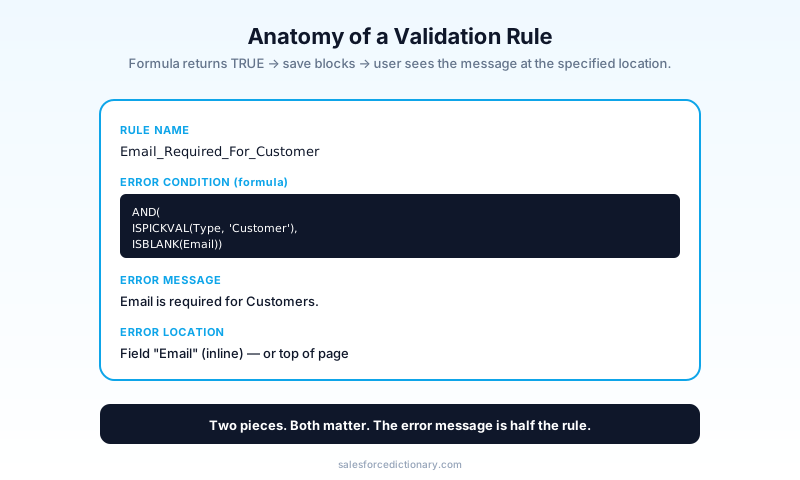
A validation rule is two things:
- An error condition formula that returns
TRUEorFALSE. WhenTRUE, the save blocks. - An error message that the user sees.
Rule Name:        Email_Required_For_Customer
Error Condition:  AND(
                    ISPICKVAL(Type, 'Customer'),
                    ISBLANK(Email)
                  )
Error Message:    Email is required for Customers.
Error Location:   Field "Email"
The error formula is true, save blocks, user sees the message. The "error location" controls where the message appears (next to a specific field, or at the top of the page). Always pick the specific field when the rule is about one field; the inline location is the difference between a user who fixes the issue in five seconds and one who scrolls to the top, reads the message, and has to look for the relevant field on their own.
The four core functions
Internalize these and you will write 90 percent of validation rules without looking anything up.
| Function | Use when |
|---|---|
ISCHANGED(field) | The field changed in this save (insert: always TRUE; update: depends) |
ISNEW() | The record is being inserted (not updated) |
PRIORVALUE(field) | The value of field before this save (only useful with ISCHANGED) |
REGEX(text, pattern) | Text matches a regex pattern. Best for format validation |
Combined examples:
// Block changes to Stage from "Closed Won" back to anything else
AND(
  ISCHANGED(StageName),
  PRIORVALUE(StageName) = 'Closed Won'
)

// Require Email format on creation only (not edits)
AND(
  ISNEW(),
  NOT(REGEX(Email, '^[A-Za-z0-9._-]+@[A-Za-z0-9.-]+\\.[A-Za-z]{2,}$'))
)
A common mental model: ISNEW() answers "is this an insert?", ISCHANGED() answers "did the field move this transaction?", PRIORVALUE() answers "what was it before?", and REGEX() answers "does the text fit the pattern?" Most production validation rules are a Boolean combination of these four with some literal field comparisons mixed in.
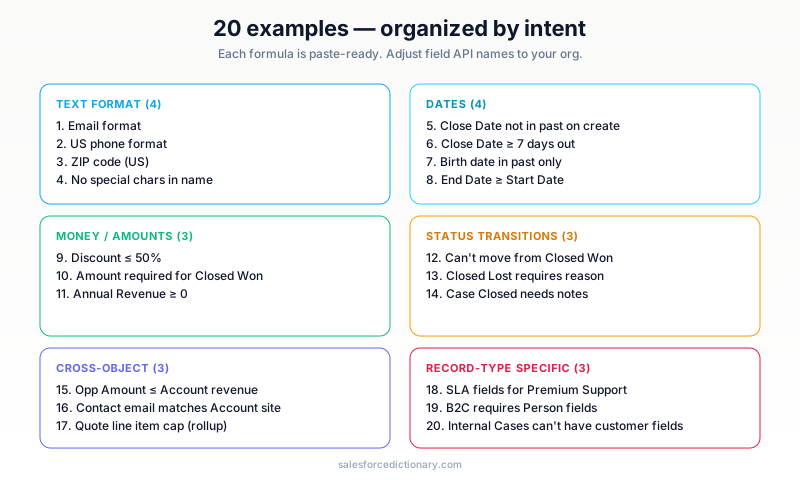
20 real-world examples
Each is a formula you can paste directly. Adjust field API names to match your org.
Text format (Examples 1-4)
1. Email format validation
AND(
  NOT(ISBLANK(Email)),
  NOT(REGEX(Email, '^[A-Za-z0-9._-]+@[A-Za-z0-9.-]+\\.[A-Za-z]{2,}$'))
)
Error: "Email must be in valid format (user@example.com)."
2. US phone number format
AND(
  NOT(ISBLANK(Phone)),
  NOT(REGEX(Phone, '^\\(?\\d{3}\\)?[\\s.-]?\\d{3}[\\s.-]?\\d{4}$'))
)
Error: "Phone must be in (555) 123-4567 format."
3. ZIP code validation (US)
AND(
  NOT(ISBLANK(MailingPostalCode)),
  NOT(REGEX(MailingPostalCode, '^\\d{5}(-\\d{4})?$'))
)
Error: "ZIP must be 5 digits or 5+4 (12345 or 12345-6789)."
4. No special characters in account name
NOT(REGEX(Name, '^[A-Za-z0-9\\s.,&\\-\']+$'))
Error: "Account Name can only contain letters, numbers, spaces, and standard punctuation."
Dates (Examples 5-8)
5. Close Date cannot be in the past on create
AND(
  ISNEW(),
  CloseDate < TODAY()
)
Error: "Close Date cannot be in the past."
6. Close Date must be at least 7 days from today on create
AND(
  ISNEW(),
  CloseDate < TODAY() + 7
)
Error: "Close Date must be at least 7 days out."
7. Birth date must be in the past
AND(
  NOT(ISBLANK(Birthdate)),
  Birthdate > TODAY()
)
Error: "Birth date cannot be in the future."
8. End Date must be after Start Date
AND(
  NOT(ISBLANK(End_Date__c)),
  NOT(ISBLANK(Start_Date__c)),
  End_Date__c < Start_Date__c
)
Error: "End Date must be on or after Start Date."
Money / amounts (Examples 9-11)
9. Discount cannot exceed 50 percent
AND(
  NOT(ISBLANK(Discount__c)),
  Discount__c > 0.5
)
Error: "Discount cannot exceed 50%."
10. Opportunity Amount required for Closed Won
AND(
  ISPICKVAL(StageName, 'Closed Won'),
  OR(ISBLANK(Amount), Amount <= 0)
)
Error: "Amount is required and must be positive when Stage is Closed Won."
11. Annual Revenue must be positive
AND(
  NOT(ISBLANK(AnnualRevenue)),
  AnnualRevenue < 0
)
Error: "Annual Revenue cannot be negative."
Status transitions (Examples 12-14)
12. Cannot move Stage backward from Closed Won
AND(
  ISCHANGED(StageName),
  TEXT(PRIORVALUE(StageName)) = 'Closed Won',
  TEXT(StageName) != 'Closed Won'
)
Error: "Once Stage is Closed Won, it cannot be moved back."
13. Closed Lost requires a reason
AND(
  ISPICKVAL(StageName, 'Closed Lost'),
  ISBLANK(TEXT(Loss_Reason__c))
)
Error: "Loss Reason is required when Stage is Closed Lost."
14. Case cannot be Closed without resolution notes
AND(
  ISPICKVAL(Status, 'Closed'),
  ISBLANK(Resolution_Notes__c)
)
Error: "Resolution Notes are required to close a Case."
Cross-object (Examples 15-17)
15. Opportunity Amount cannot exceed Account's annual revenue
AND(
  NOT(ISBLANK(Amount)),
  NOT(ISBLANK(Account.AnnualRevenue)),
  Amount > Account.AnnualRevenue
)
Error: "Opportunity Amount cannot exceed the Account's Annual Revenue."
16. Contact's email domain must match account's website
AND(
  NOT(ISBLANK(Email)),
  NOT(ISBLANK(Account.Website)),
  NOT(CONTAINS(Email,
    SUBSTITUTE(SUBSTITUTE(Account.Website, 'http://', ''), 'https://', '')))
)
Error: "Contact's Email domain should match the Account's Website."
17. Quote line item count limit per opportunity (workaround using rollup)
AND(
  NOT(ISBLANK(Opportunity.Total_Quote_Lines__c)),
  Opportunity.Total_Quote_Lines__c >= 50
)
Error: "Cannot add more than 50 quote line items per Opportunity."
Record-type specific (Examples 18-20)
18. SLA fields required for Premium Support cases only
AND(
  RecordType.DeveloperName = 'Premium_Support',
  OR(ISBLANK(TEXT(SLA_Tier__c)), ISBLANK(SLA_Response_Time__c))
)
Error: "SLA Tier and Response Time are required for Premium Support cases."
19. B2C accounts must have Person Account fields populated
AND(
  RecordType.DeveloperName = 'Person_Account',
  OR(ISBLANK(FirstName), ISBLANK(LastName))
)
Error: "First and Last Name are required for Person Accounts."
20. Internal cases cannot have customer-facing fields filled
AND(
  RecordType.DeveloperName = 'Internal_Issue',
  NOT(ISBLANK(Customer_Communication__c))
)
Error: "Customer-facing fields are not allowed on Internal Issues."
Error message best practices
The error message is half the rule. A bad message creates a support ticket; a good one teaches the user.
Bad: "Invalid input." Better: "Email cannot be blank." Best: "Email is required for Customers. Please add a valid email like jane@example.com."
The pattern: what is wrong, why, and how to fix.
Other guidelines:
- Address the user, not the system. "You must fill in..." not "System requires..."
- Suggest a fix, not just the rule. "Use format (555) 123-4567" beats "Phone must match regex."
- Locate the message at the relevant field. Do not dump everything at the top of the page.
- Localize. If your org is multi-language, build messages with
$Label.Xreferences where possible. - Do not expose sensitive logic. "Discount above 50 percent requires VP approval" is fine; "VP IDs are 005xxx" is a leak.
- Match the tone of the surrounding UI. A casual product surface gets a casual error; a compliance-heavy product gets formal language. Pick one and use it consistently across rules so the experience is coherent.
The patterns that bite
A short list of validation-rule edge cases that catch new admins.
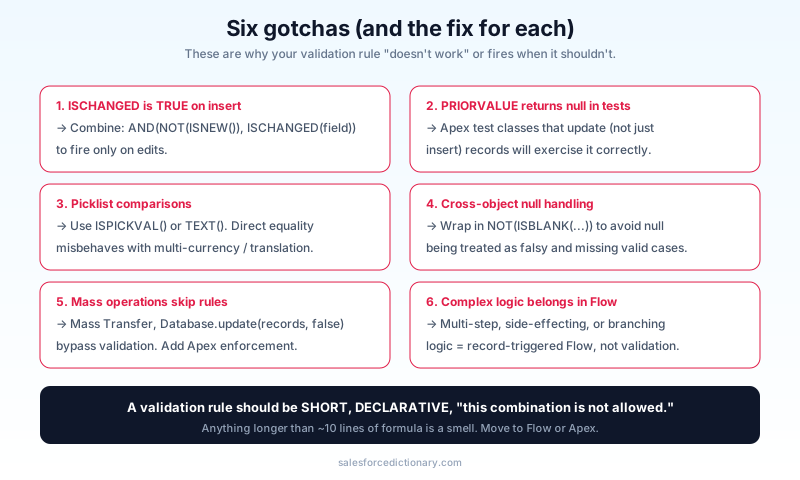
Pattern 1: ISCHANGED plus ISNEW behavior
ISCHANGED(field) returns TRUE on insert (the value "changed" from null). If you want to validate only on edits, combine: AND(NOT(ISNEW()), ISCHANGED(field)).
Pattern 2: PRIORVALUE in test classes
PRIORVALUE returns null in some tests. If your rule depends on it, build proper Apex test class coverage that performs an update operation, not just an insert. A common pitfall is asserting the rule fires during a setup-only test and concluding the rule works; the rule actually only catches the update path, and the assertion was meaningless.
Pattern 3: Picklist comparisons
Always wrap picklist values in ISPICKVAL() or TEXT(). Direct equality (StageName = 'Closed Won') sometimes works in formulas but can misbehave with multi-currency or translated values. Make the wrap a team convention so new admins copy the right pattern from existing rules.
Pattern 4: Cross-object null checks
A cross-object formula like Account.AnnualRevenue > 1000000 returns null (treated as false) when the parent is not set. Always include NOT(ISBLANK(Account.AnnualRevenue)) first.
Pattern 5: Mass transfer skips validation
Salesforce's "Mass Transfer Records" tool skips validation rules. So does the Apex Database.update(records, false) flavor with allOrNothing=false. So do most data loaders. If your validation rule must hold even for mass operations, also enforce in Apex or a record-triggered Flow. The pattern: a Validation Rule for the interactive UI, a Flow for bulk operations, and a before update trigger for anything that must hold without exception.
Pattern 6: Record-Triggered Flow can be a better fit
In 2026, complex validation often goes in a record-triggered Flow instead. Easier to debug, supports multi-step logic, can call Apex sub-flows. Reserve validation rules for simple field-level invariants.
When NOT to use a validation rule
- Defaulting a field value. Use a formula field, page-layout default, or before-save Flow.
- Calculating a field from other fields. Use a formula field or Apex.
- Multi-step business logic. Use a Flow.
- Workflow-style "if X then send Y" rules. Validation rules block. They do not side-effect.
- Anything that needs to be skippable by some users. Use a permission-aware Flow that branches on user attributes.
The right validation rule is short, declarative, and "this combination is not allowed" in shape. Anything longer than roughly ten lines of formula is a smell, and the right response is to move the logic into a Flow or an Apex check that can be unit tested.
How Agentforce interacts with validation rules
When an agent calls an Apex Action that updates a record, validation rules fire. The agent's request fails if the rule blocks save, and the agent has to handle that error path, often by asking the user for clarification.
Two implications:
- Test agent flows with realistic data. Validation rules that fire only in edge cases will surface the first time an agent hits them in production. A scripted test against the agent that intentionally triggers each high-risk validation rule is the cheapest insurance you can buy.
- Error messages reach the agent. A clear "Email is required for Customers" message lets the agent ask the user politely. A vague "Invalid input" leaves the agent confused.
The second implication is why the message-quality discipline in this guide matters even more in 2026 than it did before. Your agent reads the same message a human would, and a vague message produces a vague agent response.
Common admin mistakes
- Stacking 20 rules on one object. They run on every save. Combine where possible.
- Long, complex formulas with no comments. Future-you will hate present-you. Add a top-of-formula comment that names the business rule in one sentence.
- Vague error messages. "Invalid" tells nobody anything.
- Forgetting that validation rules do not enforce on integrations by default. Add Apex-level enforcement for paths that bypass them.
- Using
LEFT(Phone, 3) = '555'instead ofREGEX. REGEX is more readable and handles edge cases. - Not testing the rule in a sandbox before deploy. Validation rules ship as metadata, but the test happens in your head if you skip the sandbox. Always run a one-record happy-path save and a one-record failing-path save before promoting.
Frequently asked questions
Can a validation rule fire on a delete? No. Validation rules fire on insert and update only. Use a trigger for delete-blocking.
Can I disable a validation rule for a specific user?
Yes. Add a check like NOT($Permission.Bypass_Validation__c) and grant the custom permission to specific users via Permission Sets.
Do validation rules slow down saves? Negligibly. They are evaluated as formulas. The only time they bite is if you have hundreds firing on bulk DML, where each evaluation adds CPU.
Can validation rules call Apex? No. Validation rules are formula-only. For logic that needs Apex, use a record-triggered Flow with an invocable Apex method, or write the logic directly in a Trigger.
How do I see which validation rules fired? Salesforce returns the failure as part of the save error. The standard UI shows the message; in the API, the response includes the rule name. For tracing, enable debug logs on the running user.
How do I version validation rules across orgs? Validation rules deploy as metadata. Treat them like code. Pull them into source, review changes in PRs, and ship them through your pipeline. Click-driven validation rule edits in production are exactly the kind of thing that surprises the next admin during a release.
What to read next
- Validation Rule, Record Type: the dictionary entries.
- Record-Triggered Flows: the 2026 alternative for complex validation.
- Apex Trigger Framework: when to escalate validation to Apex.
If you only adopt one habit, write the error message first. Decide what the user needs to know. Then build the formula that triggers it. The rule that comes out of that order is always better than the one that starts with the formula, because the message is the only part of the rule the user ever sees and the formula exists to serve it.
A practical follow-up habit: keep a one-page document that lists every validation rule in the org, the business reason it exists, and the team that owns it. Update it whenever you add a rule. A year from now, when somebody asks "why does this save fail?", the answer is in the doc rather than in a debug log. Senior admins call this kind of artifact a rule register, and the orgs that maintain one have noticeably fewer "why is this broken?" tickets per quarter.
About the Author
Dipojjal Chakrabarti is a B2C Solution Architect with 29 Salesforce certifications and over 13 years in the Salesforce ecosystem. He writes and edits salesforcedictionary.com, published by KineticBit Inc., to help admins, developers, architects, and cert/interview candidates sharpen their fundamentals. More about Dipojjal.
Share this article
Sources
Related dictionary terms
 Our appAdWake up sharp. Not just awake.The alarm that rings through Silent and DND — free on iOS & Android.Get WakeSharp →
Keep reading

The Complete 2026 Guide to Record-Triggered Flows in Salesforce
Record-triggered flows are the Salesforce automation default in 2026. This is the complete tutorial: before-save, after-save, scheduled paths, gotchas, and 5 worked examples.

Salesforce Data Model Explained: Objects, Records, Fields & Relationships (Beginner's Guide)
The complete beginner's guide to the Salesforce data model - objects, fields, all six relationship types, junction objects, record types, and Schema Builder. Worked examples included.


Comments
No comments yet. Start the conversation.
Sign in to join the discussion. Your account works across every page.