
Salesforce Reports & Dashboards: The Complete 2026 Guide
Report types, filters, summaries, bucketing, joined reports, dashboards, subscriptions, and the limits that matter - the canonical guide for admins and analysts.

If your Salesforce org has 800 reports, 60 dashboards, and a quarterly "all our reports broke" panic - you're inheriting a reporting layer that grew organically. This guide is the 2026 reference: builders, formats, summaries, dashboards, snapshots, and the patterns that scale.
Why reports & dashboards still matter
Every Salesforce user touches a report at some point. Sales reps check pipeline. Service managers track case backlogs. Executives look at dashboards. Without reporting, the CRM is just a database.
Modern alternatives - Tableau, CRM Analytics, BI tools, custom apps - all exist. But for the everyday "what's my pipeline this week", "how many cases closed yesterday", "who's behind on follow-ups" questions, reports are still the right tool. They're declarative, governed, and use the same sharing model as the rest of Salesforce.
The report builder
Where 95% of report work happens. Steps:
- Pick a Report Type (Account, Opportunity, custom report type).
- Add Filters (date range, owner, stage, etc.).
- Add Columns (which fields to show).
- Add Groupings (rows, columns).
- Add Summaries (count, sum, avg, max, min) on numeric columns.
- Optionally add Buckets, Row-level Formulas, Summary Formulas.
- Save.
The current "Lightning Report Builder" is the only supported builder in 2026. The legacy "Classic Builder" has been retired in most orgs.
Report types
A Report Type defines which objects and fields are available in a report.
Standard Report Types
Pre-built. Cover the common combinations: "Accounts", "Opportunities with Products", "Cases with Solutions", etc.
- Easy to use.
- Don't always have the join you need.
- Don't include some custom relationships.
Custom Report Types
You define which objects to combine, the relationships, and the fields available. The under-used power feature.
When to create a Custom Report Type:
- Standard types don't include the relationship you need (e.g., Opportunity with Tasks).
- You want to limit which fields users see in the report builder for a specific use case.
- You need to enforce a "with" or "with-or-without" join (left join semantics).
- You want to expose lookup-related parent fields several joins deep.
Report Type relationships
The "A with B" semantics matter:
- Accounts with Contacts - only accounts that have at least one contact.
- Accounts with or without Contacts - all accounts.
- Accounts and Contacts and Opportunities - accounts that have both.
The default is "with" (inner join). For "show me accounts even without contacts" you need "with or without."
Report formats
Four shapes; each fits different questions.
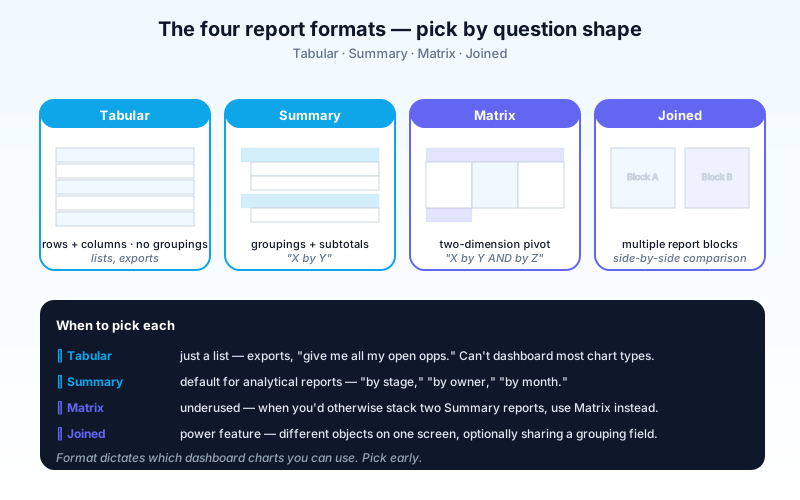
Tabular
Rows and columns. No groupings. Like an Excel sheet.
- Best for: lists, exports.
- Worst for: dashboards (Tabular reports can't be most dashboard chart types).
Summary
One or more grouping rows. Subtotals per group.
- Best for: "X by Y" - opportunities by stage, cases by owner, leads by source.
- The default for most analytical reports.
Matrix
Two grouping dimensions - one as rows, one as columns. Like a pivot table.
- Best for: cross-tabulations - opportunities by stage AND by quarter; cases by priority AND by status.
- Underused. When you reach for two stacked Summary reports, consider a Matrix.
Joined
Multiple report blocks side by side, optionally sharing a grouping field.
- Best for: comparing different objects on one screen - opportunity pipeline next to closed cases for the same account.
- Most complex format. Power users live here.
Filters
The report builder ships rich filter capabilities.
- Field filters - direct conditions (
Stage = "Closed Won",Amount > 50000). - Date filters - relative (
THIS_MONTH,LAST_QUARTER) or absolute. - Filter logic - combine filters with
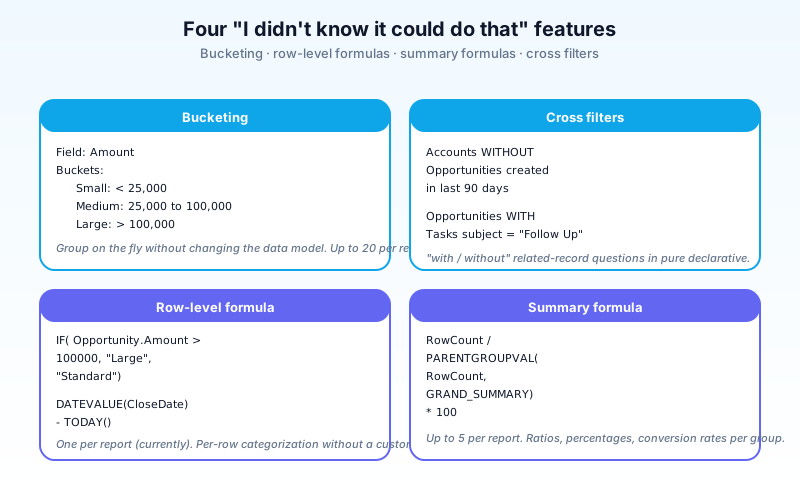
(1 AND 2) OR (3 AND 4)-style. - Cross filters - "Accounts WITH Opportunities created in the last 30 days." A join + count condition in one filter.
- Locked filters - admin-set filters that report viewers can't change.
- Standard filters - built-in toggles per report type (e.g., "View" picker for Opportunities).
Cross filters - underused
Cross filters answer "give me X with related Y" or "give me X without related Y." The classic example:
- "Accounts without Opportunities in the last 90 days" - find dormant accounts.
- "Opportunities WITH Tasks of subject 'Follow Up'" - qualify by activity.
You can't combine cross filters arbitrarily - they're added per relationship. But for "with / without" questions they're cleaner than building everything in Apex or exporting to Excel.
Groupings
Group rows by a field; subtotals show per group. Up to 3 row groupings for Summary, 2 row + 2 column for Matrix.
Common groupings:
- By Owner - pipeline by rep.
- By Date (month / quarter) - trend over time.
- By Picklist - status counts.
- By Account or Contact - top customers.
Custom date granularity:
- Day, Week, Month, Quarter, Year, Calendar Month, Fiscal Month.
- Use Fiscal vs Calendar deliberately.
Summaries
Numeric column aggregates. Sum, Average, Max, Min, Count.
- Multiple summaries per column allowed.
- Subtotals per grouping; grand total at the bottom.
- Numeric formula fields can also be summarized.
Bucketing
Create groupings on the fly without changing the data.
Field: Amount
Buckets:
  Small: < 25000
  Medium: 25000 to 100000
  Large: > 100000
- Replaces "build a custom field for this categorization" for one-off analysis.
- Doesn't persist on the record - only in the report.
- Up to 20 bucketed fields per report.
When to bucket vs build a field:
- Bucket for ad-hoc analysis or segmentation only used in one or two reports.
- Field for categorizations that need to drive workflow, validation, or other reports.
Row-level formulas
A formula evaluated per row. Limited (one per report; ~3,900 character limit) but useful.
IF( Opportunity.Amount > 100000, "Large", "Standard")
Or:
DATEVALUE( Opportunity.CloseDate ) - TODAY()
Use for: per-row categorization that doesn't need to live on the record.
Summary formulas
Calculations on summarized values, evaluated per group or per total.
RowCount / PARENTGROUPVAL(RowCount, GRAND_SUMMARY) * 100
- "what % of total does this group represent?"
Use for: ratios, percentages, conversion rates, deltas across groupings.
Dashboards
Visual, multi-component summaries built from reports.
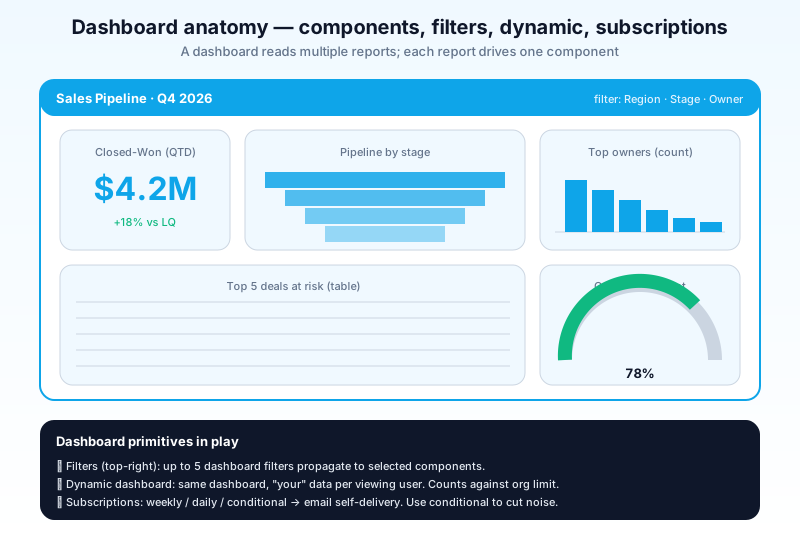
Components
Each dashboard component visualizes one report (with a configurable chart type). Available types:
- Bar / Column - categorical comparison.
- Line - trend over time.
- Donut / Pie - share-of-whole (use sparingly).
- Funnel - sequence stages (pipeline, signup flow).
- Gauge - progress against a target.
- Metric - single big number.
- Table - top-N tabular view.
- Scatter - correlation between two metrics.
- Heatmap - Matrix-style intensity.
- Lightning Tables - embedded report-table component.
Dashboard filters
Apply filters at the dashboard level that propagate to all (or selected) components.
- Up to 5 dashboard filters per dashboard.
- Each can have multiple values; users pick from a dropdown.
- Most-used pattern: filter by Owner, Region, or Date.
Dynamic dashboards
A dashboard that changes its data based on the viewing user - "your" pipeline rather than a fixed user's. Required when one dashboard serves many users.
- Each dynamic dashboard counts against an org-level limit (5–10 typically).
- Trades off with personalized rendering (free) - every user sees the same data filtered to their context.
Subscriptions
Schedule a report or dashboard to email itself to recipients.
- Up to 5 reports + 5 dashboards subscribed per user.
- Triggers: weekly, daily, monthly, conditional ("when value crosses threshold").
- The "Conditional" subscription is underused - it makes dashboards pull-not-push and only emails when something noteworthy happens.
Snapshots and historical trending
Reports show current state. To trend over time, use:
Reporting Snapshots
A scheduled job that runs a Tabular source report, copies the rows into a custom object, and timestamps them.
- Build trend charts off the snapshot custom object.
- Common pattern: nightly snapshot of pipeline; chart shows pipeline-over-time.
Historical Trending
Built-in trending for specific objects (Opportunity, Forecasting Item, Case). No custom object needed.
- Limited to a fixed list of objects.
- Up to 5 fields trended per object.
- Snapshot retention is configurable; commonly 3 months.
For arbitrary trending: Reporting Snapshots. For Opportunity / Forecast trending: built-in.
Permissions and access
Who sees what.
- Folder access - reports and dashboards live in folders. Folder permissions (View / Edit / Manage) gate access.
- Object & field permissions - apply normally; users only see fields they can read.
- Sharing rules - apply normally; users only see records they have access to.
- Manage Reports / Manage Public Reports - system permissions for power users.
- Modify All Data - bypasses sharing for the report builder. Be careful who has this.
The default sharing of a report is determined by the folder. Admin orgs typically use:
- "Public Reports" folder - everyone sees.
- "Sales Reports" folder - Sales role has access.
- Per-user "My Personal Reports" - private workspace.
Limits that matter
| Limit | Default |
|---|---|
| Rows in a report (UI render) | 2,000 |
| Rows in a report (export) | Up to 50,000 (CSV/Excel) |
| Rows for joined reports | 2,000 per block |
| Bucketed fields per report | 20 |
| Row-level formulas per report | 1 |
| Summary formulas per report | 5 |
| Filters per report | 20 (incl. cross filters) |
| Dashboard components per dashboard | 25 |
| Dashboard filter values shown | 50 |
| Dynamic dashboards per org | 5 (Enterprise), 10 (Unlimited) |
| Concurrent report runs per user | 2 (UI), 1 (scheduled) |
When you hit these:
- Row caps - narrow the filter or the date range; or move to a Tableau / CRM Analytics dashboard.
- Component caps per dashboard - split into multiple themed dashboards.
- Dynamic dashboard cap - request more from Salesforce (sometimes available).
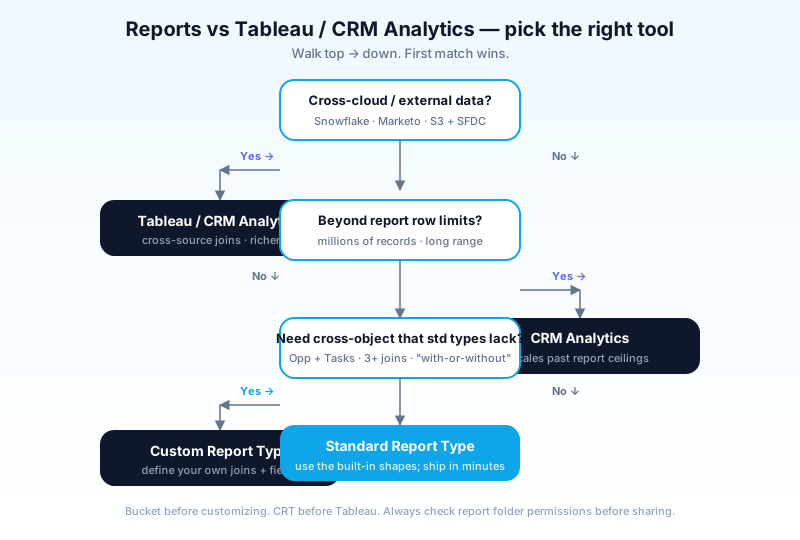
When to escape to Tableau or CRM Analytics
Reports cover most needs. Reach for analytics tools when:
- Cross-cloud data - joining Salesforce + Snowflake + Marketo for one analysis.
- Beyond row limits - millions of records, beyond report scale.
- Advanced visualizations - Sankey diagrams, geospatial heatmaps, multivariate.
- Predictive analytics - Einstein Discovery, predictive models, scoring.
- Self-service exploration - analysts building their own analyses.
The trap: bringing in Tableau/CRM Analytics for everything. Reports are still better for "the rep needs their pipeline list." Pick the right tool per question.
How Agentforce interacts with reports (2026)
Several patterns:
- Agent reads reports. A user asks "what's my closed-won this month?" - agent runs the user's report, returns the answer.
- Agent generates report definitions. "Build me a pipeline report by stage and owner for Q4" - agent creates the saved report.
- Agent summarizes dashboards. Reads the dashboard data, narrates the highlights ("conversions are up 18% but case backlog grew 30%").
- Agent triggers off conditional subscriptions. A subscription fires when a metric crosses a threshold; agent contextualizes and routes.
Critical: agent-generated reports respect all sharing and field-level security. Agents can't expose data the requesting user can't see. Audit logs capture every agent-driven report run.
Common pitfalls
- Pattern 1: Tabular as default. Tabular looks easy but locks you out of dashboards. Default to Summary or Matrix unless you specifically need a list.
- Pattern 2: Custom field for every "I want to slice by X." Bucket first; field only if needed elsewhere.
- Pattern 3: Standard Report Types when a Custom Report Type would be better. Standard types are limiting. CRTs are the lever.
- Pattern 4: 800 reports nobody owns. Run a quarterly report-cleanup. Archive or delete unused reports. Folder hygiene matters.
- Pattern 5: Dashboards with 25 components. Cognitive overload. 6–10 components per dashboard is the sweet spot.
- Pattern 6: One dashboard for every persona. Multiple personas can share a dashboard via dashboard filters. Consolidate.
- Pattern 7: Subscriptions to large groups. Sending a 50-row dashboard email to 200 people every week generates noise. Prefer conditional subscriptions; reach the inbox only when it matters.
- Pattern 8: No report retention policy. Old report-snapshot custom objects grow forever. Plan TTL.
- Pattern 9: Trusting "Modify All Data" reports. Power users with MAD see everything; their reports may show data others can't. Test reports as a regular user.
- Pattern 10: Charts that lie. A column chart with a non-zero baseline exaggerates differences. Pick honest defaults.
- Pattern 11: No dashboard for the executives. They'll ask for one eventually. Build it intentionally; refresh it monthly.
Frequently asked questions
How do I export a report to CSV? Run the report → Export → choose CSV or formatted XLS. CSV exports up to 50,000 rows.
Can I share a report URL with a non-Salesforce user? No. Recipients need a Salesforce login. For external sharing, export to PDF or use Tableau.
Why does my filter show no rows when I know there's data? Common: locked filter, sharing constraints, missing field-level access, or a "with" join that excluded what you expected.
Can I run a report against archived data? Standard reports run against active records. For archived (Big Object) data, you need different tooling.
How fast are reports? For most: sub-second to a few seconds. Slow reports usually mean too-broad filter, too-many groupings, or a bad join. Profile and tighten.
Can I version a report? Reports themselves don't version. Best practice: save copies before major edits; use folder organization for "in-progress" vs "live" reports.
How do I handle reports across record types? Filter by RecordType.Name. Or use record-type-specific report types if you maintain different schemas.
What's the cost of Tableau or CRM Analytics? Per-user, with significant differences between the products. Salesforce's CRM Analytics is the spiritual successor to Wave; Tableau is a separate product with broader BI capability.
Can Agentforce trigger a report? Yes - via configured agent actions that wrap report runs.
How do I migrate reports between sandboxes? Use a metadata tool (DevOps Center, Gearset, Copado). Reports and dashboards are deployable metadata.
What to read next
- Report, Dashboard, Tableau, Einstein Analytics - the dictionary entries.
- Salesforce Data Model Explained - the records that reports query.
- 25 Salesforce Formula Functions - the building blocks for row-level and summary formulas.
Reports and dashboards quietly do most of the analytical work in any Salesforce org. Build them deliberately. Use Custom Report Types. Bucket before customizing fields. Curate your folders. The org that does this well saves analysts 10 hours a week.
About the Author
Dipojjal Chakrabarti is a B2C Solution Architect with 29 Salesforce certifications and over 13 years in the Salesforce ecosystem. He writes and edits salesforcedictionary.com, published by KineticBit Inc., to help admins, developers, architects, and cert/interview candidates sharpen their fundamentals. More about Dipojjal.
Share this article
Sources
Related dictionary terms
 Our appAdWake up sharp. Not just awake.The alarm that rings through Silent and DND — free on iOS & Android.Get WakeSharp →
Keep reading

25 Salesforce Formula Functions Every Admin Should Master (2026)
The 25 Salesforce formula functions that solve 90 percent of real admin problems, with working examples for validation rules, formula fields, defaults, and Flow.

Salesforce Data Model Explained: Objects, Records, Fields & Relationships (Beginner's Guide)
The complete beginner's guide to the Salesforce data model - objects, fields, all six relationship types, junction objects, record types, and Schema Builder. Worked examples included.


Comments
No comments yet. Start the conversation.
Sign in to join the discussion. Your account works across every page.